
Browser Permissions & Privacy Controls in Social Browser
Control website permissions at the Browser, Profile, Screen and Domain level without duplicating rules everywhere.
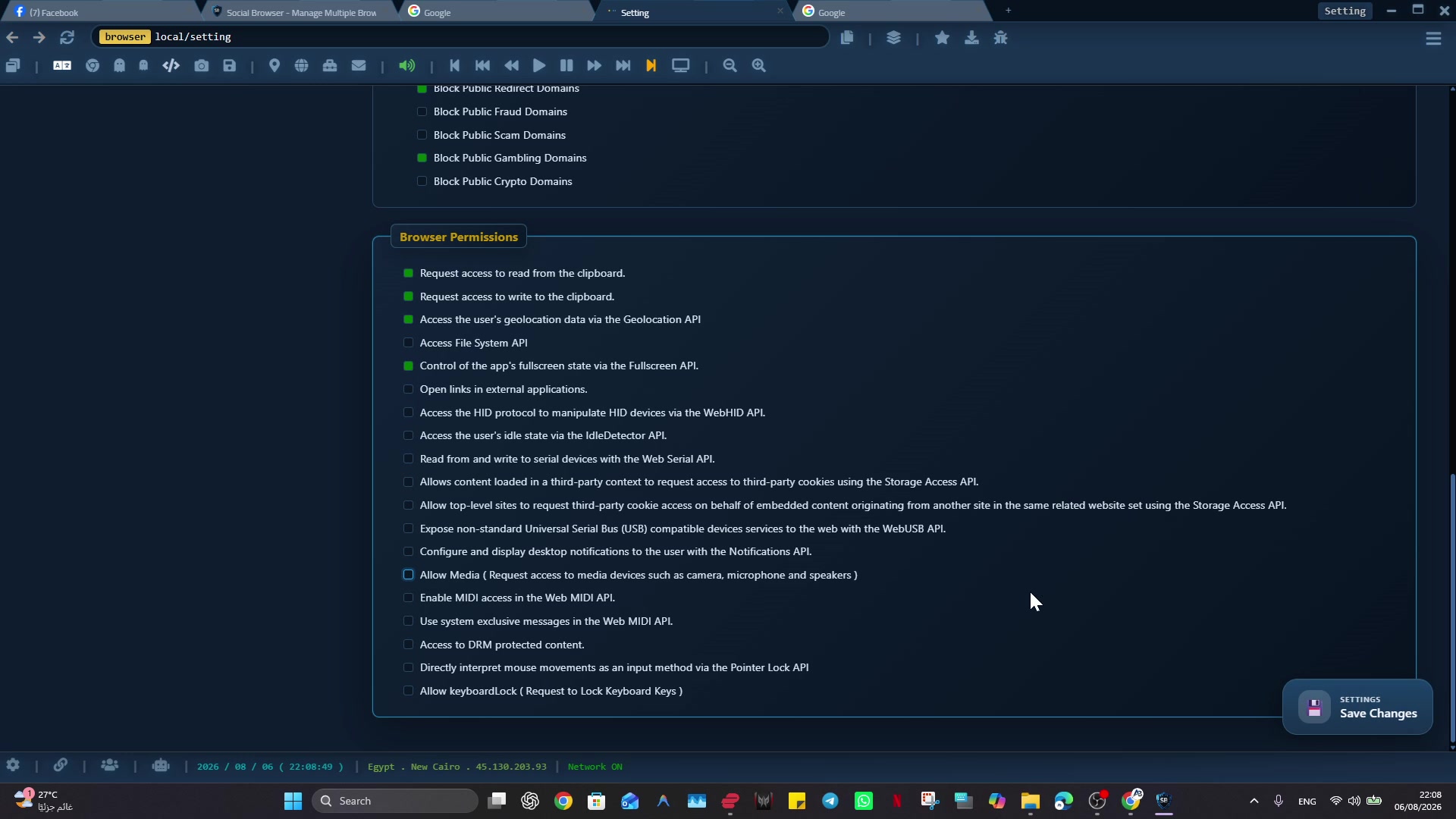
Why Social Browser uses a permission hierarchy
Website permissions become difficult to manage when you work with many Profiles, windows and domains. A global rule may be too broad, while configuring every website individually creates duplicated settings that are difficult to audit. Social Browser solves this with a four-level hierarchy: Browser → Profile → Screen → Domain.
The Browser level provides the default policy. Lower levels normally inherit that policy until you create an explicit override. This keeps the common case simple while still allowing precise exceptions for a specific work Profile, one Screen, or one Domain.
The four permission levels
| Level | Purpose | Typical use |
|---|---|---|
| Browser | Default policy for the whole browser | Set camera, microphone, location and notifications to the default behavior you want everywhere. |
| Profile | Overrides for one isolated Profile | Give a dedicated meeting Profile a different microphone policy without changing other Profiles. |
| Screen | Overrides for one browser Screen/window context | Temporarily change a permission for the current work context while leaving the Profile default unchanged. |
| Domain | Most specific website rule | Allow a trusted meeting domain while other sites continue to inherit the Screen or Profile policy. |
How inheritance is resolved
Social Browser resolves the effective permission from the most specific level to the broadest one:
- If the current Domain has an explicit rule, use it.
- Otherwise inherit the rule from the current Screen.
- If the Screen has no override, inherit from the Profile.
- If the Profile has no override, use the Browser default.
This means lower levels do not need their own settings by default. You only create an override where the behavior should actually differ. The result is one predictable decision path instead of several independent permission systems competing with each other.
Allow, Block and Ask
Each supported permission can use one of three explicit states:
- Allow: permit the requested capability when the effective rule allows it.
- Block: deny the capability and keep the decision visible to the user.
- Ask: request a decision at runtime so the user can allow or block the request.
Ask is especially useful for sensitive capabilities that should not be permanently open across every site. A practical baseline is to use Ask for permissions such as camera, microphone or geolocation, then create persistent exceptions only for domains you trust and use repeatedly.
Permissions you may control
The permission system is designed for browser capabilities that websites commonly request, including:
- Camera
- Microphone
- Combined media access such as camera + microphone
- Geolocation
- Notifications
- Additional browser permissions exposed by supported Social Browser controls
The exact list can grow as the browser adds more permission-aware features, while the inheritance model stays the same.
Fast View for the current Screen and Domain
Opening a full settings page every time a site asks for access would slow down daily work. Social Browser therefore provides permission controls close to the current context through Fast View. The goal is to let you inspect or change the permission policy for the current Screen or Domain without losing the page you are working on.
This is useful when testing a website, joining a call, reviewing a notification issue, or diagnosing why a device request was denied. Because Fast View is scoped to the current context, changes are easier to understand than a generic global toggle.
Practical example: meeting website inside one Profile
Suppose the Browser defaults camera and microphone to Ask. A work Profile inherits those defaults. You regularly use one trusted meeting domain and want it to open faster.
- Keep the Browser default on Ask.
- Leave the Profile and Screen on inheritance.
- Create a Domain rule for the trusted meeting site.
- Allow camera and microphone only for that Domain.
Other websites in the same Profile still inherit Ask. You gain convenience for the trusted service without granting permanent device access to every site.
Practical example: block location for one work Profile
A Profile used for a specific operational workflow may never need location access. Instead of changing the Browser default for all users, set geolocation to Block at that Profile level. Its Screens and Domains inherit the block unless you intentionally add a more specific override.
One source of truth matters
Permission bugs often appear when different parts of a browser maintain separate rules for the same capability. A site may look allowed in one UI while another component still blocks it. The Social Browser permission model is designed around a single resolution path so the effective decision can be traced through Domain, Screen, Profile and Browser.
For troubleshooting, always check the effective rule before changing unrelated settings. A Domain override can explain why one site behaves differently from another even inside the same Profile.
Troubleshooting camera and microphone access
A browser permission is only one layer of device access. If a website still cannot use a camera or microphone after the effective Social Browser rule allows it, check the remaining layers in order:
- Confirm the correct Domain and Profile are active.
- Check whether a more specific Domain or Screen rule overrides the Browser default.
- Verify the selected camera or microphone inside the website.
- Check operating-system privacy permissions.
- Close other applications that may exclusively hold the device.
- Reload the page after changing a permission when the website requires it.
For microphone problems, also check the physical mute switch and the input meter in the web application. An allowed permission does not guarantee that the correct input device is selected.
Troubleshooting notifications
If notifications do not appear, first confirm the Domain's effective notification rule. Then check operating-system notifications, Focus or Do Not Disturb modes, and the website application's own notification preferences. A browser can allow notifications while the operating system still suppresses them.
Recommended permission policy
| Scenario | Suggested starting point |
|---|---|
| Unknown or rarely used websites | Ask for sensitive permissions. |
| Trusted meeting service | Domain-specific Allow for the permissions actually required. |
| Profile that never needs location | Profile-level Block for geolocation. |
| Work notifications | Allow only for domains that provide useful operational alerts. |
| Temporary testing | Use Screen or Domain overrides, then remove them after the test. |
Frequently asked questions
What happens if a Domain has no permission setting?
It inherits the Screen setting. If the Screen has no override, the decision continues upward to the Profile and then the Browser default.
Should I configure every Domain manually?
No. The system is intentionally inheritance-first. Configure the Browser default, then add only the exceptions you need.
What is the difference between Ask and Block?
Block denies the request according to policy. Ask lets the site request access and gives the user a runtime decision.
Can an operating-system setting still stop the camera or microphone?
Yes. Browser permission and operating-system device privacy are separate layers, and both must permit the device.
Why use a Domain rule instead of changing the whole Profile?
A Domain override limits the exception to one website, preserving the inherited policy for every other site in that Profile.
Build a policy once, then manage exceptions
The core idea is simple: define a sensible Browser policy, let Profiles and Screens inherit it, and use Domain overrides only where a specific website genuinely needs different access. That makes permissions easier to understand, audit and troubleshoot as the number of Profiles grows.
Explore Privacy Controls · More Social Browser guides · Support Center