
Practical Guide · WordPress
Managing Multiple WordPress Client Websites Without Login Confusion
Safely operate several WordPress admin dashboards: separate browser profiles, staging workflows, roles, updates and change logs.
Published October 11, 2026 · Social Browser Editorial Team
Why this matters
WordPress agencies face a deceptively repetitive job: dozens of login screens, plugin alerts, content drafts and theme controls that look nearly identical. When a browser remembers credentials across sites, a fast operator can edit the wrong dashboard before noticing. The safer approach combines WordPress-native roles with browser environments organized by customer and by deployment stage.
Give production and staging different homes
Treat the production dashboard as a separate responsibility from staging or local development. Use a distinct browser profile for the customer's production access when risk warrants it; testing Profiles can include the developer tools and extensions needed for debugging. Name the website and environment in the Profile. A staging copy is not always anonymized, so apply the same privacy rules to cloned customer records. Never assume that URL similarity identifies the environment correctly.
Make updates a change-management workflow
Before updating themes or plugins, confirm backups, compatibility notes and the correct site. Record the intended change, current versions, maintenance window and rollback method. Update the staging site first where available. After the change, verify public pages, forms, checkout integrations and authentication flows. Browser automation can collect visible preflight information, but it cannot substitute for a functioning backup and recovery plan.
Prevent editorial mistakes
Authors and editors should use the smallest WordPress capabilities necessary. A client copywriter probably does not need to install plugins or manage users. Before publishing a post, verify the site's name, category, language and scheduled or immediate publication state. Use draft previews and revision history to make the decision visible. Avoid storing unpublished client copy in a Profile that another customer or contractor can access.
Use Social Browser as a workspace boundary
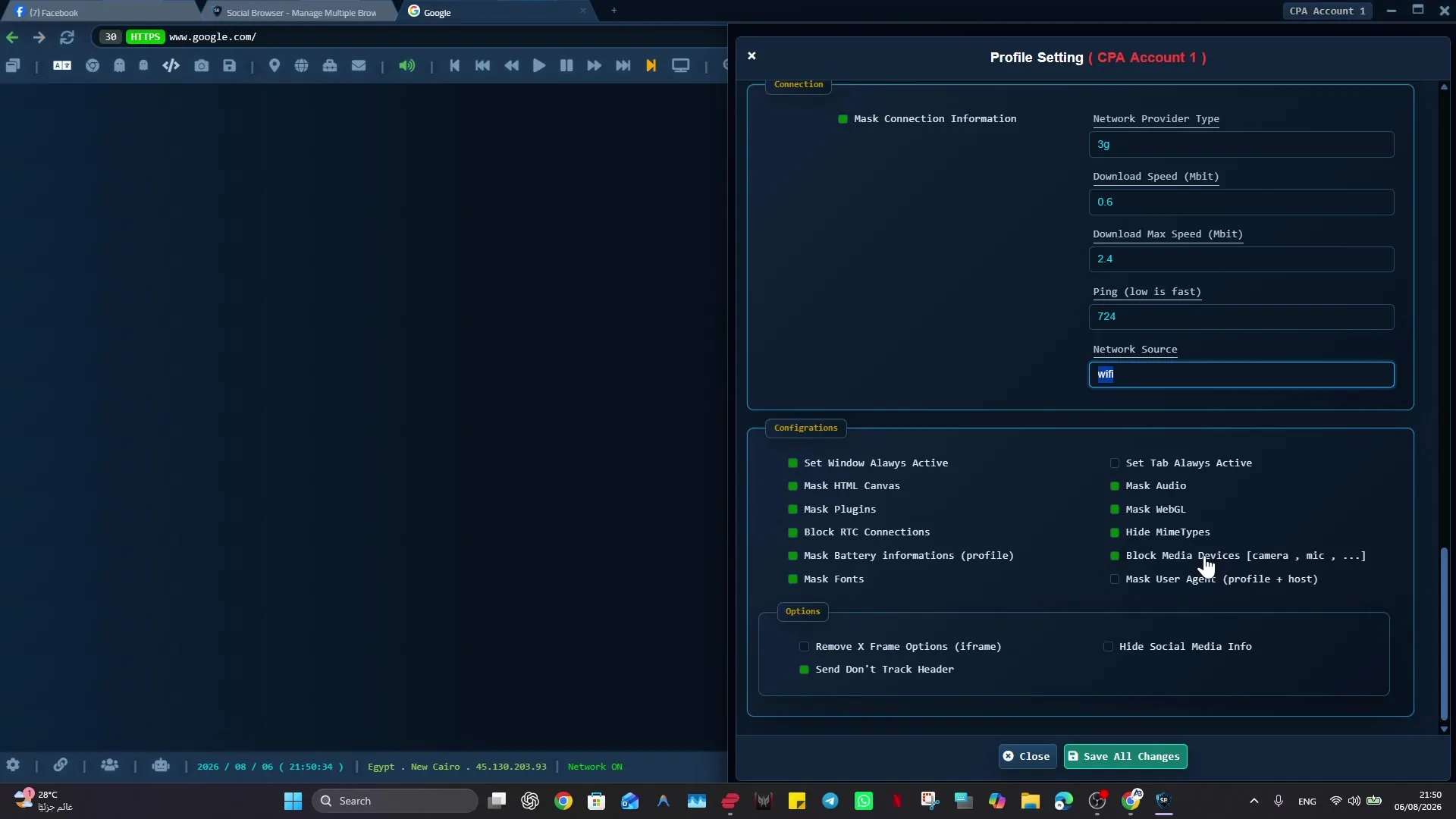
A Social Browser Profile can retain a site's login context and bookmarked administrative routes separately from other clients. This reduces time spent finding the correct dashboard without promising additional WordPress security on its own. Combine it with WordPress roles, update policies, two-factor authentication and periodic access cleanup. Put specialized testing User Scripts only in the environments where they belong.
Implementation checklist
- Record the canonical admin and staging URL for each client.
- Create separate Profiles for sensitive production and staging duties.
- Verify backup ownership and rollback steps before updates.
- Review editor roles and publishing rights.
- Check the live site after every significant change.
Example: putting the guidance into practice
A maintenance agency supports twelve WordPress installations. Each client's production Profile has a clearly named owner, while developers open a separate staging Profile when testing plugins. A release checklist prevents a test-only extension from being used against the customer's live website.
Frequently asked questions
Do WordPress sites share cookies with each other?
Cookie scope depends on host and configuration; assume that confusing browser state and stored credentials is possible until environments have been tested.
Can profile isolation replace WordPress backups?
No. Backups, access management and tested rollback procedures protect against different classes of failure.
Important boundaries
The guidance above assumes authorized accounts and compliance with each service’s terms. Separate Profiles and automation can improve organization; they do not grant access rights, remove authentication requirements, guarantee anonymity, or eliminate security risk. Validate the workflow with a real reviewer before using it on sensitive production data.
Next step with Social Browser
Choose one small, permitted workflow, verify its starting account and define evidence of success before scaling. Social Browser can keep the relevant browser context organized while your team controls permissions, review and final decisions.
Explore the relevant Social Browser capability · Download for Windows · Download for Linux
Official documentation and further reading
Use these primary references to verify the relevant platform capabilities and permissions. Vendor documentation can change; confirm the current terms and product version before acting.