
Login flow changed the target?
OAuth and SSO can replace the original tab or open a login window. Social Browser follows one unambiguous replacement inside the same Profile automatically and refuses to guess when several targets are possible.
Automation Studio · Learn by doing
Start with one simple Workflow. When that works, add Profiles, logic, verification, scheduling and recovery. You can learn the basics without writing code.
Prefer AI-driven automation? MCP AI-compatible clients can discover tools, create and validate workflows, run browser tasks, and verify results while using persistent Profiles. Explore MCP AI →
Advanced · Build with AI
Use OpenAI, Anthropic, Gemini or Ollama through the MCP-first Architecture. Provider secrets stay in encrypted Automation secrets and are never returned by the provider configuration API. AI drafts are reviewed before save or run.
Simple reliability
You do not need to manage selector strategies or diagnostic systems. Pick a target once, run the Workflow, and Social Browser handles the common failure cases for you.
OAuth and SSO can replace the original tab or open a login window. Social Browser follows one unambiguous replacement inside the same Profile automatically and refuses to guess when several targets are possible.
Use Smart wait instead of choosing DOM ready, network idle or a fixed delay. Social Browser waits for a usable, stable page and can also wait for the next target. When a click starts navigation, redirect chains settle before the next Workflow step begins.
Use Wait for download when a click produces a file. The Workflow continues when the file is actually complete and reports a real download failure clearly.
Choose the file input or the visible upload area. Social Browser finds the connected file input, works inside the selected frame, and verifies the files were actually assigned before continuing.
Long-running steps are surfaced as Automation appears stuck so you can inspect or cancel the Task instead of waiting blindly.
Social Browser does not blindly jump to every popup. If one clear new target is the result of the action—or the next step only works there—it can continue on that target automatically.
Modern React and Vue pages can replace an input after every keystroke. Social Browser re-attaches to the replacement field and preserves the intended text automatically.
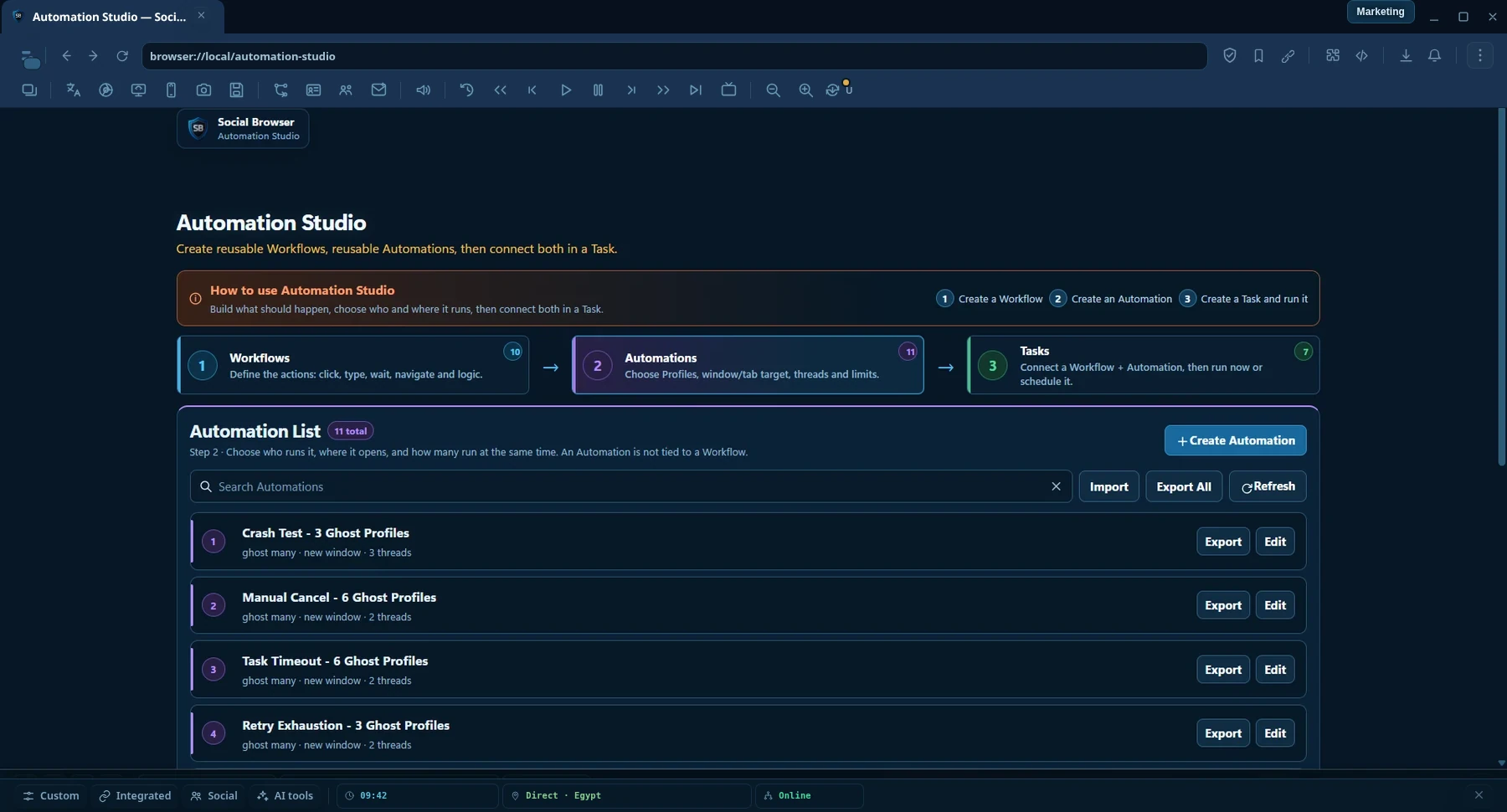
See the product
Create reusable workflows and choose where, how, and on which Profiles they run.
A simpler way to learn
You can stop after any stage and still have something practical. Advanced features stay out of the way until you are ready for them.
Learn what automation is, understand Workflow / Automation / Task, then build your first Workflow.
Stage 2 · BuilderMake it usefulLessons 4–8 · about 35 minActions, Recorder, locators, Profiles and variables.
Stage 3 · LogicMake it reliableLessons 9–11 · about 25 minConditions, verification and interaction choices.
Stage 4 · OperatorRun it safelyLessons 12–18 · learn as neededExecution policy, Ghost Profiles, errors, checkpoints, review and scheduling.
Stage 5 · AdvancedUnderstand & improveLessons 19–20 + referenceDebugging, evidence, recipes and the complete reference.
Examples library
These are small, realistic examples. Start with one that looks familiar, then open the matching lesson and build it step by step.
Learn the basic pattern behind many browser tasks.
A simple example for typing, waiting and selecting the right element.
Build the steps once, then choose which Profiles should execute them.
Continue normally whether a popup appears or not.
Combine navigation, verification and scheduling.
Verify first, recover carefully, and ask for review when the result is uncertain.
Replace fixed values with variables so the same Workflow can handle different inputs.
Replace arbitrary delays with a condition that waits for the page to be ready.
Do not treat a delivered click as proof that the page accepted the change.
Avoid restarting completed work after a controlled restart or interruption.
Keep a person in control when the browser cannot prove whether a side effect succeeded.
Use an isolated temporary browser context when you do not need a persistent Profile session.
Browser automation means teaching the browser a repeatable set of steps so you do not have to perform every step by hand. A simple automation can open a page, click a button, type text, wait for a result and continue.
Manual work
Automated work
Many useful browser tasks happen in a browser environment that already has cookies, local storage, settings and approved login state. Social Browser lets a Workflow run in a selected Profile instead of rebuilding that environment for every run. This makes manual work and automated work part of the same browser context.
Automation Studio separates what to do, how and where to run it, and when to run it. Keeping these jobs separate makes the same Workflow reusable.
What should happen?
Contains the steps: open a URL, click, type, wait, check a condition and so on.
How and where should it run?
Selects Profiles or Ghost Profiles, window behavior, concurrency, timeouts, retries and execution policy.
Which Workflow + Automation should run, and when?
Binds one Workflow to one Automation and runs it manually or on a schedule.
Workflow: Open an internal dashboard → click “Reports” → choose today → export.
Automation: Run on Profiles tagged “Team A”, 3 Profiles at a time, visible windows.
Task: Run that Workflow with that Automation every weekday morning.
This separation means you can reuse the same Workflow later with a different Profile group or different execution settings without making a second copy of the Workflow.
This first exercise is intentionally simple. The goal is to learn the Studio flow, not to build a complex project.
Open Social Browser and go to Automation Studio. Start in the Workflow List.
Choose New Workflow. Give it a clear name such as My First Search. Names should describe the result, not the implementation.
Add the action that opens your target website. Use a normal HTTPS URL that you are allowed to access.
Choose a button or field on the page. Use the Recorder or element locator tools to identify it. Test the step before moving on.
Type a small test value into a field. Type behaves like typing; Fill replaces the field value directly.
Use Test or Run to execute the steps in a Profile. Watch the browser window and confirm the result.
Select the Profile that should run the Workflow. For your first test, keep the window visible and use Auto for the interaction driver and style.
Select your Workflow and Automation. Run it manually first. Scheduling comes later in this guide.
An Action is one thing the browser should do. Most Workflows are simply a sequence of Actions plus conditions and error handling.
| Action | Use it when you want to… | Simple example |
|---|---|---|
| Open URL | Navigate to a known web address. | Open a dashboard page. |
| Click | Activate a button, link or clickable control. | Click “Continue”. |
| Double Click | Trigger an interface that expects two clicks. | Open an item in a desktop-style web app. |
| Right Click | Open a context menu. | Show row actions. |
| Hover | Reveal content that appears when the pointer moves over an element. | Open a hover menu. |
| Type | Enter text using keyboard-like input. | Type a search phrase. |
| Fill | Replace a field value directly. | Set a known form value. |
| Clear | Empty an input field. | Remove an old search query. |
| Select | Choose an option in a select control. | Select “Monthly”. |
| Checkbox / Radio | Set a checked state. | Enable an option or choose one radio item. |
| Submit | Submit a form. | Send a search or internal form. |
| Scroll | Move through a long page or bring content into view. | Scroll to the results section. |
| Wait | Pause until time or a page condition is ready. | Wait for a result panel. |
| Evaluate | Run JavaScript for advanced page logic. | Read a custom value from the page. |
Use Type when the website cares about keyboard events or when you want behavior closer to a person typing. Use Fill when you want to replace the current field value directly and the website accepts normal input/change events.
When possible, test a new Action immediately. If Step 4 does not work, fix Step 4 before adding Step 5. This keeps the source of a problem obvious.
The Recorder is the fastest way to start when you already know how to perform a task manually. Start recording, perform the task, then clean up the recorded steps.
A locator tells the browser which element you mean. The best locator describes the element clearly enough that the browser can find it again even when the page changes slightly.
Useful when the page has stable IDs, classes or attributes.
#save-buttonUseful when visible wording is stable and unique.
Save changesUseful for accessible controls such as buttons and links.
button · Save changesOften one of the most reliable choices on applications that provide it.
data-testid="save-profile"Automation Studio can keep more than one clue for an element: the primary locator, alternatives and a semantic fingerprint such as tag, role, label, text and stable attributes. If the original locator no longer matches, the Locator Engine can inspect safe alternatives and relocate the element when confidence is high enough.
A Social Browser Profile keeps its own browser state. Automation lets you reuse the same Workflow without copying the Workflow for every Profile.
Depending on the Automation settings, you can target a single Profile, multiple Profiles, all matching Profiles, or groups/tags. The Task Engine creates concrete SubTasks for the actual Profile runs and aggregates their progress into the parent Task.
If the work is identical but the browser session is different, keep one Workflow and change the target selection in the Automation. This reduces duplicate setup and makes maintenance easier.
A variable is a value that can change without changing the Workflow steps. Use variables for URLs, names, search terms, dates, messages and other input that should be supplied at run time.
productUrl = "https://example.com/item/123" customerName = "Alex" message = "Your report is ready"
Open {{productUrl}} Type "Hello {{customerName}}" Type "{{message}}"A fixed sequence works only when every page behaves the same way. Conditions let the Workflow ask a question before deciding what to do.
IF optional popup exists Click "Close" ELSE Continue
The Unified Condition Engine can support patterns such as element exists, visible state, text match, URL state, attribute values, wait-until checks and assertions. Conditions can be combined with AND/OR logic when several facts must be checked together.
Give the page time to reach a condition.
Require a condition to be true before continuing.
Choose a branch based on page state.
Combine several checks into one decision.
This is one of the most important ideas in reliable automation. A click can be delivered successfully while the website rejects the result, delays it, changes a different element or never finishes the requested operation.
| Check | Example |
|---|---|
| Text contains | Result area contains “Saved”. |
| Attribute equals | aria-pressed="true" after a toggle. |
| Element disappears | Loading overlay is gone. |
| Count changes | A new row appears in a list. |
| URL changes | Navigation reaches the expected page. |
| Checked state | A checkbox becomes checked. |
| Selected values | A select control contains the chosen value. |
Automation Studio separates how the input is delivered from how natural or direct the interaction should feel.
Let the system choose a suitable style for the action and window state.
Prefer efficient, direct delivery when natural pointer or typing movement is unnecessary.
Use progressive pointer movement, variable typing cadence and progressive scrolling where supported.
Works through page DOM behavior where appropriate.
Uses Chrome DevTools Protocol input paths for browser-level interaction.
Uses the browser’s native interaction path when suitable and available.
Recommended for most users: start with Auto. Explicit drivers are useful when testing, debugging or when you know a site behaves better with a particular input path.
The Automation entity is where you define execution policy. The exact options can vary by action and runtime, but the important ideas are consistent.
| Setting | What it controls | Starter advice |
|---|---|---|
| Target Profiles | Which browser Profiles receive SubTasks. | Start with one test Profile. |
| Target surface | New/current tab or window behavior. | Use a visible new surface while learning. |
| Visible / Hidden | Whether the execution window is shown. | Validate visible first. |
| Concurrency | How many Profile runs may execute at once. | Increase gradually after reliability is proven. |
| Timeouts | How long a run or step may wait. | Use realistic limits for the site. |
| Retries | What can be retried and under which policy. | Do not retry side-effect actions blindly. |
Select your 50 target Profiles and set concurrency to 5. The Task Engine can create the Profile SubTasks and dispatch them in controlled groups rather than opening everything at once.
Persistent Profile
Use when browser state should remain available between sessions: cookies, local storage, settings and other Profile data.
Ghost Profile
Use for temporary isolated execution where you do not need a long-lived Profile after the task.
Ghost Profiles created for a Task can share the same Ghost runtime process while keeping separate isolated partitions/sessions. Process sharing improves efficiency without turning those sessions into one shared browser identity.
Reliable automation is not only the happy path. A Workflow should also define what to do when an error, timeout or uncertain result occurs.
Main steps ↓ onErrorSteps onTimeoutSteps onInconclusiveSteps ↓ finallySteps
Try to submit the form If error → capture diagnostics If timeout → record timeout reason If inconclusive → send to review Finally → perform safe cleanup
Use finally for cleanup that should happen whether the main path succeeds or fails, such as closing a temporary tab or writing a final log entry.
Long-running automation should not always restart from Step 1 after an application restart or interruption. Checkpoints record safe progress so a Workflow can resume from a known point.
Checkpoint data should match the Workflow definition it belongs to. If the Workflow changes, the system can use a Workflow hash/checkpoint contract to avoid resuming into an incompatible sequence.
Some situations should not be decided automatically. If the browser delivered an action but cannot prove the final result, or if a target is ambiguous, a Review Item can pause the decision and let a person choose what happens next.
Use when you can see that the intended effect happened.
Continue without repeating the uncertain action.
Stop the relevant work when continuing is unsafe.
Use only when repeating is appropriate. Potential duplicate side effects require explicit acknowledgement.
| Feature | Purpose |
|---|---|
| Resilient Locator Bundle | Keep multiple safe clues for the intended element. |
| Locator Healing | Relocate a changed element when confidence is high. |
| Target Guard | Fail closed when a candidate is ambiguous or not confident enough. |
| Verification Recovery | Re-check an expected effect without replaying the side effect. |
| Idempotency Ledger | Track operation/resource keys to reduce duplicate operations where supported. |
| Circuit Breaker | Pause a site/action path when recent failures indicate a broader problem. |
| Adapter Health | Track version and health information for first-party action adapters. |
If an operation has already been completed for the same resource, repeating it may be unnecessary or harmful. An idempotency key gives the runtime a way to recognize the logical operation, not just the individual click that caused it.
Once a Workflow works reliably and the Automation targets are correct, create a Task to control when the combination runs.
Example: Workflow “Export daily report” + Automation “Finance Profiles, 2 at a time” + Task “Weekdays at 09:00”.
Good debugging starts with evidence, not guessing. Automation Studio exposes structured information so you can identify whether the problem came from navigation, the locator, actionability, input delivery, verification, a frame, a timeout or the site itself.
Use these as patterns. Replace the sample website and data with systems you are authorized to automate.
Why: a fixed 5-second delay is often slower than needed on fast runs and too short on slow runs. A condition waits for the thing you actually need.
IF popup close button exists Click close ELSE Continue
Use a condition instead of failing because an optional dialog did not appear.
Browse by category or search by feature name.
| I need to… | Start with… |
|---|---|
| Repeat clicks and typing | Workflow Actions or Recorder |
| Reuse the same Workflow with different values | Variables |
| Handle an optional page state | Conditions |
| Prove an action really worked | Verification |
| Run the same Workflow in several browser sessions | Automation target Profiles |
| Run automatically later | Task scheduling |
| Recover from a long-run interruption | Checkpoints |
| Handle uncertain results safely | Review Center |
| Understand a failure | Execution Inspector, logs, evidence and Copy diagnostics |
| Handle a changed selector | Resilient locators + Locator Healing |
No. You can build normal browser workflows with Actions, Recorder, variables and conditions. JavaScript evaluation is an advanced option when you need custom page logic.
Usually no. Start with Auto. Choose an explicit driver when testing a compatibility issue or when you understand why a particular delivery path is needed.
The input may have been delivered but the expected page effect was not observed. Check the verification rule, page timing, target element and website response. Do not assume repeating the action is safe.
Yes. Keep the Workflow focused on the steps and use the Automation to select the Profiles and execution policy.
While learning, visible windows are easier to understand and debug. After a Workflow is proven, test hidden execution separately because websites and interaction paths can behave differently.
Copy the exact error, relevant Action result, logs, evidence/verification details and the scenario or Workflow step. Text is more useful than a screenshot when copyable diagnostics are available.
Ready to practice?
Start with a task you already perform manually. Keep it short, run it in one visible Profile, verify the result, then improve it one feature at a time.
Reference & examples
Use the action reference when you need exact workflow building blocks, or start from practical automation patterns.
Reference for navigation, input, waits, conditions, downloads, assertions, retries, schedules, and execution controls.
Open Action Reference →Reusable patterns for forms, multi-profile workflows, popups, downloads, checkpoints, and review flows.
Open Examples →