
Login flow changed the target?
OAuth and SSO can replace the original tab or open a login window. Social Browser follows one unambiguous replacement inside the same Profile automatically and refuses to guess when several targets are possible.
Automation Studio · Lernen durch Handeln
Beginnen Sie mit einem einfachen Workflow. Wenn das funktioniert, fügen Sie Profiles, Logik, Überprüfung, Planung und Wiederherstellung hinzu. Sie können die Grundlagen erlernen, ohne Code schreiben zu müssen.
Bevorzugst du KI-gesteuerte Automatisierung? MCP AI-kompatible KI kann Tools entdecken, Workflows erstellen und validieren, Browser-Tasks ausführen und Ergebnisse mit persistenten Profiles verifizieren. MCP für KI entdecken →
Advanced · Build with AI
Use OpenAI, Anthropic, Gemini or Ollama through the MCP-first Architecture. Provider secrets stay in encrypted Automation secrets and are never returned by the provider configuration API. AI drafts are reviewed before save or run.
Simple reliability
You do not need to manage selector strategies or diagnostic systems. Pick a target once, run the Workflow, and Social Browser handles the common failure cases for you.
OAuth and SSO can replace the original tab or open a login window. Social Browser follows one unambiguous replacement inside the same Profile automatically and refuses to guess when several targets are possible.
Use Smart wait instead of choosing DOM ready, network idle or a fixed delay. Social Browser waits for a usable, stable page and can also wait for the next target. When a click starts navigation, redirect chains settle before the next Workflow step begins.
Use Wait for download when a click produces a file. The Workflow continues when the file is actually complete and reports a real download failure clearly.
Choose the file input or the visible upload area. Social Browser finds the connected file input, works inside the selected frame, and verifies the files were actually assigned before continuing.
Long-running steps are surfaced as Automation appears stuck so you can inspect or cancel the Task instead of waiting blindly.
Social Browser does not blindly jump to every popup. If one clear new target is the result of the action—or the next step only works there—it can continue on that target automatically.
Modern React and Vue pages can replace an input after every keystroke. Social Browser re-attaches to the replacement field and preserves the intended text automatically.
Produkt ansehen
Erstelle wiederverwendbare Workflows und bestimme, wo, wie und in welchen Profilen sie laufen.
Eine einfachere Art zu lernen
Sie können nach jeder Etappe aufhören und haben trotzdem etwas Praktisches. Erweiterte Funktionen stehen Ihnen erst dann im Weg, wenn Sie dazu bereit sind.
Erfahren Sie, was Automatisierung ist, verstehen Sie Workflow / Automatisierung / Aufgabe und erstellen Sie dann Ihr erstes Workflow.
Stufe 2 · BaumeisterMachen Sie es nützlichLektionen 4–8 · ca. 35 MinAktionen, Recorder, Locators, Profiles und Variablen.
Stufe 3 · LogikMachen Sie es zuverlässigLektionen 9–11 · ca. 25 MinBedingungen, Überprüfung und Interaktionsmöglichkeiten.
Stufe 4 · BedienerFühren Sie es sicher ausLektionen 12–18 · Lernen Sie nach BedarfAusführungsrichtlinie, Ghost Profiles, Fehler, Prüfpunkte, Überprüfung und Planung.
Stufe 5 · FortgeschrittenVerstehen und verbessernLektionen 19–20 + ReferenzDebugging, Beweise, Rezepte und die vollständige Referenz.
Beispielbibliothek
Es handelt sich um kleine, realistische Beispiele. Beginnen Sie mit einer Lektion, die Ihnen bekannt vorkommt, öffnen Sie dann die passende Lektion und bauen Sie sie Schritt für Schritt auf.
Lernen Sie das Grundmuster vieler Browseraufgaben kennen.
Ein einfaches Beispiel für das Eingeben, Warten und Auswählen des richtigen Elements.
Erstellen Sie die Schritte einmal und wählen Sie dann aus, welcher Profiles sie ausführen soll.
Fahren Sie normal fort, unabhängig davon, ob ein Popup angezeigt wird oder nicht.
Kombinieren Sie Navigation, Überprüfung und Planung.
Überprüfen Sie zunächst, führen Sie eine sorgfältige Wiederherstellung durch und fordern Sie eine Überprüfung an, wenn das Ergebnis unsicher ist.
Ersetzen Sie feste Werte durch Variablen, damit dasselbe Workflow verschiedene Eingaben verarbeiten kann.
Ersetzen Sie willkürliche Verzögerungen durch eine Bedingung, die darauf wartet, dass die Seite bereit ist.
Betrachten Sie einen gelieferten Klick nicht als Beweis dafür, dass die Seite die Änderung akzeptiert hat.
Vermeiden Sie die Wiederaufnahme abgeschlossener Arbeiten nach einem kontrollierten Neustart oder einer Unterbrechung.
Behalten Sie die Kontrolle, wenn der Browser nicht nachweisen kann, ob ein Nebeneffekt erfolgreich war.
Verwenden Sie einen isolierten temporären Browserkontext, wenn Sie keine dauerhafte Profile-Sitzung benötigen.
Browser-Automatisierung bedeutet, dem Browser wiederholbare Schritte beizubringen, sodass Sie nicht jeden Schritt manuell ausführen müssen. Eine einfache Automatisierung kann eine Seite öffnen, auf eine Schaltfläche klicken, Text eingeben, auf ein Ergebnis warten und fortfahren.
Handarbeit
Automatisiertes Arbeiten
Viele nützliche Browseraufgaben werden in einer Browserumgebung ausgeführt, die bereits über Cookies, lokalen Speicher, Einstellungen und einen genehmigten Anmeldestatus verfügt. Mit Social Browser kann ein Workflow in einem ausgewählten Profile ausgeführt werden, anstatt diese Umgebung für jeden Lauf neu zu erstellen. Dadurch sind manuelle und automatisierte Arbeit Teil desselben Browserkontexts.
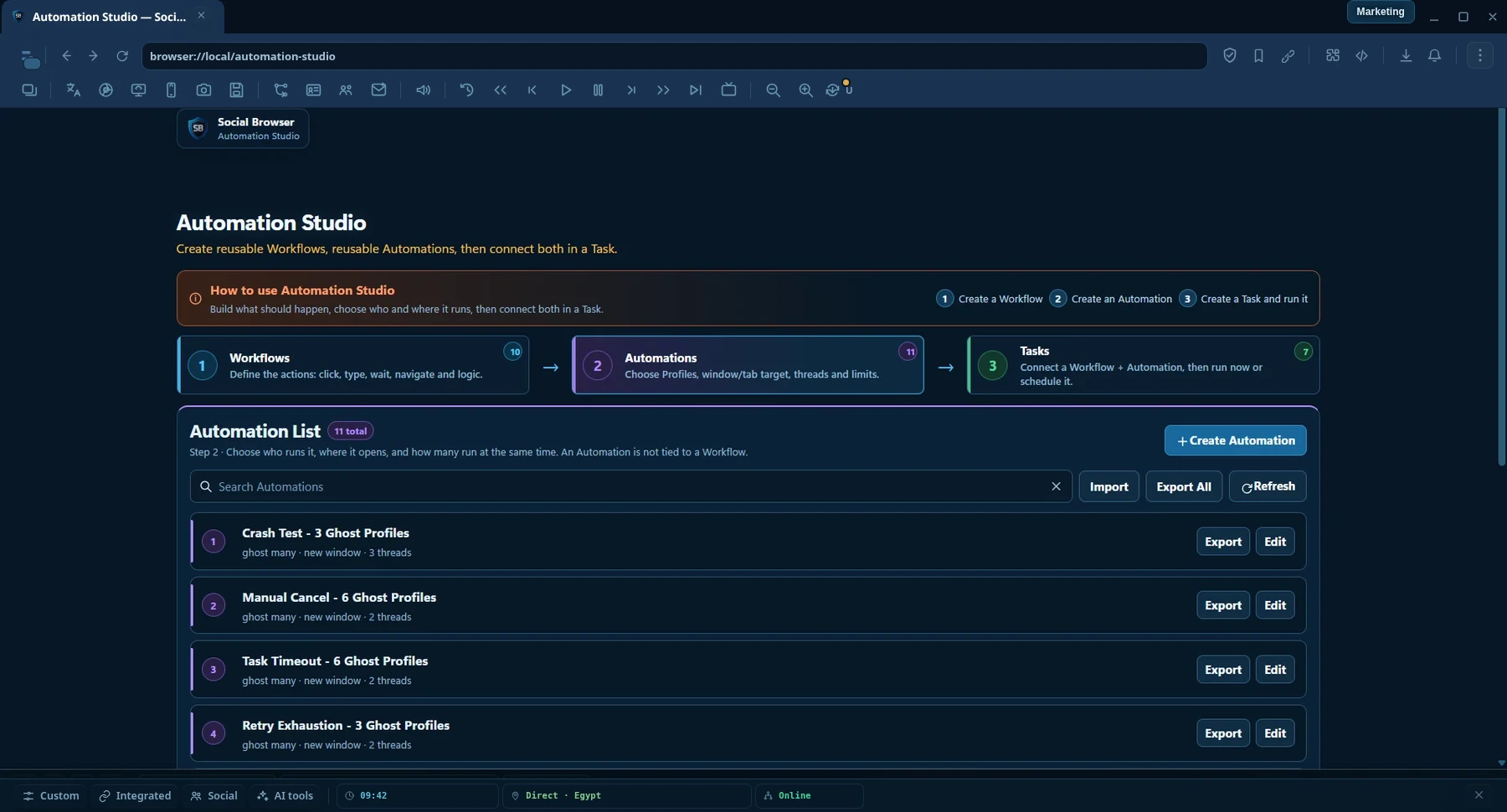
Automation Studio trennt was zu tun ist, wie und wo es ausgeführt werden soll, und wann es ausgeführt werden soll. Durch die Trennung dieser Jobs wird derselbe Workflow wiederverwendbar.
Was soll passieren?
Enthält die Schritte: URL öffnen, klicken, eingeben, warten, eine Bedingung prüfen usw.
Wie und wo soll es laufen?
Wählt Profiles oder Ghost Profiles, Fensterverhalten, Parallelität, Zeitüberschreitungen, Wiederholungsversuche und Ausführungsrichtlinie aus.
Welche Workflow + Automatisierung soll wann ausgeführt werden?
Bindet einen Workflow an eine Automatisierung und führt ihn manuell oder nach einem Zeitplan aus.
Workflow: Öffnen Sie ein internes Dashboard → klicken Sie auf „Berichte“ → wählen Sie „Heute“ → „Exportieren“.
Automatisierung: Auf Profiles mit dem Tag „Team A“ ausführen, 3 Profiles gleichzeitig, sichtbare Fenster.
Aufgabe: Führen Sie diesen Workflow jeden Wochentagmorgen mit dieser Automatisierung aus.
Diese Trennung bedeutet, dass Sie denselben Workflow später mit einer anderen Profile-Gruppe oder anderen Ausführungseinstellungen wiederverwenden können, ohne eine zweite Kopie des Workflow erstellen zu müssen.
Diese erste Übung ist bewusst einfach. Das Ziel besteht darin, den Studio-Ablauf zu erlernen und nicht darin, ein komplexes Projekt zu erstellen.
Öffnen Sie Social Browser und gehen Sie zu Automation Studio. Beginnen Sie in der Workflow Liste.
Wählen Sie Neu Workflow. Geben Sie ihm einen klaren Namen, z My First Search. Namen sollten das Ergebnis beschreiben, nicht die Implementierung.
Fügen Sie die Aktion hinzu, die Ihre Zielwebsite öffnet. Verwenden Sie einen normalen HTTPS URL, auf den Sie zugreifen dürfen.
Wählen Sie eine Schaltfläche oder ein Feld auf der Seite. Verwenden Sie den Rekorder oder die Elementsuchwerkzeuge, um es zu identifizieren. Testen Sie den Schritt, bevor Sie fortfahren.
Geben Sie einen kleinen Testwert in ein Feld ein. Type verhält sich wie beim Tippen; Füllen ersetzt den Feldwert direkt.
Verwenden Sie Test oder Ausführen, um die Schritte in einem Profile auszuführen. Beobachten Sie das Browserfenster und bestätigen Sie das Ergebnis.
Wählen Sie den Profile aus, der den Workflow ausführen soll. Halten Sie für Ihren ersten Test das Fenster sichtbar und verwenden Sie es Automatisch for the interaction driver and style.
Wählen Sie Ihren Workflow und Ihre Automatisierung aus. Führen Sie es zuerst manuell aus. Die Planung erfolgt später in diesem Leitfaden.
Eine Aktion ist eine Sache, die der Browser ausführen sollte. Die meisten Workflows sind einfach eine Folge von Aktionen plus Bedingungen und Fehlerbehandlung.
| Aktion | Verwenden Sie es, wenn Sie möchten ... | Einfaches Beispiel |
|---|---|---|
| Öffnen Sie URL | Navigieren Sie zu einer bekannten Webadresse. | Öffnen Sie eine Dashboard-Seite. |
| Klicken Sie | Aktivieren Sie eine Schaltfläche, einen Link oder ein anklickbares Steuerelement. | Klicken Sie auf „Weiter“. |
| Doppelklick | Lösen Sie eine Schnittstelle aus, die zwei Klicks erwartet. | Öffnen Sie ein Element in einer Web-App im Desktop-Stil. |
| Rechtsklick | Öffnen Sie ein Kontextmenü. | Zeilenaktionen anzeigen. |
| Schweben | Zeigen Sie Inhalte an, die angezeigt werden, wenn der Mauszeiger über ein Element bewegt wird. | Öffnen Sie ein Hover-Menü. |
| Type | Geben Sie Text über eine tastaturähnliche Eingabe ein. | Geben Sie einen Suchbegriff ein. |
| Füllen | Ersetzen Sie einen Feldwert direkt. | Legen Sie einen bekannten Formularwert fest. |
| Klar | Leeren Sie ein Eingabefeld. | Entfernen Sie eine alte Suchanfrage. |
| Auswählen | Wählen Sie eine Option in einem Auswahlsteuerelement. | Wählen Sie „Monatlich“. |
| Kontrollkästchen / Radio | Legen Sie einen aktivierten Status fest. | Aktivieren Sie eine Option oder wählen Sie ein Optionselement aus. |
| Senden | Senden Sie ein Formular. | Senden Sie eine Suche oder ein internes Formular. |
| Scrollen | Navigieren Sie durch eine lange Seite oder bringen Sie Inhalte ins Blickfeld. | Scrollen Sie zum Ergebnisbereich. |
| Warte | Pausieren, bis die Zeit oder eine Seitenbedingung fertig ist. | Warten Sie auf eine Ergebnisanzeige. |
| Bewerten | Führen Sie JavaScript für erweiterte Seitenlogik aus. | Lesen Sie einen benutzerdefinierten Wert von der Seite. |
Nutze Type wenn sich die Website um Tastaturereignisse kümmert oder wenn Sie ein Verhalten wünschen, das eher dem einer tippenden Person ähnelt. Benutzen Füllen wenn Sie den aktuellen Feldwert direkt ersetzen möchten und die Website normale Eingabe-/Änderungsereignisse akzeptiert.
Testen Sie nach Möglichkeit sofort eine neue Aktion. Wenn Schritt 4 nicht funktioniert, beheben Sie Schritt 4, bevor Sie Schritt 5 hinzufügen. Dadurch bleibt die Ursache eines Problems offensichtlich.
Der Rekorder ist der schnellste Einstieg, wenn Sie bereits wissen, wie eine Aufgabe manuell ausgeführt wird. Beginnen Sie mit der Aufzeichnung, führen Sie die Aufgabe aus und bereinigen Sie dann die aufgezeichneten Schritte.
Ein Locator teilt dem Browser mit, welches Element Sie meinen. Der beste Locator beschreibt das Element so klar, dass der Browser es auch bei geringfügigen Seitenänderungen wiederfinden kann.
Nützlich, wenn die Seite über stabile IDs, Klassen oder Attribute verfügt.
#save-buttonNützlich, wenn der sichtbare Wortlaut stabil und einzigartig ist.
Save changesNützlich für barrierefreie Steuerelemente wie Schaltflächen und Links.
button · Save changesOftmals eine der zuverlässigsten Optionen für Anwendungen, die dies bereitstellen.
data-testid="save-profile"Automation Studio kann mehr als einen Hinweis für ein Element speichern: den primären Locator, Alternativen und einen semantischen Fingerabdruck wie Tag, Rolle, Label, Text und stabile Attribute. Wenn der ursprüngliche Locator nicht mehr übereinstimmt, kann die Locator Engine sichere Alternativen prüfen und das Element neu positionieren, wenn die Zuverlässigkeit hoch genug ist.
Ein Social Browser Profile behält seinen eigenen Browserstatus. Durch die Automatisierung können Sie denselben Workflow wiederverwenden, ohne den Workflow für jeden Profile kopieren zu müssen.
Abhängig von den Automatisierungseinstellungen können Sie ein einzelnes Profile, mehrere Profiles, alle passenden Profiles oder Gruppen/Tags als Ziel verwenden. Die Task Engine erstellt konkrete Unteraufgaben für die tatsächlichen Profile-Ausführungen und aggregiert deren Fortschritt in der übergeordneten Aufgabe.
Wenn die Arbeit identisch ist, die Browsersitzung jedoch unterschiedlich ist, behalten Sie einen Workflow bei und ändern Sie die Zielauswahl in der Automatisierung. Dies reduziert doppelte Installationen und erleichtert die Wartung.
Eine Variable ist ein Wert, der sich ändern kann, ohne dass die Schritte Workflow geändert werden. Verwenden Sie Variablen für URLs, Namen, Suchbegriffe, Datumsangaben, Nachrichten und andere Eingaben, die zur Laufzeit bereitgestellt werden sollten.
productUrl = "https://example.com/item/123" customerName = "Alex" message = "Your report is ready"
Open {{productUrl}} Type "Hello {{customerName}}" Type "{{message}}"Eine feste Reihenfolge funktioniert nur, wenn sich jede Seite gleich verhält. Bedingungen ermöglichen es dem Workflow, eine Frage zu stellen, bevor er entscheidet, was zu tun ist.
IF optional popup exists Click "Close" ELSE Continue
Die Unified Condition Engine kann Muster wie Element vorhanden, sichtbarer Status, Textübereinstimmung, URL-Status, Attributwerte, Warte-bis-Prüfungen und Behauptungen unterstützen. Bedingungen können mit UND/ODER-Logik kombiniert werden, wenn mehrere Fakten gemeinsam überprüft werden müssen.
Geben Sie der Seite Zeit, einen Zustand zu erreichen.
Erfordern Sie, dass eine Bedingung wahr ist, bevor Sie fortfahren.
Wählen Sie einen Zweig basierend auf dem Seitenstatus aus.
Kombinieren Sie mehrere Prüfungen zu einer Entscheidung.
Dies ist eine der wichtigsten Ideen für eine zuverlässige Automatisierung. Ein Klick kann erfolgreich übermittelt werden, während die Website das Ergebnis ablehnt, es verzögert, ein anderes Element ändert oder den angeforderten Vorgang nie abschließt.
| Überprüfen | Beispiel |
|---|---|
| Text enthält | Der Ergebnisbereich enthält „Gespeichert“. |
| Attribut gleich | aria-pressed="true" nach einem Umschaltvorgang. |
| Element verschwindet | Das Lade-Overlay ist verschwunden. |
| Zählen Sie Änderungen | In einer Liste wird eine neue Zeile angezeigt. |
| URL ändert sich | Die Navigation erreicht die erwartete Seite. |
| Geprüfter Zustand | Ein Kontrollkästchen wird aktiviert. |
| Ausgewählte Werte | Ein Auswahlsteuerelement enthält den ausgewählten Wert. |
Automation Studio trennt wie die Eingabe übermittelt wird von wie natürlich oder direkt sich die Interaktion anfühlen soll.
Lassen Sie das System einen geeigneten Stil für die Aktion und den Fensterstatus auswählen.
Bevorzugen Sie eine effiziente, direkte Übermittlung, wenn natürliche Zeige- oder Tippbewegungen nicht erforderlich sind.
Verwenden Sie progressive Zeigerbewegungen, einen variablen Tipprhythmus und progressives Scrollen, sofern dies unterstützt wird.
Bearbeitet gegebenenfalls das Seiten-DOM-Verhalten.
Verwendet die Eingabepfade des Chrome DevTools-Protokolls für die Interaktion auf Browserebene.
Verwendet den nativen Interaktionspfad des Browsers, sofern geeignet und verfügbar.
Für die meisten Benutzer empfohlen: Beginnen Sie mit Auto. Explizite Treiber sind nützlich beim Testen, Debuggen oder wenn Sie wissen, dass sich eine Site mit einem bestimmten Eingabepfad besser verhält.
In der Automatisierungsentität definieren Sie die Ausführungsrichtlinie. Die genauen Optionen können je nach Aktion und Laufzeit variieren, die wichtigen Ideen sind jedoch konsistent.
| Einstellung | Was es kontrolliert | Starter-Beratung |
|---|---|---|
| Ziel Profiles | Welcher Browser Profiles erhält SubTasks? | Beginnen Sie mit einem Test Profile. |
| Zieloberfläche | Verhalten neuer/aktueller Registerkarten oder Fenster. | Nutzen Sie beim Lernen eine sichtbare neue Oberfläche. |
| Sichtbar / Versteckt | Ob das Ausführungsfenster angezeigt wird. | Überprüfen Sie zuerst die Sichtbarkeit. |
| Parallelität | Wie viele Profile-Läufe dürfen gleichzeitig ausgeführt werden? | Steigern Sie schrittweise, nachdem die Zuverlässigkeit nachgewiesen wurde. |
| Auszeiten | Wie lange ein Lauf oder Schritt warten darf. | Verwenden Sie realistische Grenzen für die Website. |
| Wiederholungen | Was kann wiederholt werden und unter welcher Richtlinie. | Versuchen Sie nicht, Aktionen mit Nebeneffekten blindlings erneut durchzuführen. |
Wählen Sie Ihre 50 Ziel-Profiles aus und legen Sie die Parallelität auf 5 fest. Die Task Engine kann die Profile-Unteraufgaben erstellen und in kontrollierten Gruppen verteilen, anstatt alles auf einmal zu öffnen.
Persistentes Profile
Wird verwendet, wenn der Browserstatus zwischen Sitzungen verfügbar bleiben soll: Cookies, lokaler Speicher, Einstellungen und andere Profile-Daten.
Geist Profile
Verwenden Sie diese Option für die vorübergehende isolierte Ausführung, wenn Sie nach der Aufgabe kein langlebiges Profile benötigen.
Der für eine Aufgabe erstellte Ghost Profiles kann denselben Ghost-Laufzeitprozess nutzen und dabei separate isolierte Partitionen/Sitzungen beibehalten. Die gemeinsame Nutzung von Prozessen verbessert die Effizienz, ohne diese Sitzungen in eine gemeinsame Browseridentität umzuwandeln.
Zuverlässige Automatisierung ist nicht nur der glückliche Weg. Ein Workflow sollte auch definieren, was zu tun ist, wenn ein Fehler, eine Zeitüberschreitung oder ein unsicheres Ergebnis auftritt.
Main steps ↓ onErrorSteps onTimeoutSteps onInconclusiveSteps ↓ finallySteps
Try to submit the form If error → capture diagnostics If timeout → record timeout reason If inconclusive → send to review Finally → perform safe cleanup
Nutze endlich for cleanup that should happen whether the main path succeeds or fails, such as closing a temporary tab or writing a final log entry.
Eine lang andauernde Automatisierung sollte nach einem Anwendungsneustart oder einer Anwendungsunterbrechung nicht immer von Schritt 1 neu gestartet werden. Kontrollpunkte zeichnen den sicheren Fortschritt auf, sodass ein Workflow von einem bekannten Punkt aus fortfahren kann.
Prüfpunktdaten sollten mit der Workflow-Definition übereinstimmen, zu der sie gehören. Wenn sich Workflow ändert, kann das System einen Workflow-Hash-/Checkpoint-Vertrag verwenden, um eine Fortsetzung in einer inkompatiblen Sequenz zu vermeiden.
Manche Situationen sollten nicht automatisch entschieden werden. Wenn der Browser eine Aktion ausgeführt hat, das Endergebnis aber nicht beweisen kann, oder wenn ein Ziel nicht eindeutig ist, kann ein Überprüfungselement die Entscheidung anhalten und eine Person entscheiden lassen, was als nächstes passiert.
Verwenden Sie es, wenn Sie erkennen können, dass die beabsichtigte Wirkung eingetreten ist.
Fahren Sie fort, ohne die unsichere Aktion zu wiederholen.
Unterbrechen Sie die entsprechenden Arbeiten, wenn die Fortsetzung unsicher ist.
Nur verwenden, wenn eine Wiederholung angebracht ist. Mögliche doppelte Nebenwirkungen erfordern eine ausdrückliche Anerkennung.
| Funktion | Zweck |
|---|---|
| Resilient Locator Bundle | Bewahren Sie mehrere sichere Hinweise für das beabsichtigte Element auf. |
| Lokalisierende Heilung | Verschieben Sie ein geändertes Element, wenn die Zuverlässigkeit hoch ist. |
| Zielwächter | Nicht bestanden, wenn ein Kandidat unklar oder nicht sicher genug ist. |
| Wiederherstellung der Verifizierung | Überprüfen Sie einen erwarteten Effekt erneut, ohne den Nebeneffekt erneut abzuspielen. |
| Idempotenzbuch | Verfolgen Sie Vorgangs-/Ressourcenschlüssel, um doppelte Vorgänge zu reduzieren, sofern dies unterstützt wird. |
| Leistungsschalter | Unterbrechen Sie eine Site/einen Aktionspfad, wenn kürzliche Fehler auf ein umfassenderes Problem hinweisen. |
| Adapterzustand | Verfolgen Sie Versions- und Zustandsinformationen für Erstanbieter-Aktionsadapter. |
Wenn ein Vorgang für dieselbe Ressource bereits abgeschlossen wurde, kann eine Wiederholung unnötig oder schädlich sein. Ein Idempotenzschlüssel gibt der Laufzeit die Möglichkeit, den logischen Vorgang zu erkennen, und nicht nur den einzelnen Klick, der ihn verursacht hat.
Sobald ein Workflow zuverlässig funktioniert und die Automatisierungsziele korrekt sind, erstellen Sie eine Aufgabe, um zu steuern, wann die Kombination ausgeführt wird.
Beispiel: Workflow „Tagesbericht exportieren“ + Automatisierung „Finanzen Profiles, 2 auf einmal“ + Aufgabe „Wochentags um 09:00“.
Gutes Debuggen beginnt mit Beweisen, nicht mit Vermutungen. Automation Studio stellt strukturierte Informationen bereit, sodass Sie erkennen können, ob das Problem von der Navigation, dem Locator, der Umsetzbarkeit, der Eingabeübermittlung, der Überprüfung, einem Frame, einem Timeout oder der Site selbst herrührt.
Verwenden Sie diese als Muster. Ersetzen Sie die Beispielwebsite und -daten durch Systeme, zu deren Automatisierung Sie berechtigt sind.
Warum: Eine feste Verzögerung von 5 Sekunden ist bei schnellen Läufen oft langsamer als nötig und bei langsamen Läufen zu kurz. Eine Bedingung wartet auf das, was Sie tatsächlich benötigen.
IF popup close button exists Click close ELSE Continue
Verwenden Sie eine Bedingung, anstatt zu scheitern, weil kein optionales Dialogfeld angezeigt wurde.
Durchsuchen Sie nach Kategorie oder suchen Sie nach Funktionsnamen.
| Ich muss… | Beginnen Sie mit… |
|---|---|
| Wiederholen Sie Klicks und Eingaben | Workflow Aktionen oder Rekorder |
| Verwenden Sie denselben Workflow mit unterschiedlichen Werten erneut | Variablen |
| Behandeln Sie einen optionalen Seitenstatus | Bedingungen |
| Beweisen Sie, dass eine Aktion wirklich funktioniert hat | Überprüfung |
| Führen Sie denselben Workflow in mehreren Browsersitzungen aus | Automatisierungsziel Profiles |
| Später automatisch ausführen | Aufgabenplanung |
| Erholen Sie sich von einer längeren Unterbrechung | Kontrollpunkte |
| Gehen Sie sicher mit unsicheren Ergebnissen um | Überprüfungszentrum |
| Verstehe einen Fehler | Ausführungsinspektor, Protokolle, Beweise und Kopierdiagnose |
| Behandeln Sie einen geänderten Selektor | Resiliente Lokalisierer + Lokalisierungsheilung |
Nein. Sie können normale Browser-Workflows mit Aktionen, Recorder, Variablen und Bedingungen erstellen. Die JavaScript-Auswertung ist eine erweiterte Option, wenn Sie eine benutzerdefinierte Seitenlogik benötigen.
Normalerweise nein. Beginnen Sie mit Auto. Wählen Sie einen expliziten Treiber, wenn Sie ein Kompatibilitätsproblem testen oder verstehen, warum ein bestimmter Übermittlungspfad erforderlich ist.
Die Eingabe wurde möglicherweise übermittelt, aber der erwartete Seiteneffekt wurde nicht beobachtet. Überprüfen Sie die Verifizierungsregel, das Seiten-Timing, das Zielelement und die Website-Reaktion. Gehen Sie nicht davon aus, dass die Wiederholung der Aktion sicher ist.
Ja. Konzentrieren Sie Workflow auf die Schritte und verwenden Sie die Automatisierung, um Profiles und die Ausführungsrichtlinie auszuwählen.
Während des Lernens sind sichtbare Fenster leichter zu verstehen und zu debuggen. Nachdem ein Workflow nachgewiesen wurde, testen Sie die versteckte Ausführung separat, da sich Websites und Interaktionspfade unterschiedlich verhalten können.
Kopieren Sie den genauen Fehler, das relevante Aktionsergebnis, die Protokolle, die Beweis-/Verifizierungsdetails und das Szenario oder den Workflow-Schritt. Text ist nützlicher als ein Screenshot, wenn kopierbare Diagnosen verfügbar sind.
Bereit zum Üben?
Beginnen Sie mit einer Aufgabe, die Sie bereits manuell ausführen. Halten Sie es kurz, führen Sie es in einem sichtbaren Profile aus, überprüfen Sie das Ergebnis und verbessern Sie es dann um eine Funktion nach der anderen.
Reference & examples
Use the action reference when you need exact workflow building blocks, or start from practical automation patterns.
Reference for navigation, input, waits, conditions, downloads, assertions, retries, schedules, and execution controls.
Open Action Reference →Reusable patterns for forms, multi-profile workflows, popups, downloads, checkpoints, and review flows.
Open Examples →