
Practical Guide · Human-in-the-Loop
Human-in-the-Loop Browser Automation: When AI Should Ask for Approval
Design approval checkpoints for browser AI agents: financial actions, account changes, customer communication and uncertain outcomes.
Published October 11, 2026 · Social Browser Editorial Team
Why this matters
An AI browser agent can click through an interface, but being technically able to click is not the same as being authorized to act. Most practical browser automation needs a policy for when to proceed, when to ask a person and when to stop entirely. Human-in-the-loop design turns a vague 'supervised automation' promise into explicit checkpoints that can be implemented, tested and audited.
Define actions by consequence, not by button label
Browsing a public product page is low risk. Changing a customer's shipping address, posting in a brand's name or initiating a payment is not. Classify actions by financial impact, privacy exposure, reversibility and the role making the request. A Delete button can be harmless in a test environment and catastrophic in production. Approval policies should examine the real business operation, not the CSS selector that the agent clicked.
Place approval immediately before the side effect
A useful approval record shows which authenticated account is active, what object will change, the before/after values and the reason for the action. Ask a human for a decision immediately before executing a sensitive step; approval collected at the start of a long workflow may no longer describe the final state. Expire approvals when the destination or amount changes. A 'Continue' button without a specific summary is not meaningful consent.
Make the agent verify and report uncertainty
After an approved action, verify evidence in the service: updated order status, published item ID or visible confirmation. If confirmation is missing, stop rather than repeat a potentially irreversible click. Distinguish Executed, Verified and Needs Review states. Store enough context for incident review while redacting customer records, passwords and session tokens. Human review is also needed when the agent encounters an unfamiliar login challenge.
Where Social Browser can support this model
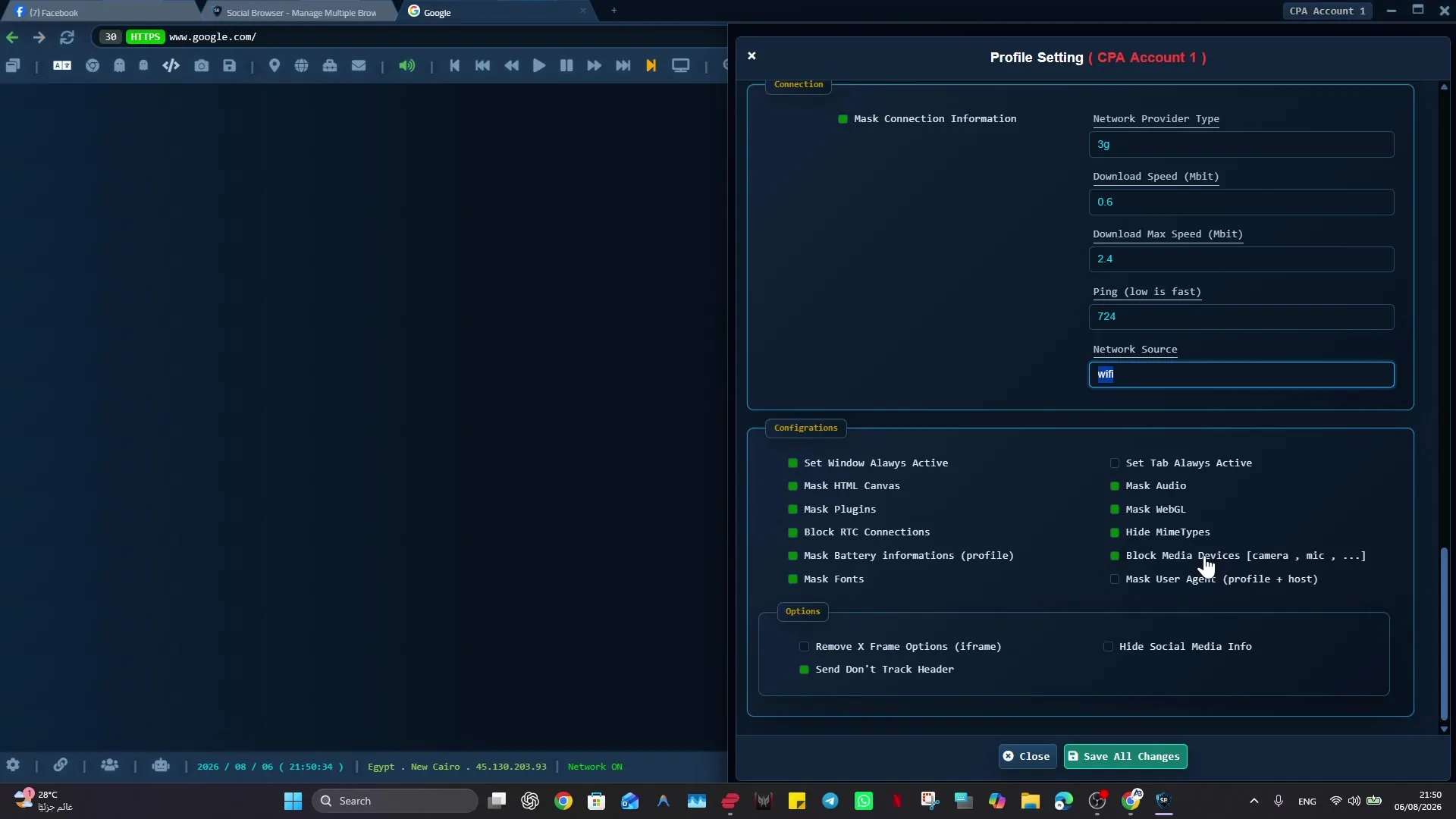
Persistent Profiles help connect a task to a named authorized account environment. Social Browser's automation workflow tools can organize steps and checks, but the business owner must define approval scope and escalation rules. Before production rollout, rehearse a rejected approval, an expired session and a changed target object. A reliable refusal path is as important as the successful workflow.
Implementation checklist
- Inventory all actions that modify an account or external system.
- Assign risk tiers and approvers by business role.
- Show destination, change summary and permissions at approval time.
- Verify the specific outcome before marking the task complete.
- Test denial, timeout and ambiguous-success recovery.
Example: putting the guidance into practice
An agent assembles a support-ticket response and requests approval. The reviewer sees the customer ticket ID, reply text and current support account. If the reply was already sent by a colleague, the agent notices the changed ticket state and does not send it again.
Frequently asked questions
Should every click require a human?
No. Use the risk of the business action to choose review points; routine read-only navigation rarely requires per-click approval.
Does human approval eliminate all automation risk?
No. The agent still needs reliable identity checks, bounded permissions, verification and audit records.
Important boundaries
The guidance above assumes authorized accounts and compliance with each service’s terms. Separate Profiles and automation can improve organization; they do not grant access rights, remove authentication requirements, guarantee anonymity, or eliminate security risk. Validate the workflow with a real reviewer before using it on sensitive production data.
Next step with Social Browser
Choose one small, permitted workflow, verify its starting account and define evidence of success before scaling. Social Browser can keep the relevant browser context organized while your team controls permissions, review and final decisions.
Explore the relevant Social Browser capability · Download for Windows · Download for Linux
Official documentation and further reading
Use these primary references to verify the relevant platform capabilities and permissions. Vendor documentation can change; confirm the current terms and product version before acting.