Social Browser Downloader Settings: Built-in vs External Download Managers (2026)
A practical illustrated reference to the Downloader settings actually visible in Social Browser 2026.10.20. Understand which options belong to the browser and which require separate desktop software.
18-second screenshot tour of the actual interface; this is not an end-to-end external app test.
What you can configure
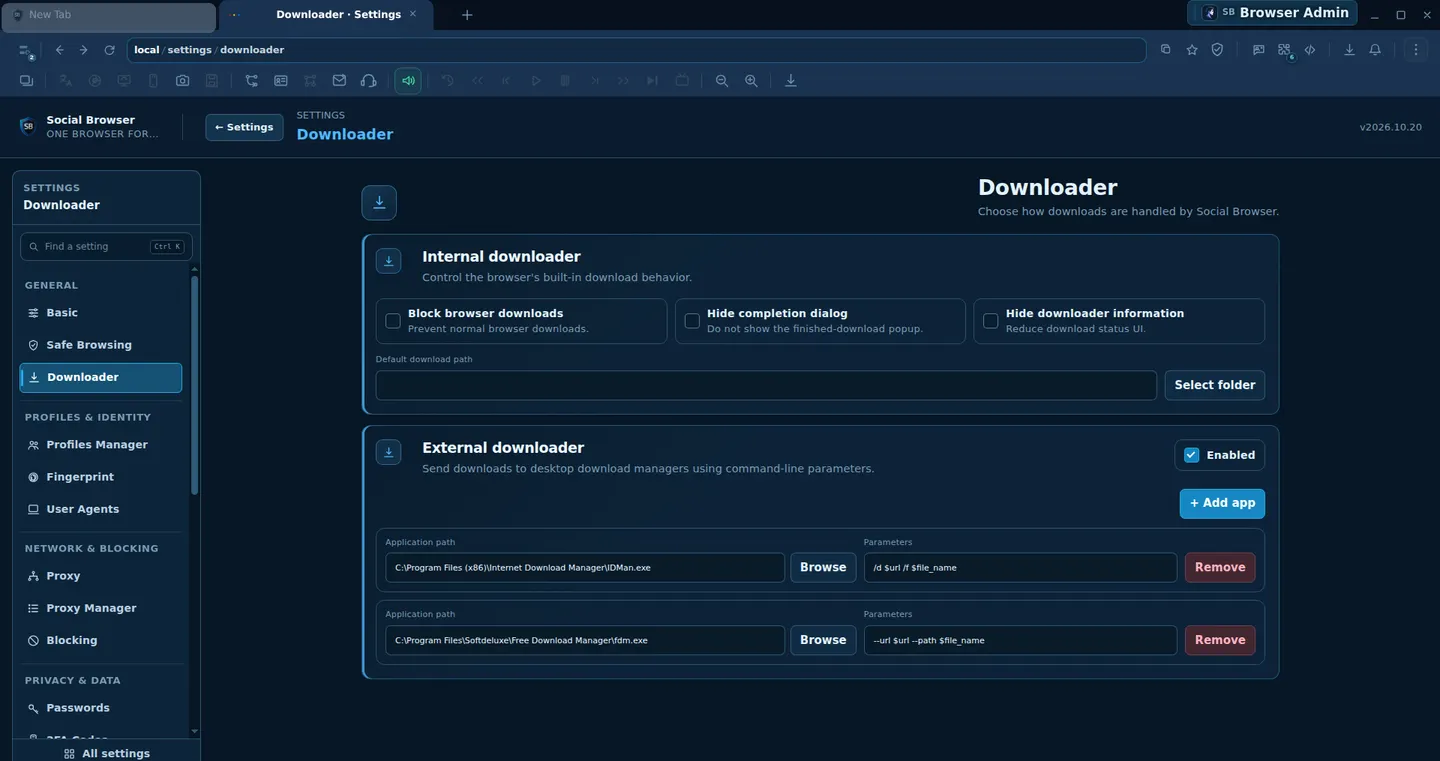
The page has two distinct groups: an Internal downloader for the browser itself, and an External downloader for handing eligible downloads to another desktop application. These are configuration controls, not a guarantee of successful transfers to every site or third-party app.
Step-by-step workflow
- Open the Downloader settings
In Social Browser, open Settings, then select Downloader under General. Confirm that you are editing the browser settings page, not a website pretending to be it.
- Decide whether to allow browser downloads
The Internal downloader group offers a Block browser downloads switch. Leave downloads permitted for ordinary file transfers. Use blocking only when it is part of your intended workstation policy.
- Review completion behavior
Hide completion dialog and Hide downloader information change how the interface reports downloads. Hiding an indicator does not confirm a transfer finished; inspect the file in its destination folder.
- Set a default destination
Use the Default download path field and Select folder control to choose a writable, appropriate folder. Test with a small non-sensitive file and verify its exact saved location.
- Configure external software only if installed
The External downloader group includes Enabled, Add app, Application path, Parameters, Browse, and Remove. Specify a real executable on your own device; example Windows paths shown on another system are not proof an application is present.
- Test one download before relying on automation
Compare the file that reached the chosen destination with the expected filename and, for important installers, a published cryptographic hash. If an external handler does not start, revert to internal downloads and review that application's syntax.
Real screenshots of the browser
Compare the controls
| Feature | Internal downloader | External downloader |
|---|---|---|
| Who handles the transfer? | Social Browser itself | A separately installed download manager |
| Where do settings live? | Default path and completion options | Application path, arguments, enabled status |
| What must be installed? | Browser only | The external desktop application |
| How to verify success? | Inspect finished local file | Inspect external app status and file |
| Common pitfall | Hiding notices can hide feedback | Incorrect path or unsupported command arguments |
Important validation note
This is a verified screenshot guide, not proof that the example external executables exist on the current Linux capture machine. Do not paste secrets or credentials into application arguments. Website permissions and DRM limitations still apply.
Frequently asked questions
Does an external download manager come bundled with the browser?
No. You must independently install, trust, and configure the compatible desktop program.
Does “Hide completion dialog” mean a transfer succeeded?
No. Verify the file and any error reported by the browser or external application.
Can I use Windows EXE paths on Linux?
No. Configure a valid local application path that matches your own operating system.