Profiles Manager in Social Browser: Readiness, Search, Filters and Safe Editing (2026)
Learn to interpret the current Profiles Manager dashboard and keep browser Profiles easy to find, without mixing client sessions or reading readiness numbers as guarantees.
18-second tour assembled from actual product screenshots. For an interactive demonstration of creating a Profile, see the linked official profile video.
Read the dashboard before taking action
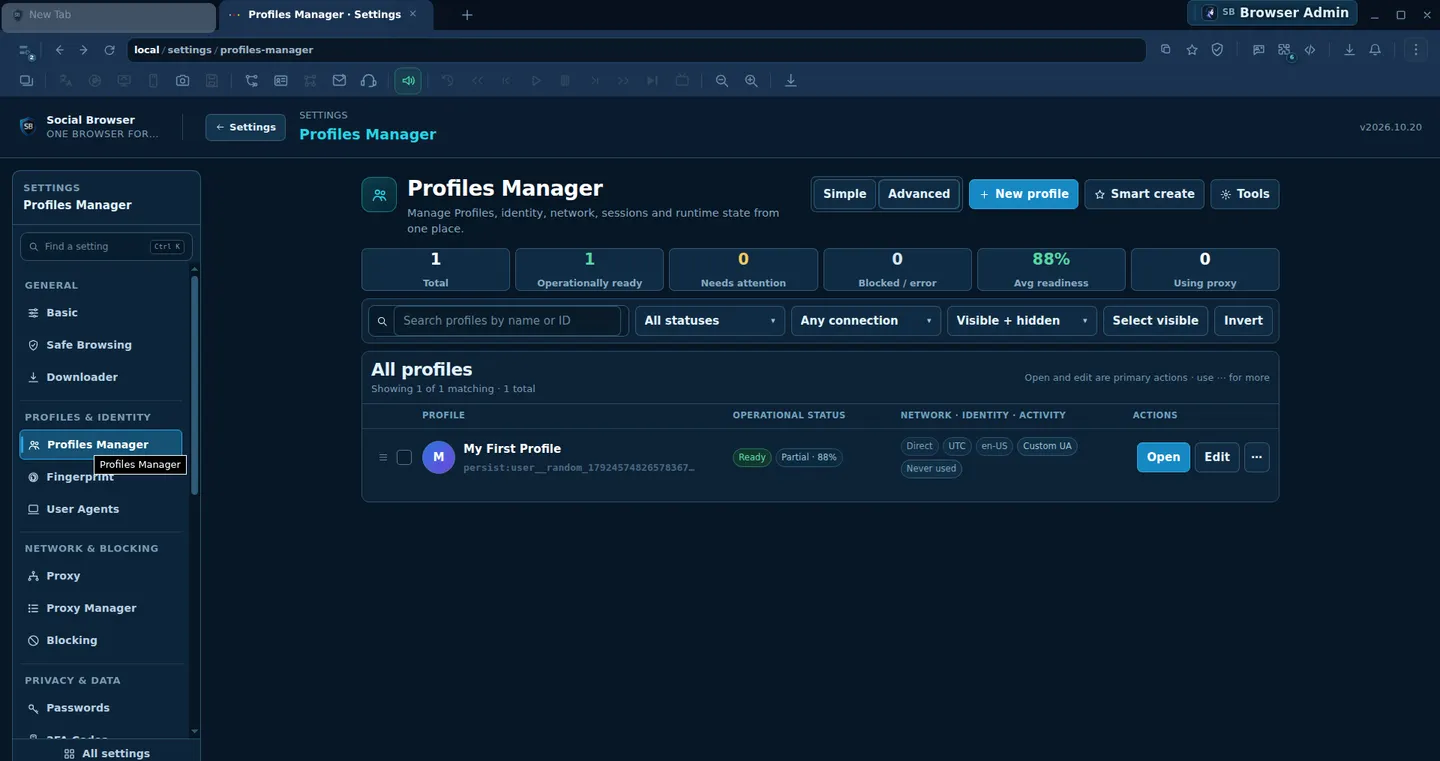
The inspected Profiles Manager dashboard displays Total, Operationally ready, Needs attention, Blocked/error, Avg readiness, and Using proxy. These counts summarize the browser's local Profile state; a readiness percentage is not a score of account legitimacy, protection from restrictions, or remote site connectivity.
Step-by-step workflow
- Locate Profiles Manager
Open Settings → Profiles Manager. The page exposes Simple and Advanced views along with New profile, Smart create and Tools. Some additional functions depend on release or entitlements.
- Check the operational summary
Read Total and Operationally ready first; then inspect Needs attention and Blocked/error before running a workflow. Treat the displayed percentages as UI diagnostics rather than promises.
- Find a specific Profile
Use Search profiles by name or ID. A naming pattern like Client A — Support or Project B — Test is easier to audit than dozens of unnamed Profiles. Never include passwords or authorization tokens in names.
- Use status and connection filters
The filter row offers All statuses, Any connection and Visible + hidden. Apply one filter at a time, then check the Showing X of Y text to avoid concluding that a hidden Profile was deleted.
- Choose a safe Profile action
Open starts work in the selected Profile; Edit exposes configuration. Inspect the correct row before applying settings, especially if proxies and identities differ between clients.
- Create a demonstration Profile
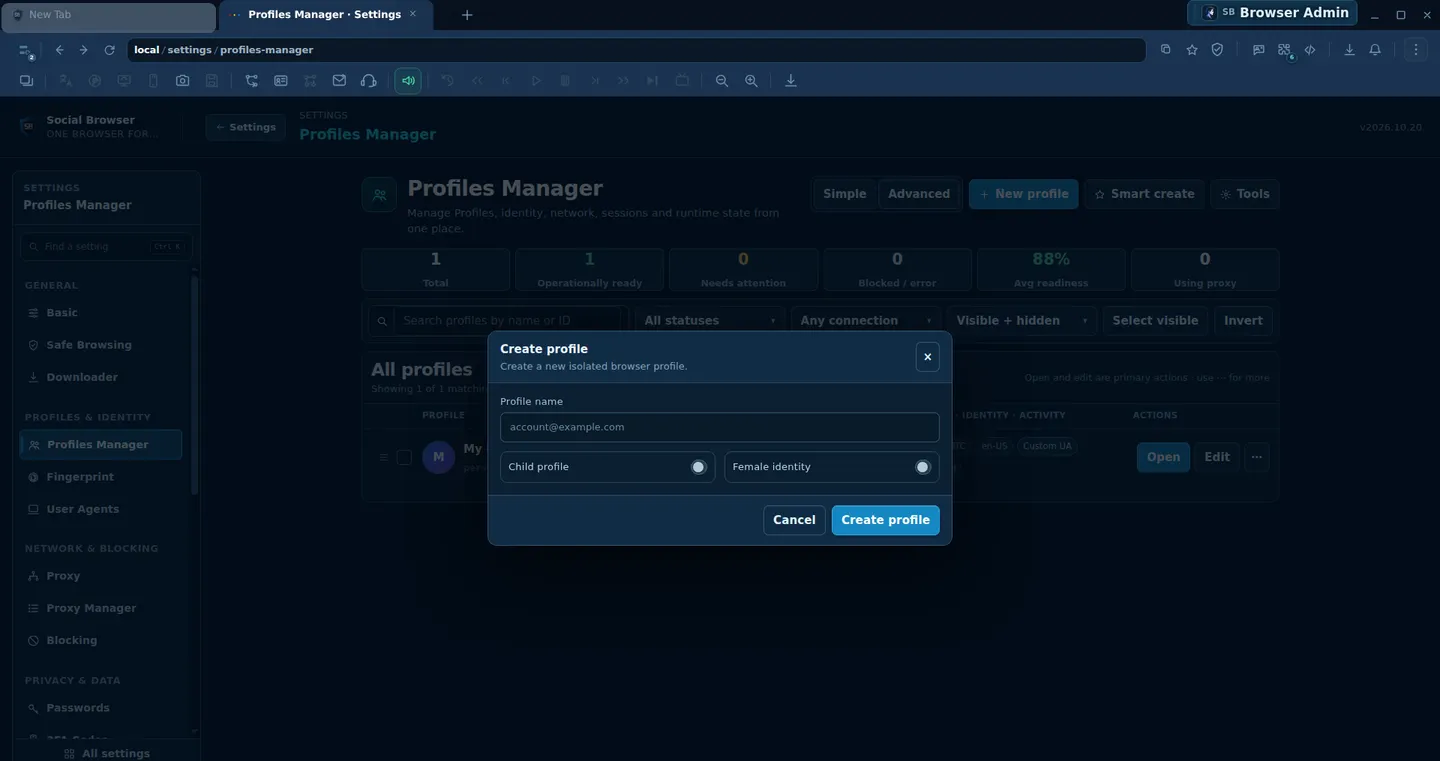
Use New profile, enter a descriptive name, and choose Create profile. The screenshot shows the Child profile and Female identity optional switches; leave unrelated options alone during a basic demonstration.
- Verify the outcome
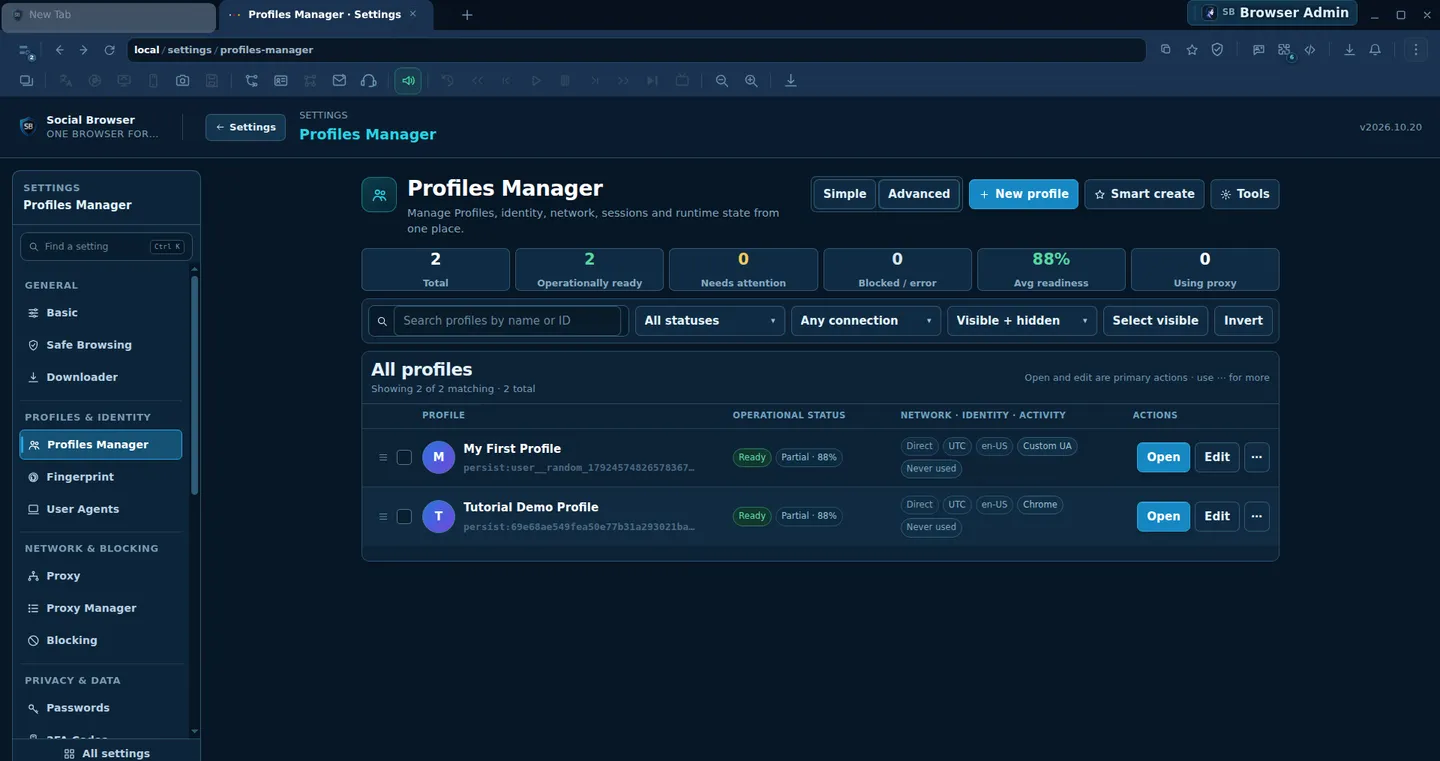
Return to All profiles and confirm the new name appears. Inspect operational status and connectivity. If a configuration needs attention, fix that specific issue before scaling automation.
Real screenshots of the browser
Compare the controls
| Metric | Meaning | What not to assume |
|---|---|---|
| Total | All tracked Profiles in the current list | Not a count of accounts currently logged in |
| Operationally ready | Profiles marked ready by local diagnostics | Not proof an external site will accept login |
| Needs attention | Profiles with missing/incomplete configuration | Inspect each row before automated use |
| Blocked / error | Profiles currently flagged by a local condition | Do not blindly retry potentially duplicate actions |
| Avg readiness | Aggregate preparation metric | Not a cybersecurity or account safety guarantee |
| Using proxy | Count with proxy configuration | Not proof traffic is using the expected IP |
Important validation note
Only an authorized test Profile was used for the screenshots. This guide does not disclose or instruct on sharing session data. The page may vary by OS, entitlement or version; verify the actual result of every action.
Frequently asked questions
Does 88% readiness mean my account is safe?
No. This is an interface diagnostic indicator. It cannot guarantee website access or account policy compliance.
I cannot find a Profile. Was it deleted?
Check the search query, status filter and Visible + hidden control first. Confirm total and showing counts.
Must every Profile use a proxy?
No. Assign user-supplied proxies only when a legitimate workflow requires them.