
Practical Guide · Automation Tools
Best Browser Automation Tools for Small Teams in 2026: A Practical Shortlist
Choose between Playwright, Selenium, Puppeteer, Power Automate Desktop and Social Browser by team skills, workflows, security and proof of success.
Published October 11, 2026 · Social Browser Editorial Team
Why this matters
The best browser automation tool for a five-person company is rarely the one with the longest feature list. It is the one the team can operate, maintain and audit when a website changes. Browser automation can mean regression testing, repetitive form entry, authenticated reporting or AI-assisted workflows. Those are different jobs. A good shortlist starts by naming them and applying measurable criteria to a limited pilot.
Developer-oriented options: Playwright, Selenium and Puppeteer
Playwright is a strong candidate for automated web tests with structured locators, assertions and tracing. Selenium has a broad ecosystem for driving browsers and integrating with testing tools. Puppeteer offers JavaScript control for supported browser workflows. Their relative fit depends on your supported browsers, team language, test runner and deployment environment. These tools do not automatically provide a supervised desktop workspace for everyday staff.
Business-oriented options: RPA and recording
Power Automate Desktop can be useful when automation crosses Windows desktop applications and websites. Browser recording features reduce the initial barrier for simple procedures, but can require maintenance when an interface changes. Compare who can repair a workflow, how credentials are protected, whether approvals are supported and what happens after a failure. A no-code label is not evidence that the process is safe to run unattended.
Workspace-oriented option: Social Browser
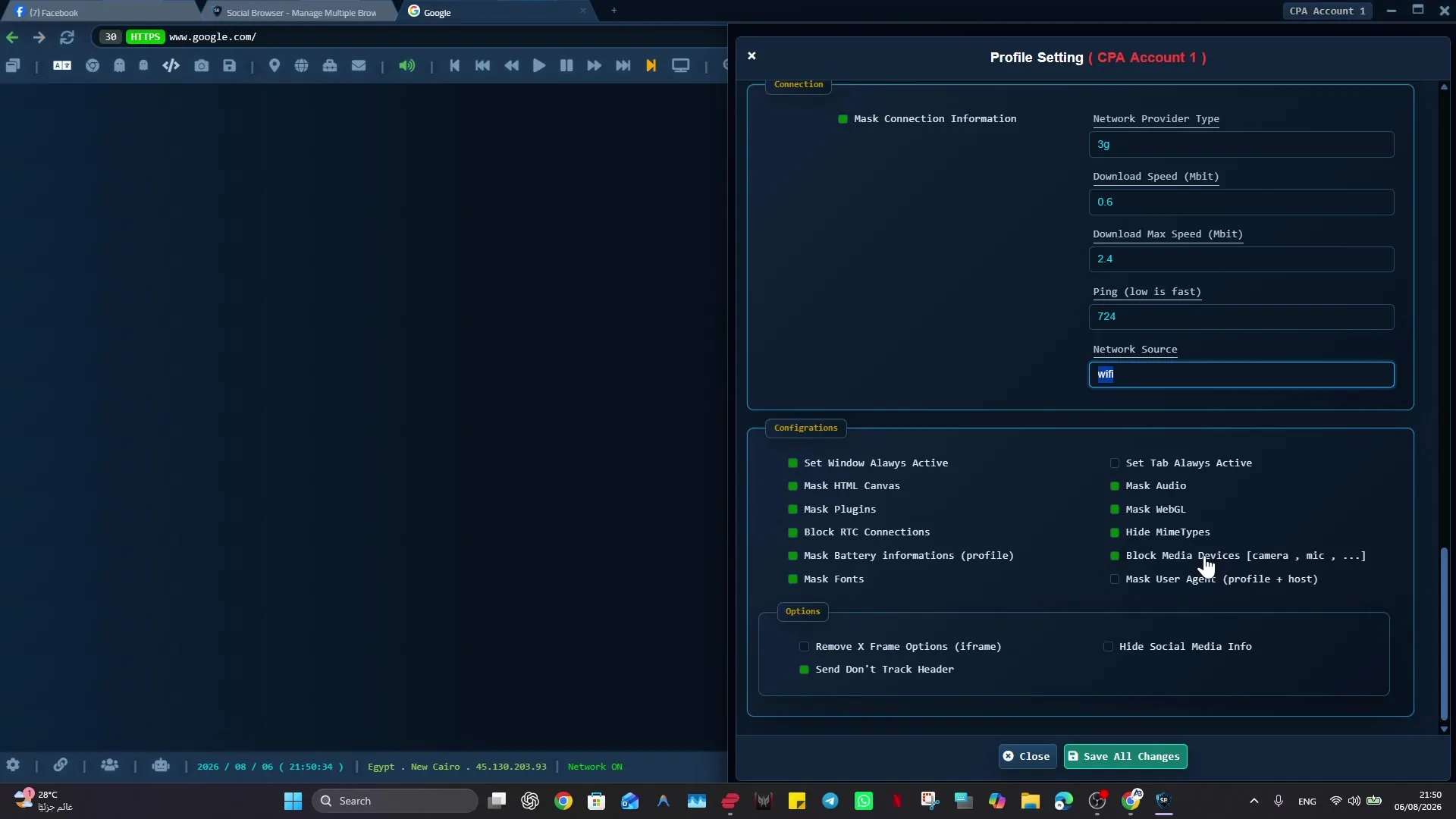
Social Browser focuses on persistent Profiles and organized browser contexts with automation-related features and MCP integration. This can suit agencies, support teams and developers who need to retain authorized account state while supervising tasks. Its desktop-oriented model differs from headless test fleets. Check the current Windows or Linux build, supported integrations and local security requirements before committing to a long-term workflow.
Choose with a transparent scorecard
Weight categories such as setup time, verified completion, error recovery, staff training, security controls, supported platforms and cost. Pilot a read-only task and a carefully approved write operation with each viable tool. Evaluate the ability to stop on MFA prompts, log uncertain results and hand off failed tasks. Prefer an honest limitation to an automation that performs irreversible actions without a reviewer.
Implementation checklist
- Classify tasks into QA tests, supervised operations or desktop RPA.
- Shortlist no more than three suitable tools.
- Run the same authorized task under measured conditions.
- Simulate a changed interface and expired session.
- Select the tool with the lowest reliable cost per completed task.
Example: putting the guidance into practice
A small marketing business selects a recording workflow for repetitive dashboard navigation, retains Playwright for testing its own site and uses named Social Browser Profiles for staff managing authorized client accounts. The team gains reliability from clear boundaries rather than a single all-purpose tool.
Frequently asked questions
Which tool has the highest universal success rate?
No trustworthy universal rate applies across different websites, tasks and environments. Benchmark your own cases.
Should small teams start with AI agents?
Start with a well-scoped workflow, verification and human oversight. AI can be added where its flexibility solves a real problem.
Important boundaries
The guidance above assumes authorized accounts and compliance with each service’s terms. Separate Profiles and automation can improve organization; they do not grant access rights, remove authentication requirements, guarantee anonymity, or eliminate security risk. Validate the workflow with a real reviewer before using it on sensitive production data.
Next step with Social Browser
Choose one small, permitted workflow, verify its starting account and define evidence of success before scaling. Social Browser can keep the relevant browser context organized while your team controls permissions, review and final decisions.
Explore the relevant Social Browser capability · Download for Windows · Download for Linux
Official documentation and further reading
Use these primary references to verify the relevant platform capabilities and permissions. Vendor documentation can change; confirm the current terms and product version before acting.