
Practical Guide · Virtual Assistants
Best Browser Setup for Virtual Assistants Managing Client Accounts
A repeatable browser setup for virtual assistants: client context, permissions, handoffs, safe automations and daily operating checks.
Published October 11, 2026 · Social Browser Editorial Team
Why this matters
Virtual assistants often move between inboxes, stores, calendars and social accounts for several clients in a single shift. Speed matters, but the cost of opening the wrong identity can be far higher than the seconds saved. A sensible browser setup should reduce repeated sign-ins without blurring ownership, make shift handoffs understandable and keep customer data inside approved tools. This guide focuses on the operating routine, not on collecting more browser extensions.
Choose the right boundary: client, role or task
Start from the client's authorization model. A business with separate billing, moderation and publishing roles may need more than one browser profile; a small client with a single approved assistant role may need just one. The correct boundary is whichever keeps account state and responsibility unmistakable. Give each profile a clear name, color or group and record who may use it. Avoid copying authenticated sessions to new workers without the client's explicit approval.
Build a five-minute start-of-shift checklist
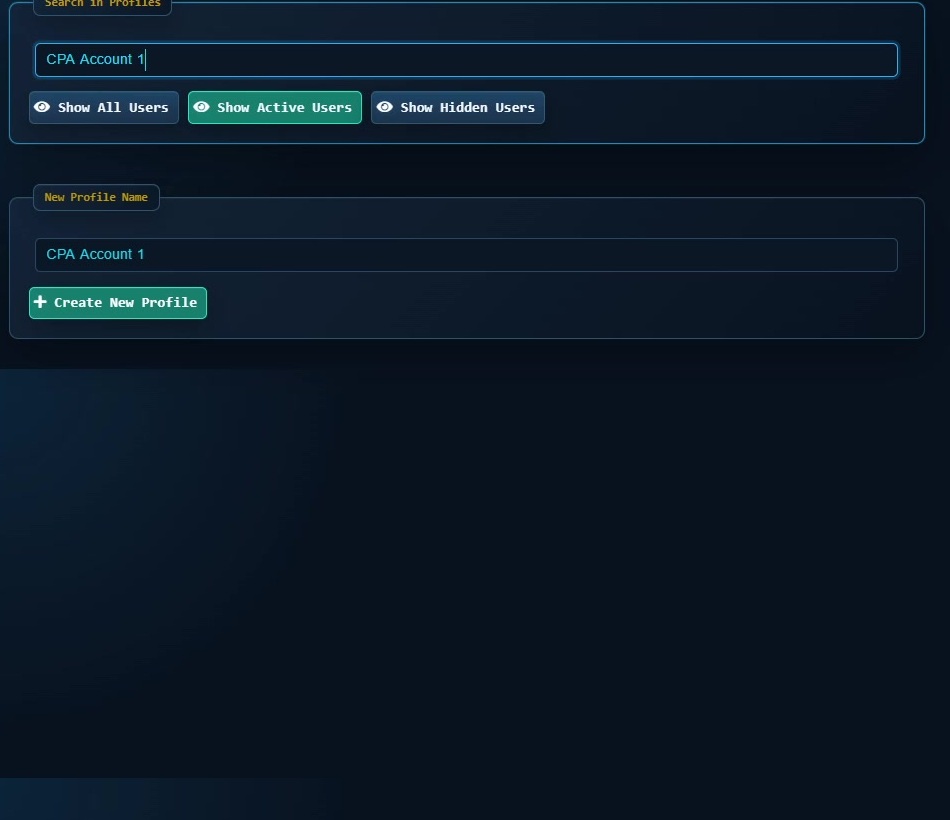
Open the client work queue, launch the associated Profile and confirm the service identity shown inside each website. Check for account notices, unfinished drafts and expiring permissions before performing actions. A useful routine also includes the client's preferred timezone, approval threshold and escalation contact. These details belong in your team's documented workflow, not in arbitrary browser notes that can be exposed by screenshots or exports.
Handle passwords and handoffs deliberately
Use role-based service access wherever possible instead of sending a master password in chat. Protect sensitive accounts with multi-factor authentication; plan who receives a new verification prompt. When an assistant's assignment changes, revoke platform access before reassigning hardware or profiles. Never assume that a persistent browser session is evidence of continuing authorization. Keep a brief log of completed tasks, approvals and pending issues so the next shift does not repeat work.
Automate the predictable, supervise the irreversible
Repetitive navigation, data checks and draft preparation are good candidates for browser automation. Sending a customer message, publishing a campaign or modifying billing should remain governed by client approval rules. Social Browser's Profiles and Automation Studio can help organize repeatable work around the correct account environment. Test a small workflow in a noncritical account and verify each outcome before increasing scope.
Implementation checklist
- Create a client-and-role inventory with permitted sites.
- Prepare one named Profile per approved responsibility.
- Agree on where drafts, checklists and approvals are stored.
- Test that each Profile retains its own login context.
- Review tasks and account permissions at the end of each week.
Example: putting the guidance into practice
An assistant serves a booking business in the morning and an online shop later. The booking Profile contains the authorized calendar and support tools; the shop Profile contains order management only. A handoff note records pending refunds without copying payment information into browser notes.
Frequently asked questions
Should assistants use incognito mode for every client?
Incognito is temporary and can be inconvenient for ongoing support. Persistent isolated profiles are often easier to document and audit.
Can a virtual assistant automate customer replies?
Draft suggestions and routing may help, but client authorization, quality checks and platform policy determine what can be sent automatically.
Important boundaries
The guidance above assumes authorized accounts and compliance with each service’s terms. Separate Profiles and automation can improve organization; they do not grant access rights, remove authentication requirements, guarantee anonymity, or eliminate security risk. Validate the workflow with a real reviewer before using it on sensitive production data.
Next step with Social Browser
Choose one small, permitted workflow, verify its starting account and define evidence of success before scaling. Social Browser can keep the relevant browser context organized while your team controls permissions, review and final decisions.
Explore the relevant Social Browser capability · Download for Windows · Download for Linux
Official documentation and further reading
Use these primary references to verify the relevant platform capabilities and permissions. Vendor documentation can change; confirm the current terms and product version before acting.