
Practical Guide · Shopify
How to Manage Multiple Shopify Stores from One Computer
Organize multiple Shopify store admin sessions, permissions, testing and daily operations without confusing customers or orders.
Published October 11, 2026 · Social Browser Editorial Team
Why this matters
Operating two Shopify stores from the same laptop is technically simple until order numbers, staff roles, inventory rules and customer conversations start to overlap. The main challenge is not opening multiple tabs; it is keeping each store's administrative identity and decision history distinct. This article describes a store-by-store browser operating model that works with Shopify's own permission system and avoids risky shortcuts.
Keep the store identity visible
Each store should have an unmistakable label in the workspace, including its canonical store name and whether you are in production or a test environment. An agency managing several merchants should not rely on identical-looking tabs named Admin. Use separate browser profiles for stores with different login identities, and verify the store name in Shopify before inventory, discount or fulfillment changes. A different profile is a safeguard against confusion, not a replacement for Shopify staff permissions.
Separate operational duties from test changes
Store operators may need orders and support, while designers need theme previews and developers need approved test access. Give each role its own least-privilege account where Shopify supports it. A new theme, checkout integration or script should be tested against the designated development workflow before touching the live store. Keep experimental extensions and User Scripts out of production Profiles unless the merchant reviews them. A browser extension that can read pages can also encounter customer data.
Organize your daily store sweep
Use a repeatable order: verify store identity; check urgent orders and customer messages; inspect inventory exceptions; review pending theme or app changes; record completed actions. Log decisions in the merchant's official tools, not only a browser history. When exporting reports, include the store name and date in the filename so data from different merchants does not merge accidentally. Investigate mismatched currency, fulfillment regions or tax settings rather than assuming every store behaves alike.
Where persistent profiles help
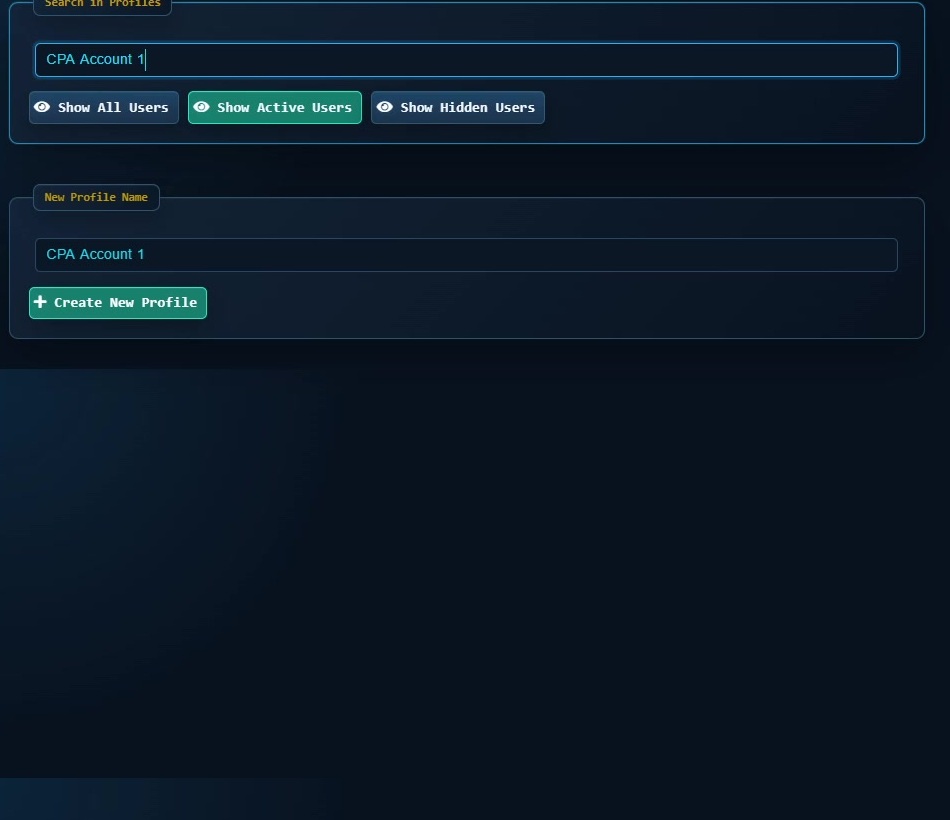
Social Browser Profiles can preserve each store's browser context while keeping cookies and related session state separate. Proxy settings should be applied only for an authorized operational need such as regional testing, never as a guarantee against security checks. Browser automation may assist with opening routine dashboards or preparing comparisons, but payment actions, refunds and bulk inventory edits need confirmation. The goal is lower cross-store error risk, not bypassing Shopify's controls.
Implementation checklist
- List every store and the authorized staff role used to access it.
- Name Profiles by store, role and environment.
- Verify a different identity is visible in each store Profile.
- Use a store-labeled export and change-review convention.
- Audit third-party apps, staff permissions and browser scripts monthly.
Example: putting the guidance into practice
A merchant operates a local and an international storefront. The two profiles use different admin accounts and bookmark sets. During a promotion, a worker confirms the active storefront before changing a discount rule, avoiding accidental use of the wrong currency and shipping region.
Frequently asked questions
Can one Shopify login access multiple stores?
That depends on how the merchants and staff accounts are configured. Browser profiles do not grant access; use the permission model Shopify provides.
Does using separate Profiles speed up Shopify itself?
Not inherently. The benefit is clearer identity, fewer accidental cross-store actions and repeatable administration.
Important boundaries
The guidance above assumes authorized accounts and compliance with each service’s terms. Separate Profiles and automation can improve organization; they do not grant access rights, remove authentication requirements, guarantee anonymity, or eliminate security risk. Validate the workflow with a real reviewer before using it on sensitive production data.
Next step with Social Browser
Choose one small, permitted workflow, verify its starting account and define evidence of success before scaling. Social Browser can keep the relevant browser context organized while your team controls permissions, review and final decisions.
Explore the relevant Social Browser capability · Download for Windows · Download for Linux
Official documentation and further reading
Use these primary references to verify the relevant platform capabilities and permissions. Vendor documentation can change; confirm the current terms and product version before acting.