
Practical Guide · Customer Support
Managing Customer Support Across Multiple Online Stores
Prevent cross-store support mistakes with clear browser contexts, customer-data boundaries, escalation rules and response quality checks.
Published October 11, 2026 · Social Browser Editorial Team
Why this matters
A support specialist can answer a delivery question for one shop, open a return request for another and switch to a payment dispute within minutes. When storefronts use similar interfaces, the chance of mixing order details rises. An effective browser setup makes the store visible, keeps customer data restricted and creates a repeatable path from finding an issue to confirming a resolution.
Separate store context from shared support process
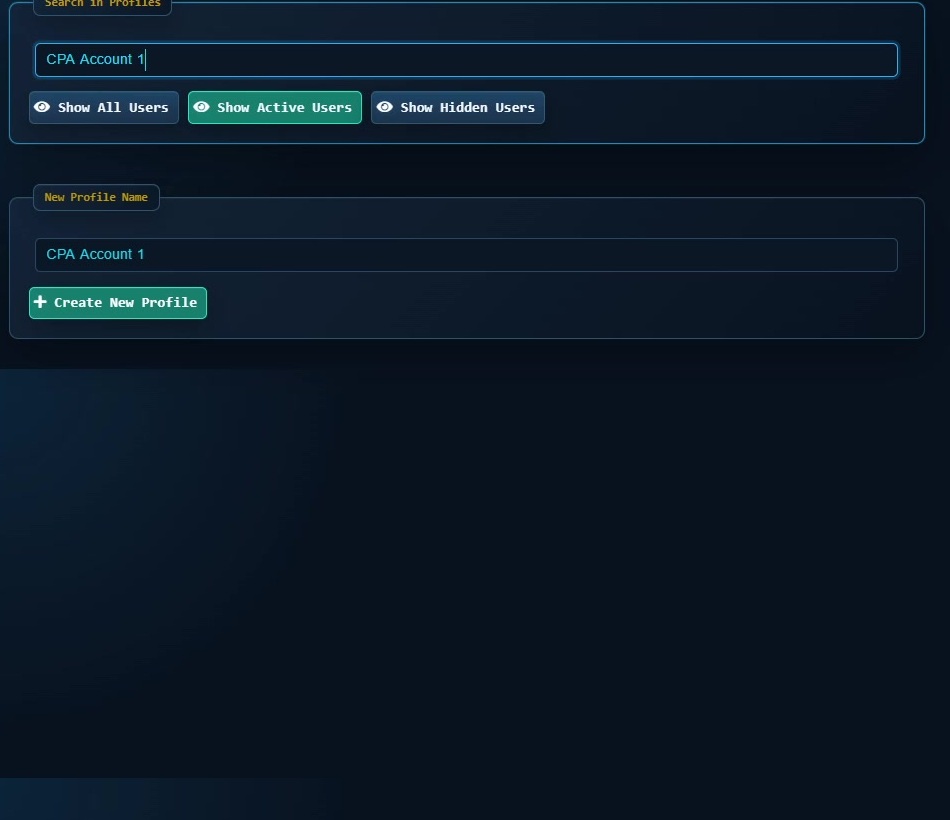
The support process can be consistent without treating customer information as interchangeable. Map each store's helpdesk, commerce admin, shipping portal and refund policy. Use a distinct browser Profile whenever a different login identity or customer-data boundary is involved. A common template for support replies is fine, but insert policies and promises specific to the actual seller. Keep notes inside the authorized ticket system rather than mixing them into global browser notes.
Make identity and order verification deliberate
Before disclosing account details, follow the merchant's identity-verification process. Check the storefront, ticket number, order reference and customer communication channel. Do not rely on the customer's email alone if multiple brands share a customer database. Ask for a second approval before unusual refunds, address changes or orders above a defined value. Avoid downloading entire customer lists merely to resolve one case.
Use a status-driven support workflow
Each case should move through clear states such as new, awaiting customer, awaiting warehouse, approved and resolved. A handoff note should identify what is blocked and who may authorize the next action. For performance reporting, use response times and resolution quality by store rather than aggregate counts that hide brand-specific problems. Account-level permissions and native activity logs are more reliable than a browser history for auditing decisions.
Introduce automation with a narrow scope
Automation can prepare search screens, open authorized support dashboards and check whether a ticket has a response. It should not silently approve refunds or disclose private data. Social Browser's persistent Profiles can keep a worker's shop-specific contexts organized; Automation Studio may support repetitive navigation after careful testing. Always verify the current store and ticket before sending a message or changing an order.
Implementation checklist
- List approved support tools and native permissions per store.
- Create store-specific Profiles for different authenticated contexts.
- Define verification and refund-approval thresholds.
- Keep all decisions in official tickets with clear ownership.
- Audit a sample of resolved tickets for cross-store errors.
Example: putting the guidance into practice
A shared support team serves a furniture store and a cosmetics brand. Each has its own Profile and helpdesk queue. A refund request passes through the cosmetics approval policy, while delivery tracking for furniture follows a different carrier and escalation owner. The team shares process standards but not customer records.
Frequently asked questions
Can support staff run two helpdesks at once?
Yes, if authorized; separate the browser and ticket contexts and keep each merchant's privacy rules explicit.
Should a browser automatically send customer replies?
Only where approved, properly tested and permitted by the service. Sensitive or ambiguous replies benefit from human review.
Important boundaries
The guidance above assumes authorized accounts and compliance with each service’s terms. Separate Profiles and automation can improve organization; they do not grant access rights, remove authentication requirements, guarantee anonymity, or eliminate security risk. Validate the workflow with a real reviewer before using it on sensitive production data.
Next step with Social Browser
Choose one small, permitted workflow, verify its starting account and define evidence of success before scaling. Social Browser can keep the relevant browser context organized while your team controls permissions, review and final decisions.
Explore the relevant Social Browser capability · Download for Windows · Download for Linux
Official documentation and further reading
Use these primary references to verify the relevant platform capabilities and permissions. Vendor documentation can change; confirm the current terms and product version before acting.