
Social Browser Guide
How to Organize Multiple Online Workflows Without Losing Control
A practical Social Browser workflow for keeping online work organized, reviewable, and safe.
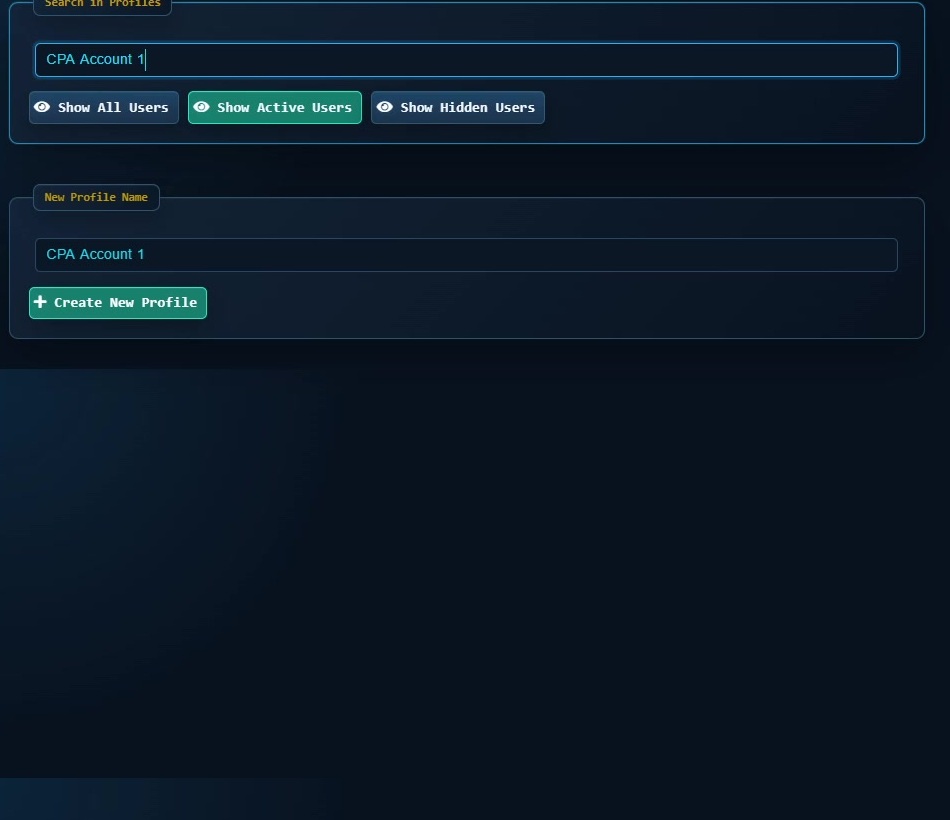
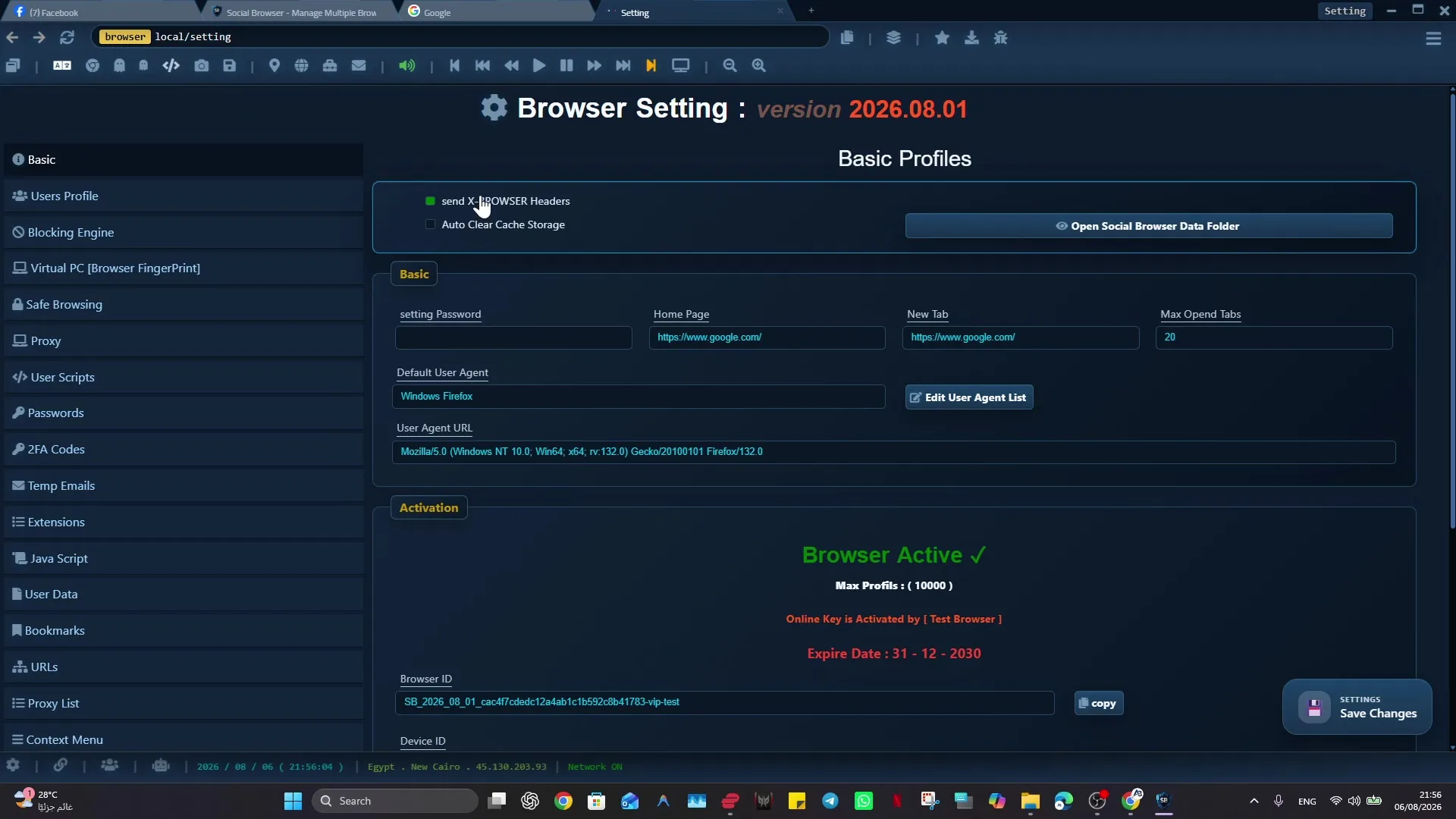
Organizing multiple online workflows can become difficult when online workflows quickly become scattered across tabs, apps, sessions, and personal habits. Teams, solo operators, marketers, developers, and support teams benefit from a browser that keeps account context, Profile purpose, and next action explicit.
A multi-profile browser gives this work a clear operating context. Social Browser connects Profiles, sessions, privacy controls, scripts, extensions, notes, and review in one place. For organizing multiple online workflows, it turns each workflow into a controlled profile with visible profile boundaries.
Workflow organization rules
- Use dedicated profiles for every important account, campaign, role, or task.
- Keep session state, notes, and ownership close to the profile that needs them.
- Use browser automation and customization only where they have a clear purpose.
- Review profiles regularly so inactive, risky, or outdated work does not accumulate.
- Respect platform policies, privacy requirements, and local laws while improving productivity.
Online Workflow Control Compared With Standard Browsing
| Area | Standard browser pattern | Social Browser pattern | Professional value |
|---|---|---|---|
| Profiles | Personal or informal | Purpose-built work units | Clearer ownership |
| Sessions | Often mixed across tasks | Separated by profile and workflow | Lower operational confusion |
| Automation | External or scattered | Connected to profile context | More reliable execution |
| Customization | Extension-first and personal | Workflow-first and reviewable | Safer browser behavior |
| Team process | Depends on memory and messages | Documented team procedures | Better collaboration |
Practical Next Step
For “How to Organize Multiple Online Workflows Without Losing Control”, start with a controlled first pass: prove the workflow on one non-critical Profile first. Verify targets, typed values, waits, side effects, and recovery before adding schedules, more Profiles, or higher concurrency.
Important Limits and Safe Use
For “How to Organize Multiple Online Workflows Without Losing Control”, the safe-use boundary is clear: automation should remain explicit, reviewable, and limited to permitted work. Faster execution should never remove the checks that make a workflow safe to repeat.
- Test on a low-risk Profile before scheduling or scaling.
- Verify side effects such as submissions, messages, purchases, or account changes.
- Use waits, recovery, and human review where the result matters.
Expand “How to Organize Multiple Online Workflows Without Losing Control” only after the expected result is repeatable, documented, and appropriate for the service being used.
Conclusion
The useful final test for “How to Organize Multiple Online Workflows Without Losing Control” is whether the same verified result can be repeated without hiding failures or side effects.