
Practical Guide · Selenium
How to Use Persistent Browser Sessions for Selenium Testing
Manage Chrome user-data profiles for Selenium tests without reusing sensitive personal sessions or creating flaky cross-test state.
Published October 11, 2026 · Social Browser Editorial Team
Why this matters
Teams often ask whether Selenium can keep them signed in between test runs. Yes, browser drivers can be configured with dedicated user-data directories in suitable environments, but persistence changes what a test proves. A test that passes because yesterday's cookies survived is not the same as a test of the login flow. This guide shows where persistence helps and where it compromises reliability.
Start by separating test categories
Authentication tests should intentionally begin without a session and assert the login process. Authenticated feature tests can use a sanctioned fixture or preconfigured test account when that reduces repeated setup cost. Name and isolate browser directories per environment and worker. Reusing a personal production account for automated testing exposes credentials and makes results dependent on human browsing history. The goal is controlled test state, not a convenient collection of mysterious cookies.
Understand Chrome profile constraints
Selenium's Chrome options support configuring the browser user data directory in appropriate environments. Use a dedicated directory path, close browser processes cleanly and avoid two drivers writing to the same profile concurrently. CI agents often benefit more from disposable directories with known fixtures than long-lived local storage. Session persistence should be treated as a deliberate part of the test design, with a documented reset method.
Write failure behavior before retry behavior
A test must distinguish expired authentication, a transient network error and a feature regression. Verify a signed-in marker before navigating to privileged pages. On expiry, collect a limited diagnostic and request a new authorized session setup; don't blindly repeat login attempts that could lock accounts. Be careful with screenshots and traces because they can capture private customer details or access tokens. Use test accounts and redact sensitive evidence.
When a desktop workspace fits better
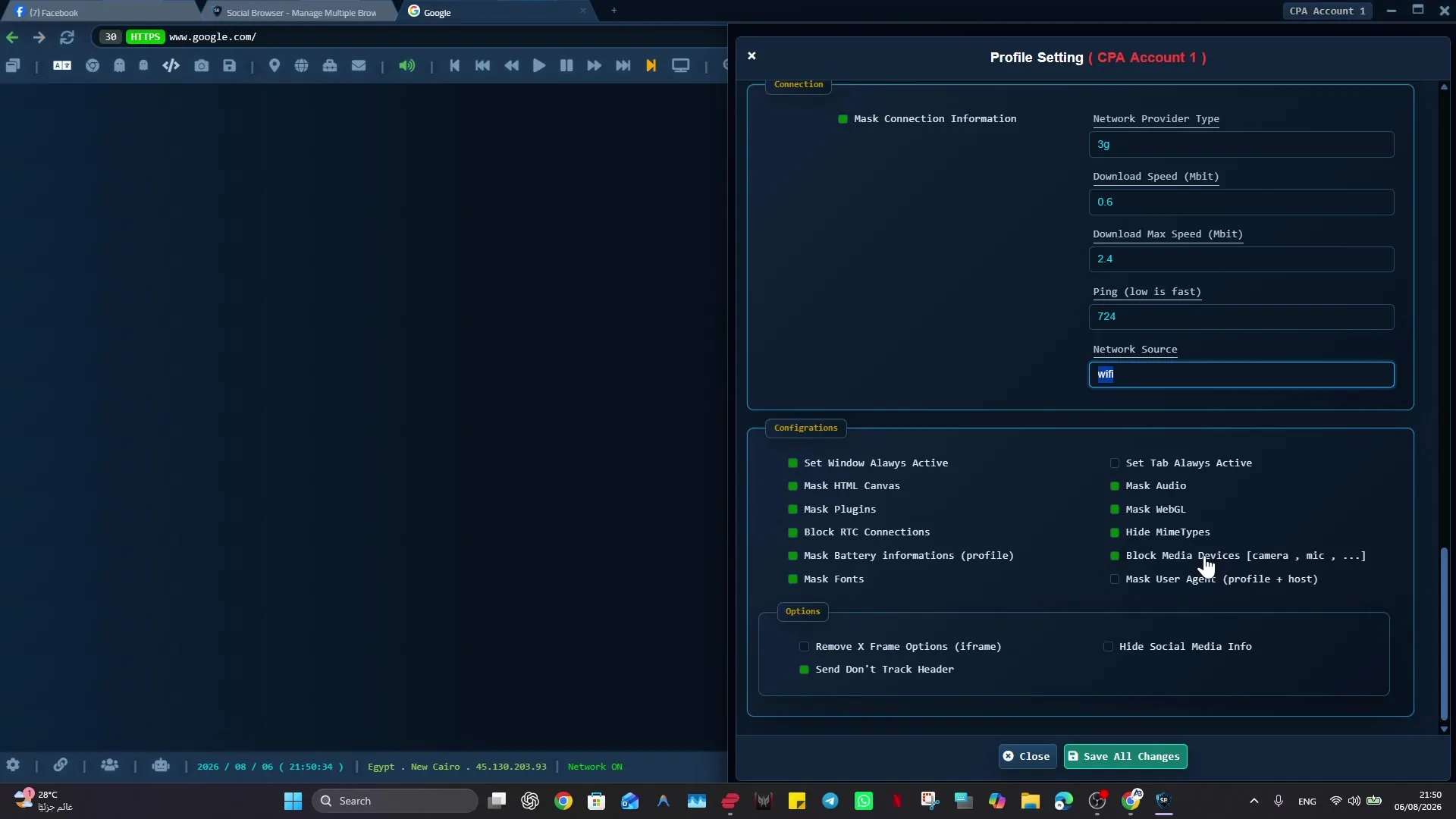
Selenium is a test automation framework. Social Browser is a managed desktop browser environment with persistent Profiles and workflow features. For supervised business processes or an analyst-operated automation, the latter can be easier to inspect. For cross-browser regression tests, Selenium's driver ecosystem and CI integration are usually more appropriate. Keep the distinction explicit rather than presenting the tools as substitutes for every task.
Implementation checklist
- Decide which tests genuinely require persistence.
- Use test accounts with minimum necessary privileges.
- Assign an isolated user-data directory per test worker.
- Verify authentication state before every privileged operation.
- Provide a clean-reset and credential-revocation procedure.
Example: putting the guidance into practice
A testing team checks an internal reporting console. Its login tests always start from a fresh browser. Its read-only dashboard tests may start from a sanctioned authenticated fixture. Both suites record which state they expect so a stale profile cannot hide a broken login flow.
Frequently asked questions
Should Selenium use my default Chrome profile?
Avoid that, particularly for production accounts. Dedicated test directories reduce profile locking and privacy risks.
Do persistent sessions make flaky tests go away?
Not automatically. They can introduce state leakage and hidden dependencies if isolation and resets are missing.
Important boundaries
The guidance above assumes authorized accounts and compliance with each service’s terms. Separate Profiles and automation can improve organization; they do not grant access rights, remove authentication requirements, guarantee anonymity, or eliminate security risk. Validate the workflow with a real reviewer before using it on sensitive production data.
Next step with Social Browser
Choose one small, permitted workflow, verify its starting account and define evidence of success before scaling. Social Browser can keep the relevant browser context organized while your team controls permissions, review and final decisions.
Explore the relevant Social Browser capability · Download for Windows · Download for Linux
Official documentation and further reading
Use these primary references to verify the relevant platform capabilities and permissions. Vendor documentation can change; confirm the current terms and product version before acting.