
Social Browser Help Guide
How Sessions, Cookies, and Local Storage Stay Separate by Profile
Understand what profile isolation means in practical daily use and how to avoid mixing browser state across accounts.

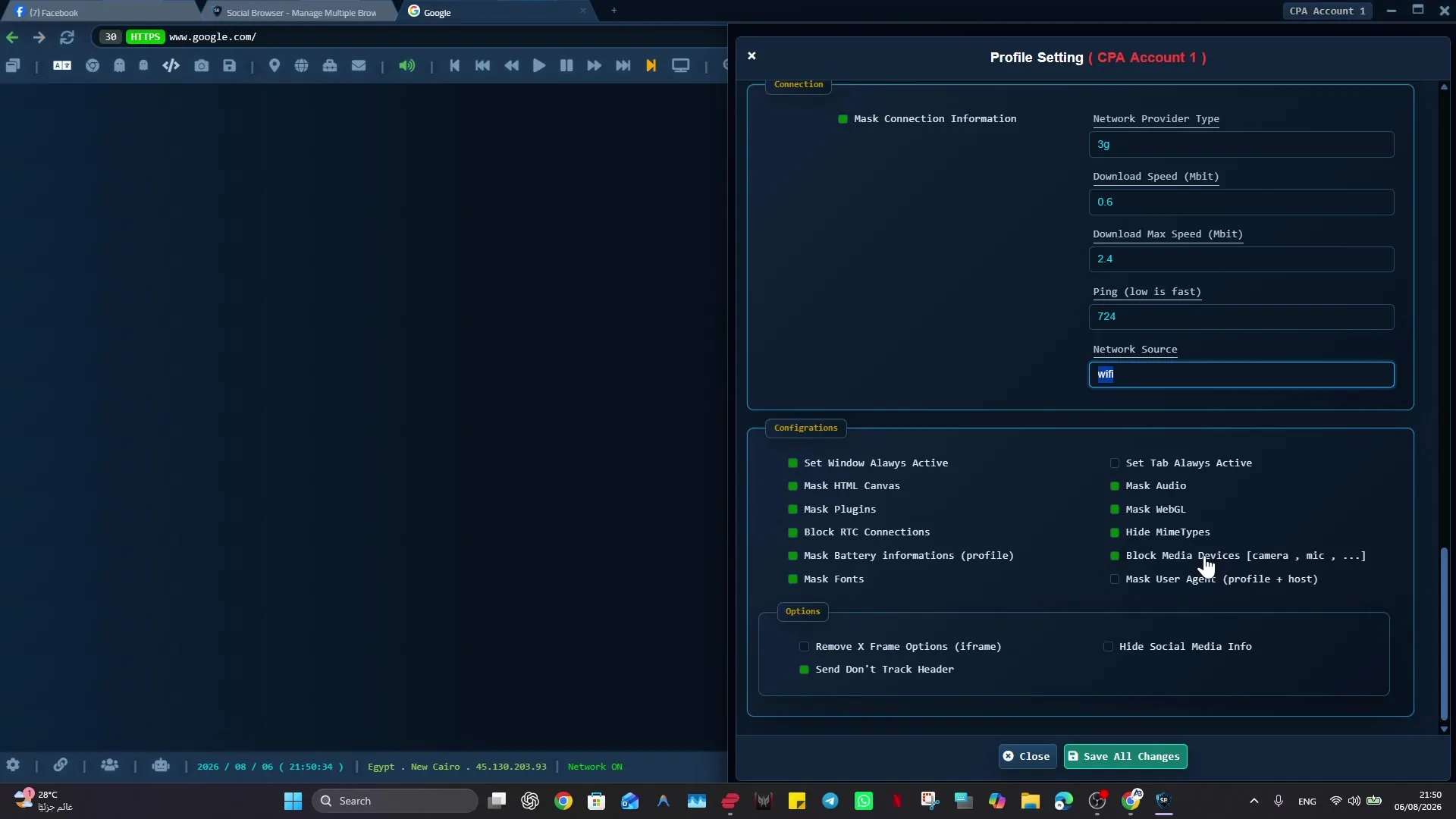
Expected Result
You should understand how each profile acts as its own browser environment and how to verify that you are using the right profile before important work.
This guide is written for users who manage multiple accounts, clients, projects, stores, campaigns, or testing roles on one device. It follows the Social Browser product reference: profiles are browser environments, proxies are user-supplied, and advanced controls should be described responsibly.
Before You Start
- Create at least two test profiles.
- Use non-sensitive test accounts or websites while learning.
- Avoid importing cookies or sessions until you understand the profile boundary.
Steps
- Open one profile and sign in to a trusted test website.
- Open another profile and visit the same website.
- Confirm that the second profile does not automatically share the first profile session.
- Use profile names, colors, or titles to make each profile recognizable.
- Keep one job, client, account family, or test role per profile where possible.
- Before importing cookies or sessions, confirm the target profile is the correct one.
- Use clear profile cleanup rules instead of clearing cache or cookies from the wrong profile.
How To Check It Worked
- Each profile shows the expected login state for that profile.
- The active profile name is visible before important account actions.
- Imported session or cookie data goes only into the intended profile.
- Team members can tell which profile belongs to which task.
Important Safety Notes
- Profile isolation does not create third-party accounts.
- A website can still apply its own security, login, review, and session rules.
- Session exports and cookies can be as sensitive as passwords.
- Do not describe isolation as a guarantee of anonymity, invisibility, or ban prevention.
Troubleshooting
- If a site keeps asking you to log in, confirm you opened the correct profile.
- If you cleared site data, you may need to sign in again according to that website rules.
- If two tasks feel mixed, split them into clearer profiles and avoid reusing vague names.
Responsible Use
A responsible implementation of “How Sessions, Cookies, and Local Storage Stay Separate by Profile” starts with this boundary: profile isolation reduces accidental state mixing, but it does not grant access to accounts or replace the rules of the services you use. Give each important Profile one clear purpose. Keep credentials and exported session data protected.