
Social Browser Help Guide
How to Create, Edit, Hide, and Restore Profiles in Social Browser
Use profiles as separate browser environments for accounts, projects, clients, or tasks without confusing them with website accounts.
Expected Result
You should be able to create a clearly named profile, edit its useful metadata, hide inactive profiles, and understand cautious recovery behavior.
This guide is written for new users, account managers, agencies, support teams, and operators managing several browser environments. It follows the Social Browser product reference: profiles are browser environments, proxies are user-supplied, and advanced controls should be described responsibly.
Before You Start
- Understand that a browser profile is not a Facebook, Google, TikTok, or other third-party account.
- Use meaningful names for clients, projects, roles, regions, or campaigns.
- Back up Social Data before changing many important profiles.
Steps
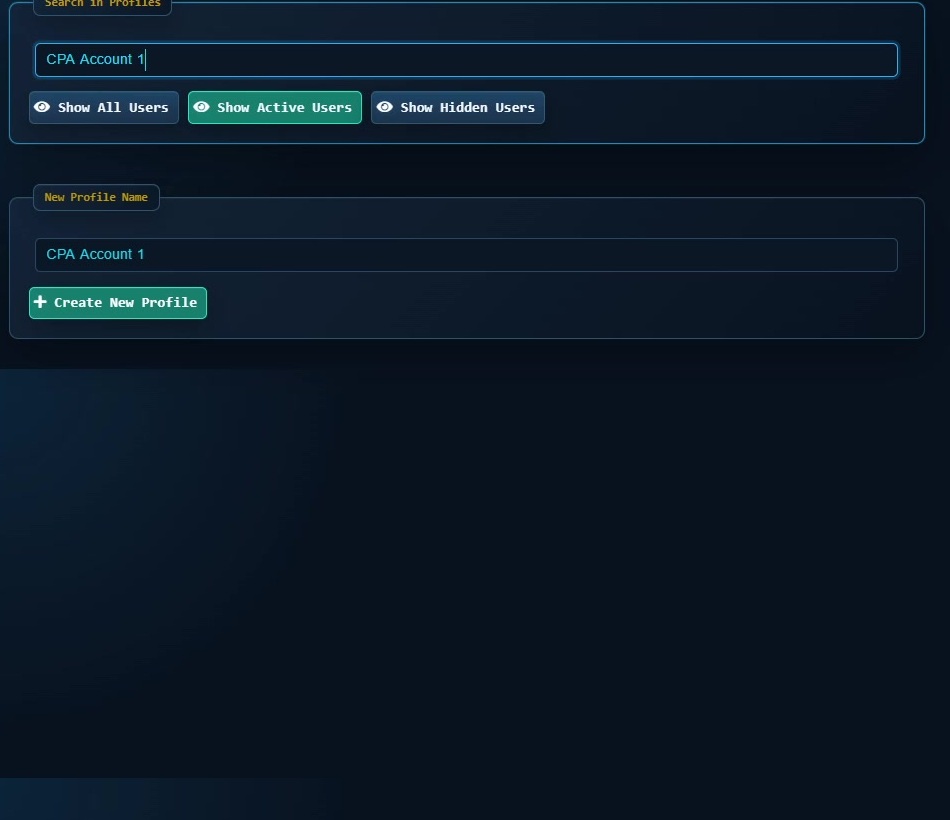
- Open the profile selector from the current profile name.
- Type a clear profile name.
- If no matching profile exists, choose the create-new-profile action.
- Select the new profile so it becomes the active profile.
- Open the profile editor when you need to add organizational details such as title, color, email reference, user-agent choice, proxy choice, or notes.
- Use the active, hidden, or all profile view to review profile status.
- Hide profiles that should not appear in daily work but should not be deleted.
- If a profile was removed by mistake, recreate the exact same profile name only after checking your backup and folder state.
How To Check It Worked
- The active profile name matches the profile you intend to use.
- Cookies, storage, and login state are separate from other profiles.
- Hidden profiles do not clutter daily profile selection.
- Profile names are understandable to someone else on the team.
Important Safety Notes
- Entering an email or password in profile data does not create an account on any website.
- Do not store credentials in profile fields unless your local security practices allow it.
- Be cautious with deletion. Back up important profiles first.
- Do not use profiles to mislead platforms or violate platform rules. Use them for organization and separation.
Troubleshooting
- If you cannot find a profile, clear the profile search filter.
- If the wrong account opens, confirm the active profile before changing cookies or sessions.
- If a hidden profile is needed again, switch the profile manager to show hidden or all profiles.
Responsible Use
The main safety constraint for “How to Create, Edit, Hide, and Restore Profiles in Social Browser” is straightforward: profile isolation reduces accidental state mixing, but it does not grant access to accounts or replace the rules of the services you use. Give each important Profile one clear purpose. Keep credentials and exported session data protected.