Custom Settings for the Current Tab in Social Browser (2026): Permissions and Resource Blocking
Social Browser has a fast Custom settings panel for the current tab. This practical guide uses an unedited 2026.10.20 browser session and a 25-second real interaction video to show how to find it, scroll through permission and resource controls, and avoid turning off functionality your site actually needs.
Real opening, scrolling and closing — no switches were changed.
Historical video: Custom Settings — popups, origin, downloads and developer tools ↗
What this panel controls
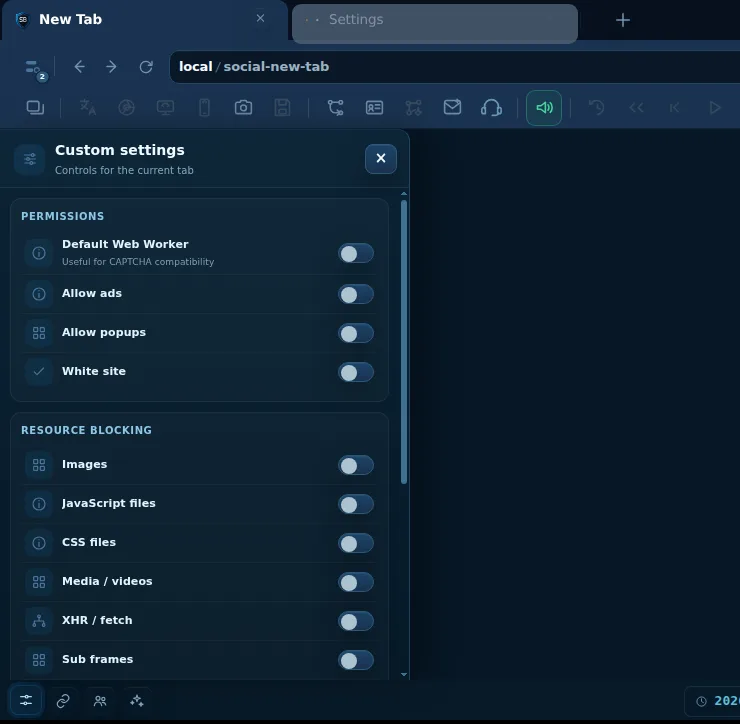
The heading explicitly identifies “Custom settings — Controls for the current tab.” That scope matters: opening the panel does not mean you changed every tab or every Profile. The first group contains permission-related switches; the next group has resource blocking; the final group has more disruptive engine controls. A switch visible in the interface is not evidence that a specific website’s feature works, has been blocked, or will be unblocked until you test the actual result.
Step-by-step: use Custom settings safely
- Start in the correct tab
Open a regular, authorized test page inside Social Browser. Confirm the tab’s Profile and URL before making changes; otherwise you may change rules for the wrong customer task.
- Open the bottom-left Custom settings control
Select the slider/settings icon in the browser’s bottom-left toolbar. In the captured build, a compact left-hand panel appears with the subtitle “Controls for the current tab.” This is different from the main full Settings page.
- Understand the permissions group
The panel lists Default Web Worker, Allow ads, Allow popups and White site. These controls can change expected page behavior. Only enable exceptions on an authorized page after understanding why the page requires them.
- Review the first resource controls
Scroll to Resource Blocking. Visible choices include Images, JavaScript files, CSS files and Media / videos. Blocking images can remove essential information; blocking JavaScript or CSS may break navigation and layout.
- Review network and embedded-content resources
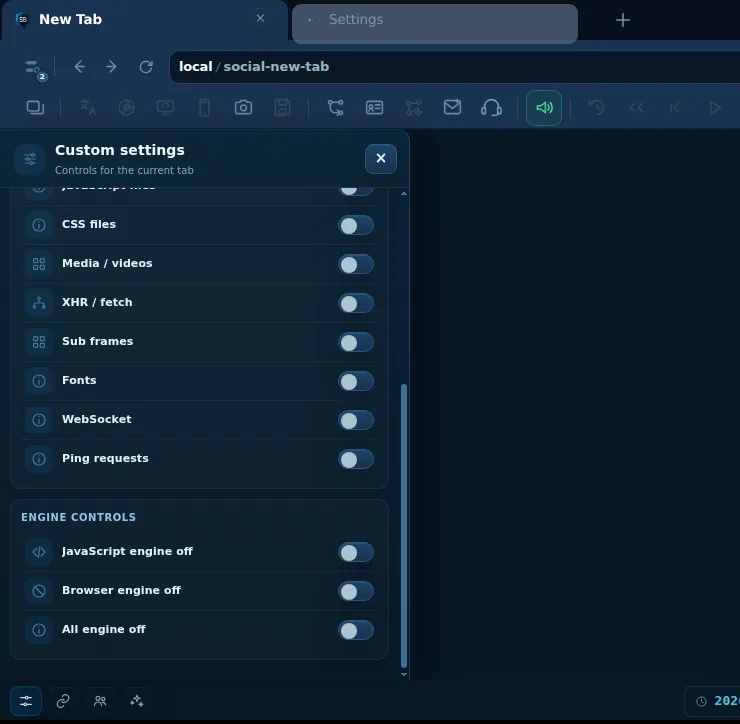
Further down you can find XHR / fetch, Sub frames, Fonts, WebSocket and Ping requests. Many modern dashboards depend on asynchronous requests and WebSocket connections; blocking them can interrupt updates and logged-in sessions.
- Inspect the advanced engine controls without toggling
At the bottom of the inspected panel are JavaScript engine off, Browser engine off and All engine off. These broad switches are high impact. Avoid using them as a first troubleshooting step because they can disable page functionality.
- Close the panel to return to normal browsing
Use the X in the top-right of the popup. Closing the panel is not the same as undoing a changed setting; if you changed anything, restore the original value explicitly and test the page.
- Troubleshoot a broken page systematically
If a web app fails after a setting change, restore the original switch, reload a permitted test page and review browser diagnostics. Work from narrow resource controls to wider behavior only when required; do not repeatedly submit forms or authentication attempts blindly.
- Confirm scope on another tab
When relevant, open a separate test tab or Profile and inspect its settings. Per-tab controls should not be confused with global defaults or Profile-level settings. Record the actual outcome before describing it as isolated.
Captured screens from Social Browser 2026.10.20
Compare the groups before changing them
| Setting group | Visible controls | Practical risk to check |
|---|---|---|
| Permissions | Default Web Worker, Allow ads, Allow popups, White site | A site exemption can change protection behavior; check the actual current tab. |
| Visual content | Images, CSS files, Fonts | Layout, icons or critical information may disappear. |
| Interactive features | JavaScript files, XHR / fetch | Logins, form submissions, dynamic lists or APIs may stop working. |
| Embedded content | Media / videos, Sub frames | Players and embedded widgets may fail to load. |
| Real-time services | WebSocket, Ping requests | Notifications, real-time updates or telemetry may stop. |
| Engine controls | JavaScript engine off, Browser engine off, All engine off | Broad shutdown can render pages unusable; keep disabled unless tested. |
Validation and safety
Verification boundary: the video documents real opening, scrolling and closing of the Custom settings popup. We deliberately did not flip any permission, resource-blocking or engine switch, and therefore do not claim any blocking or unblocking outcome. Use an authorized disposable page before testing disruptive changes.
Frequently asked questions
Does Allow popups mean the browser will always permit popups?
The switch is a local control for the current tab. Other browser settings, network policies and the site’s behavior can affect actual results. Test on a site where you have permission.
Should I disable JavaScript engine to prevent all tracking?
Not as a universal strategy. It can break logins, navigation, security checks and accessibility, and does not guarantee privacy. Prefer narrow controls and verify the site result.
Can I block XHR/fetch requests safely?
Blocking XHR/fetch may stop live data, APIs, form submissions and account functions. Test with a non-sensitive page and revert if the page fails.
Does White site whitelist the whole internet?
No. The observed panel labels a local per-tab setting; check actual scope and effects on the site before assuming a wider exemption.
Is this identical to the main Settings page?
No. The popup explicitly says Controls for the current tab. The general Settings view covers broader defaults, while Profile settings govern their own scopes.
Can I reproduce this in an old release?
Menu locations can change. This tutorial documents the 2026.10.20 interface and links to the older video for historical context.