New Tab in Social Browser 2026: Search, Open URLs & Preview Tabs
A browser tab is more than a blank page. This 30-second real demonstration shows how to use Social Browser’s New Tab start screen, tell a web address from a search query, open a safe official page, and inspect a tab preview before changing context.
Real recorded browser navigation and tab previews, not a mocked demonstration.
When to use a New Tab
A browser tab is more than a blank page. This 30-second real demonstration shows how to use Social Browser’s New Tab start screen, tell a web address from a search query, open a safe official page, and inspect a tab preview before changing context.
Eight practical steps
- Open a clean tab in the intended Profile
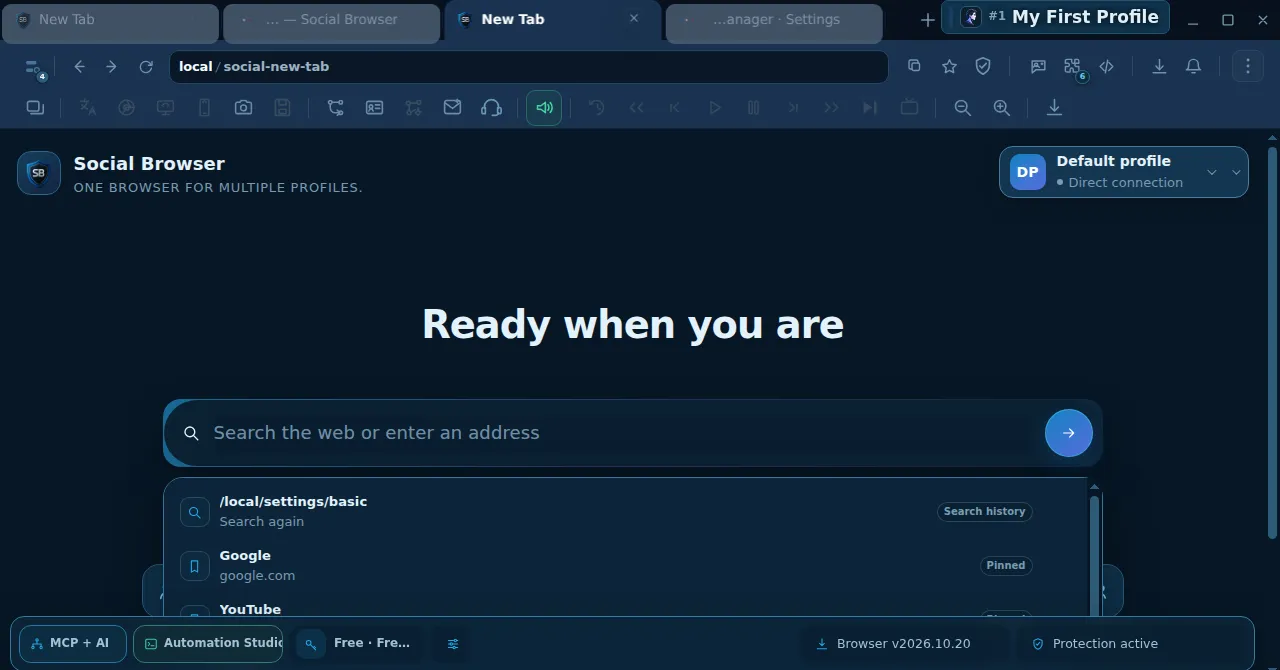
Select the plus icon beside the current tab. In our recorded Social Browser 2026.10.20 test, the new tab displayed the Social Browser start screen with a clearly identified Default profile and Direct connection. A new tab does not mean a new independent Profile; it opens within the current browser context.
- Check the active Profile and network label
Look at the Profile selector in the upper-right part of the New Tab page. It displays the current Profile and, in this demonstration, Direct connection. Do not assume that a connection label alone verifies an external IP, actual proxy reachability or access permissions. If your work requires separation, choose or create the proper Profile first.
- Choose URL navigation or a general web search
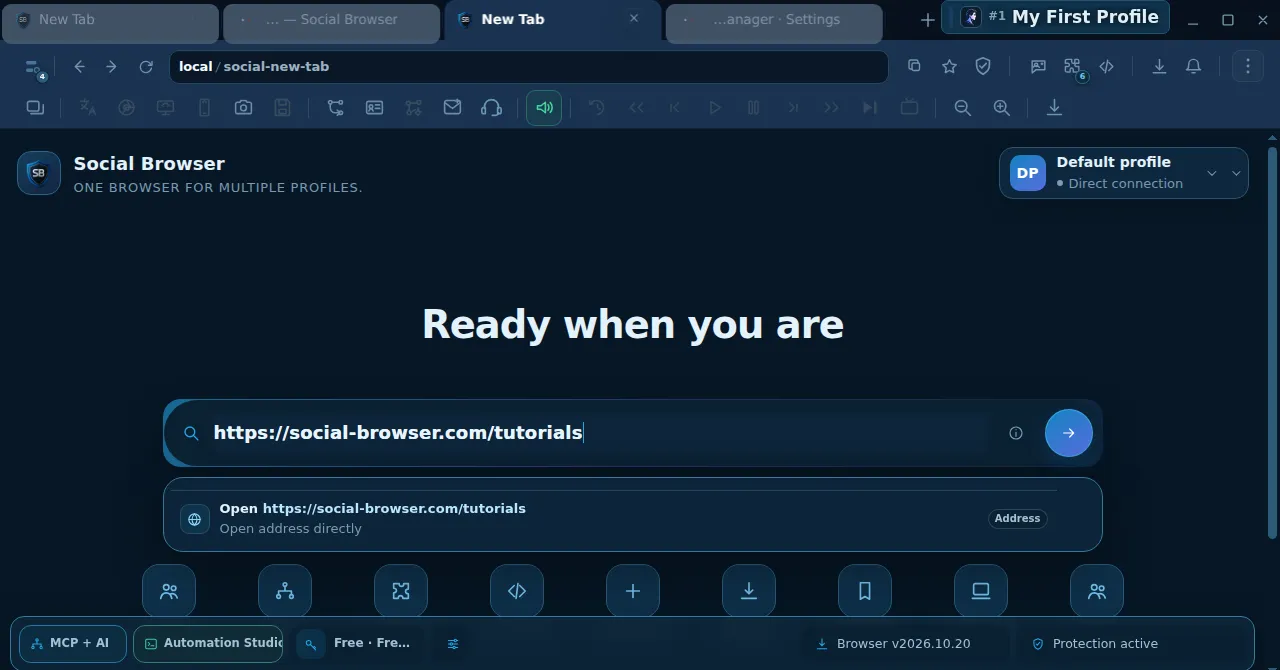
Use the New Tab input Search the web or enter an address. Enter a complete permitted URL such as https://social-browser.com/tutorials to navigate directly. General keywords usually open the configured search provider instead; search-provider behavior depends on browser settings. Avoid pasting credentials, private cookies or one-time access tokens into a search field.
- Confirm you reached the site you intended
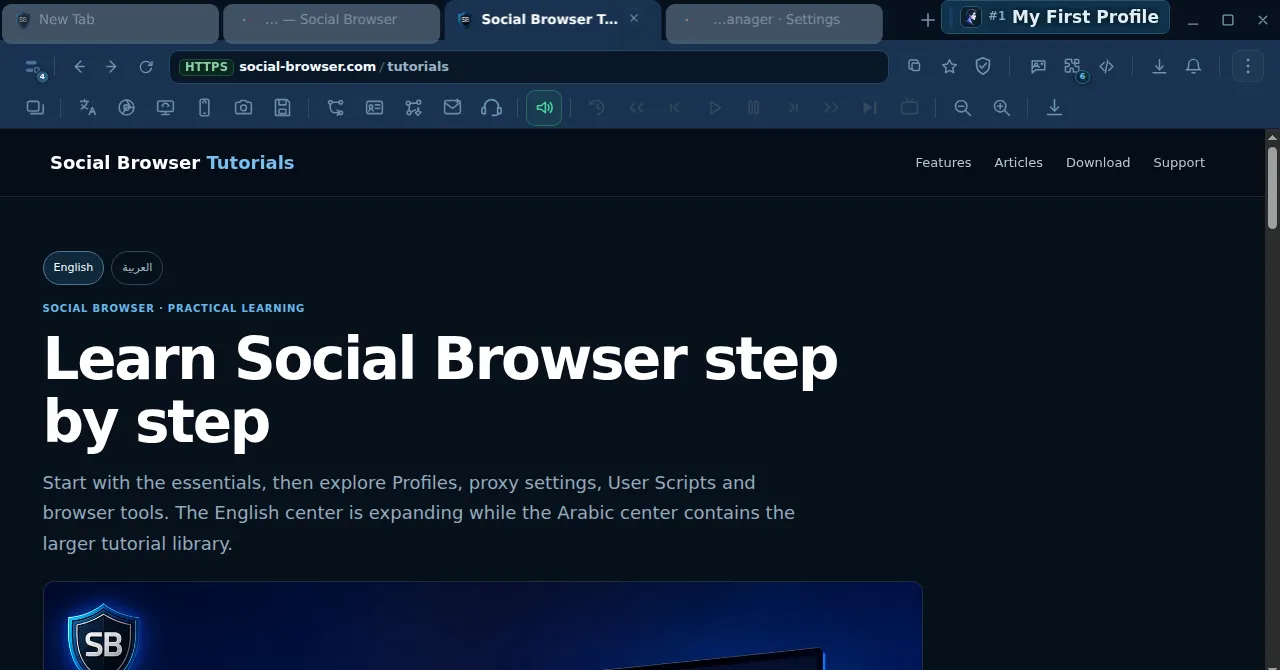
Our test typed https://social-browser.com/tutorials and successfully opened the Social Browser Tutorials page. Check the domain in the browser’s address bar and HTTPS information rather than judging legitimacy from the page’s logo or design alone. If redirected somewhere unexpected, investigate before signing in or downloading files.
- Use pinned and recent suggestions carefully
Before navigating, the New Tab interface can show shortcuts and recent search or site suggestions. A pinned entry is a convenience, not an endorsement of the destination or proof that it is still safe. Check the URL and maintain separate browser Profiles for separate authorized accounts.
- Open a second tab without losing your first
Select the plus icon again. The original page remains in its existing tab while a new start page opens in the new tab. Use the tab strip to switch between them. If many tabs are open, consult resource information and close unused pages rather than relying only on the configured maximum tab count.
- Hover a tab for a preview and usage information
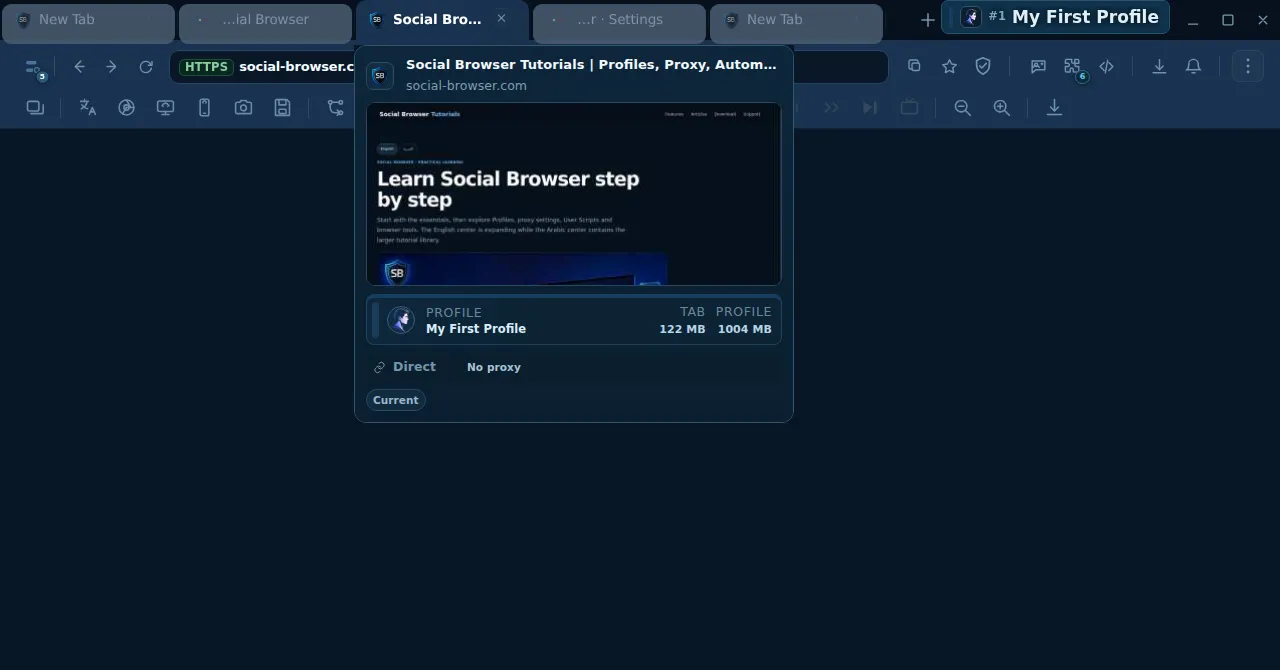
Move the pointer over an open tab. The tested version displayed a small live preview panel showing the page title, address, Profile name, tab memory, Profile memory and whether the connection is direct or proxied. The displayed memory values are snapshots and can change; do not treat them as stable performance benchmarks.
- Return to the intended tab and verify the context
Click the correct tab and check its address and Profile before continuing. When you see an unfamiliar preview or an unexpected active Profile, stop before entering credentials or operating on a customer account. This is particularly valuable for teams handling multiple independent tasks in one session.
Screenshots from the real browser test
Compare the visible controls
| Control | What it does | What it does not prove |
|---|---|---|
| New Tab page | Quick search/address entry and start-screen shortcuts | Not itself a separate Profile or isolated login |
| Address bar | Shows loaded site and HTTPS context | HTTPS does not certify that a site is trustworthy |
| Profile selector | Shows which Profile a tab belongs to | Not proof a third-party account is authorized |
| Connection label | Shows direct/proxy state from browser UI | Not an independent IP/network-leak test |
| Tab hover preview | Title, visual preview, memory and connection state | Memory values change and are not guarantees |
| Plus button | Opens another tab in the same workspace | Not the same as creating a new Profile |
Before signing in to an account
This tutorial uses real clicks in an isolated Social Browser 2026.10.20 desktop session, including successfully opening the official tutorials URL. Tab preview metrics are illustrative, not a benchmark. Use authorized accounts and avoid sharing credentials or secret links in public demonstrations.
Frequently asked questions
What is the difference between New Tab and a new Profile?
A tab holds a page within a browser context; a new Profile creates a distinct browser session environment. For account separation, review the Profile configuration rather than assuming a new tab is isolated.
Can I type a full website address into the large central search bar?
Yes. In our tested build a complete https:// URL opened the requested site directly. Searching ordinary words instead may use the configured search engine.
Is the memory shown in a tab preview an average?
No. It is a live/near-live reading for that tab or Profile. It can rise or fall with page content, background work and the operating system.
Does “Direct connection” guarantee the public IP I expect?
No. Verify your externally observed IP when relevant; the display label shows browser state, not a complete network audit.
Will a second tab share cookies with the first?
Tabs within the same Profile commonly share that Profile’s session context. Use separate Profiles for tasks where session isolation matters.