Social Browser Settings Tour 2026: Basic, Safe Browsing, Downloads & Profiles
Not sure where a setting moved? Follow this real 29-second interaction recording from Social Browser 2026.10.20. Learn how the sidebar is organized and how to verify a change without guessing which Profile or page it affects.
Real screen recording of clicks through Settings; not a simulated interface.
What the Settings sections mean
Not sure where a setting moved? Follow this real 29-second interaction recording from Social Browser 2026.10.20. Learn how the sidebar is organized and how to verify a change without guessing which Profile or page it affects.
Six practical steps
- Open Settings and understand the sidebar
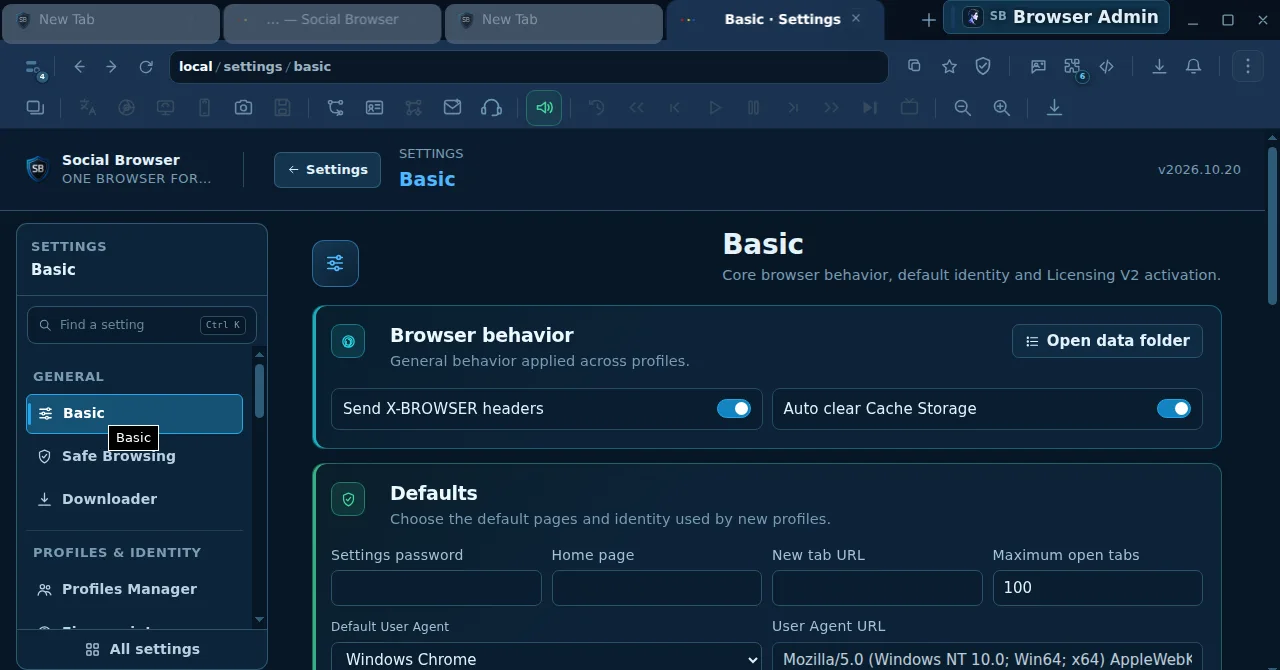
Open the Settings view from the browser interface. The left navigation presents groups such as General and Profiles & Identity. The search field marked Find a setting and the All settings control are for discovering sections without browsing every tab.
- Basic: review browser behavior before changing defaults
The Basic page has Browser behavior controls, including Send X-BROWSER headers and Auto clear Cache Storage, plus a Defaults group. Here you can inspect Home page, New tab URL, Maximum open tabs, Default User Agent and a User Agent URL. A changed default can affect newly created Profiles or browser-wide behavior; always confirm the on-screen scope before saving.
- Safe Browsing: separate protection switches from custom rules
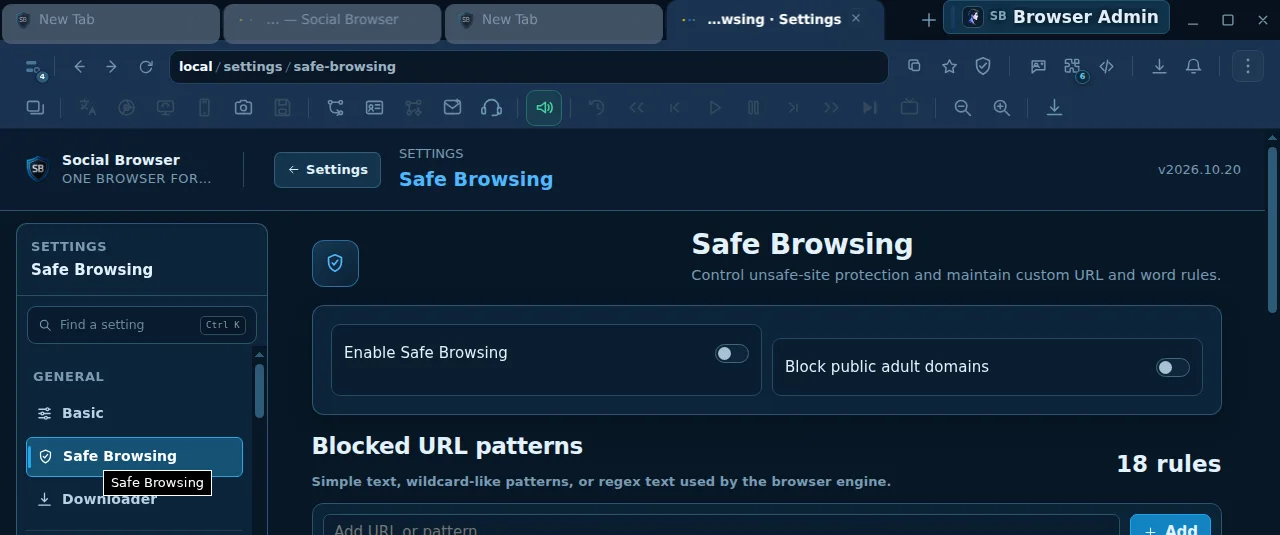
Safe Browsing presents Enable Safe Browsing and Block public adult domains switches, followed by Blocked URL patterns. Review whether the feature is enabled before adding URL rules. Patterns can be plain text, wildcard-like expressions or regular expressions; an overly broad entry may block legitimate pages, so use a controlled test and revert anything unexpected.
- Downloader: decide which app handles files
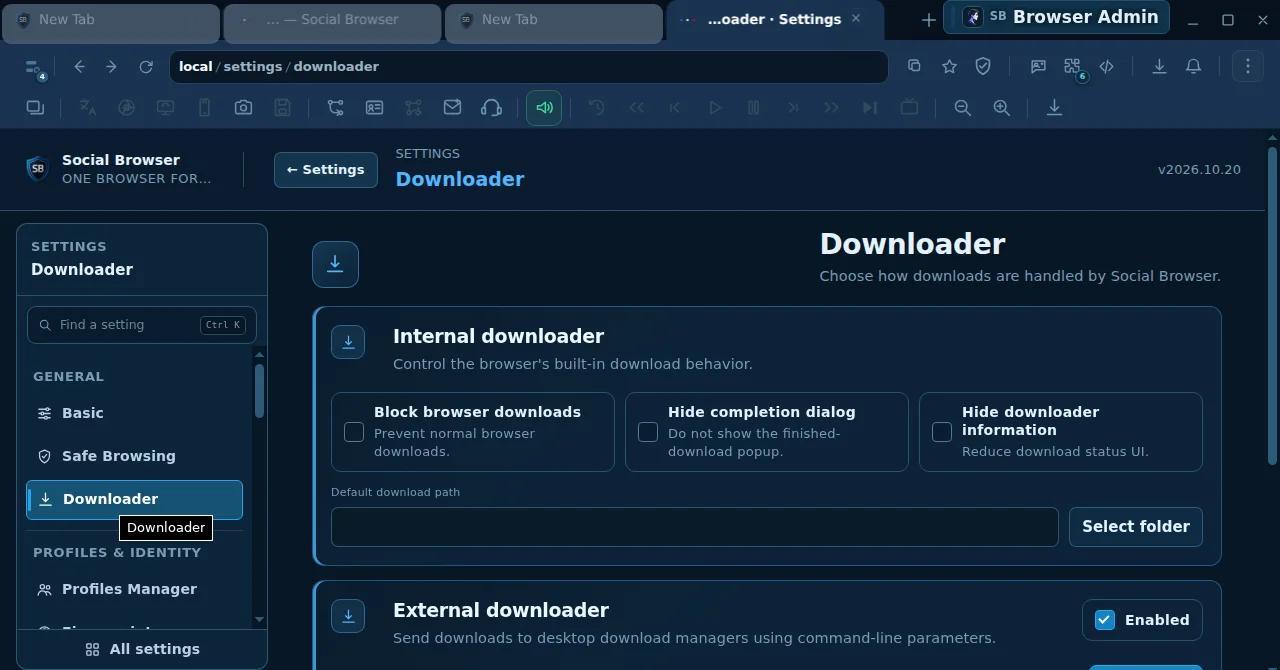
Open Downloader to review the built-in transfer controls, completion notifications and download path. The External downloader area is only for software independently installed on your device. Choosing a file path is not evidence that an external app can successfully download a file.
- Profiles Manager: verify readiness before opening a Profile
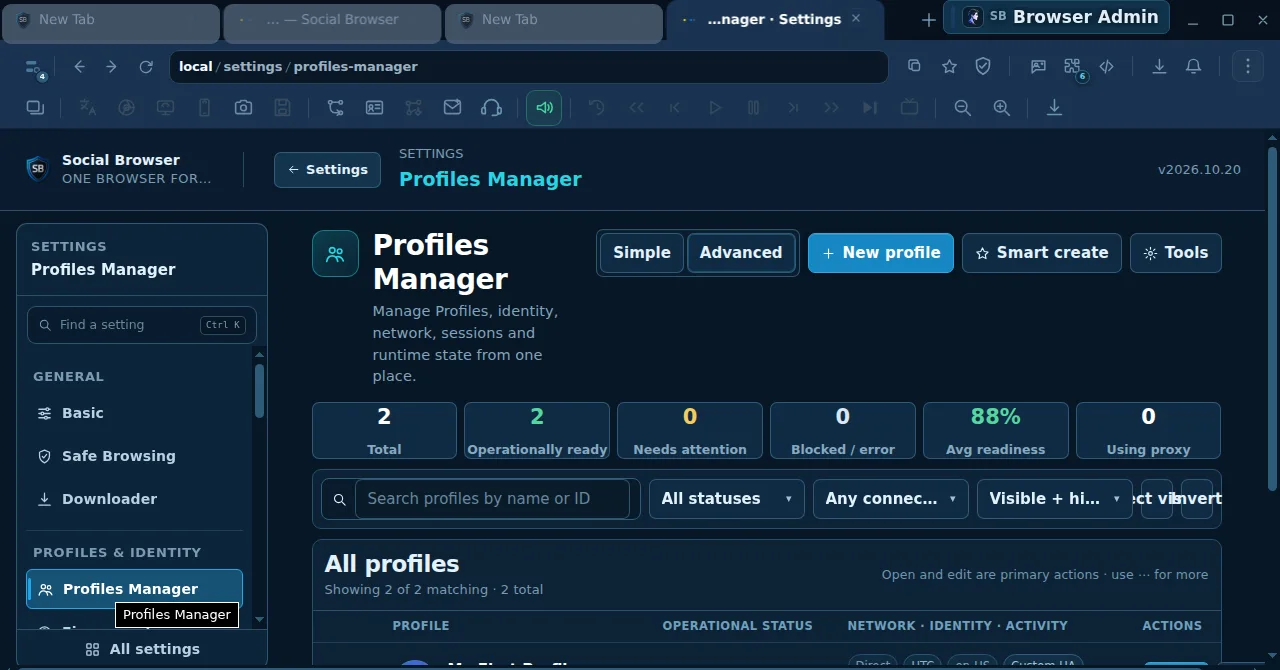
The Profiles Manager page displays Total, Operationally ready, Needs attention, Blocked/error and readiness summary cards. Use the search and connection filters to find the intended Profile and check its status. Open, Edit, New profile and Smart create appear in the page header, but do not change an account or proxy without verifying the selected row.
- Confirm the change and keep a rollback path
After an adjustment, reopen the relevant page and inspect the value. For a new homepage URL, test a fresh tab; for a proxy, test connectivity; for blocking rules, test both a permitted page and the intended blocked pattern. Keep track of your former value before experimenting.
Real Settings screenshots
A comparison before making changes
| Section | Key controls | Important limitation |
|---|---|---|
| Basic | Homepage, new tab URL, tab limit, default user agent | Unreviewed changes can affect many new tabs or Profiles |
| Safe Browsing | Protection toggles and URL / word rules | Broad rules may block pages you wanted to allow |
| Downloader | Download path and optional external manager | The outside program may not be installed or compatible |
| Profiles Manager | Readiness summaries, profile actions and filters | Ready does not guarantee acceptance by external websites |
Important safety note
This demonstration records real clicks through the Settings navigation on an isolated test session. It does not enable protection, change security rules, install an external download manager, or test a third-party proxy. Sensitive patterns in the recording have been obscured. Some settings may have wider impact: use a disposable test profile before changing them.
Questions readers ask
How do I find a setting without scrolling the sidebar?
Use Find a setting, or open All settings to review the full Settings structure. The list may differ by release and permissions.
Does the Max open tabs field mean every device should use that number?
No. The screenshot shows the current configured value on the test machine. Choose a setting your system can reliably sustain and verify resource use.
Does enabling Safe Browsing make account automation unrestricted?
No. Protection options do not change external websites’ terms, and they cannot guarantee account security.
Is the Proxy Manager available from every Settings page?
Look under Network & Blocking; its specific UI and availability depend on release and environment. Do not assume a direct typed URL is the preferred entry route.