
Social Browser Guide
How to Use Proxies in Social Browser
A safe and responsible guide to using proxies in Social Browser for professional session organization.
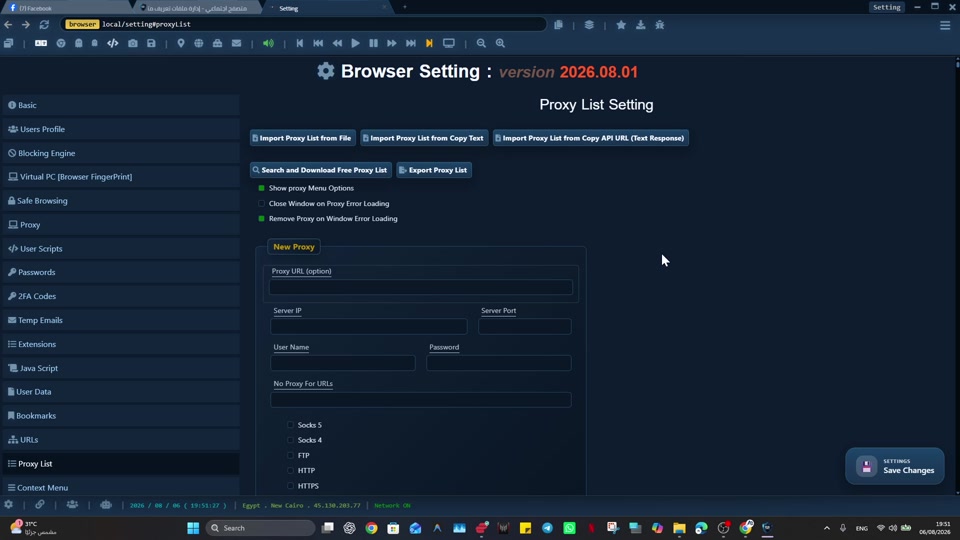
Using proxies responsibly in Social Browser can become difficult when proxy use becomes confusing and risky when network context is changed manually without profile purpose or documentation. Professional teams, testers, regional operators, affiliates, and agencies benefit from a browser that keeps account context, Profile purpose, and next action explicit.
A multi-profile browser gives this work a clear operating context. Social Browser connects Profiles, sessions, privacy controls, scripts, extensions, notes, and review in one place. For using proxies responsibly in Social Browser, it helps connect proxy context to specific profiles and workflows in a more organized way.
Responsible proxy use checklist
- Use dedicated profiles for every important account, campaign, role, or task.
- Keep session state, notes, and ownership close to the profile that needs them.
- Use browser automation and customization only where they have a clear purpose.
- Review profiles regularly so inactive, risky, or outdated work does not accumulate.
- Respect platform policies, privacy requirements, and local laws while improving productivity.
Using Proxies Compared With Standard Browsing
| Area | Standard browser pattern | Social Browser pattern | Professional value |
|---|---|---|---|
| Profiles | Personal or informal | Purpose-built work units | Clearer ownership |
| Sessions | Often mixed across tasks | Separated by profile and workflow | Lower operational confusion |
| Automation | External or scattered | Connected to profile context | More reliable execution |
| Customization | Extension-first and personal | Workflow-first and reviewable | Safer browser behavior |
| Team process | Depends on memory and messages | Documented team procedures | Better collaboration |
Verify a proxy in one Profile before scaling
Start with a single test Profile and one proxy endpoint supplied by your provider. Record the protocol, host, port, and whether authentication is required. Keep credentials in a protected configuration rather than copying them into shared notes.
- Set up the endpoint: enter the provider's connection details in the Profile's proxy settings. If connectivity fails, check the protocol, port, and authentication requirements before trying another endpoint.
- Compare the public IP: first note the IP with the proxy disabled, then browse through the test Profile and check the observed public IP again. Compare the result with the intended provider route; an IP change alone does not prove every traffic type uses that route.
- Check actual navigation: load a permitted HTTPS site, open a new tab, and record whether browsing consistently works with the intended network settings.
- Document the result: save the Profile name, provider, verification date, observed public IP, and errors without storing credentials or account secrets.
When the connection fails
A timeout is different from an authentication challenge. With HTTP proxies, 407 Proxy Authentication Required means that valid proxy authentication is needed; it is not proof the destination site blocked the account. Check provider credentials privately before changing unrelated Profile settings.
Technical references: MDN's proxy and HTTP tunneling guide and HTTP 407 response. These explain the network protocol, not a guarantee about any provider.
Practical Next Step
Treat “How to Use Proxies in Social Browser” as a testable workflow rather than a broad configuration change: assign one provider endpoint to one test Profile, verify connectivity and the public IP, then document which Profile owns that network context before broader use.
Important Limits and Safe Use
The main safety constraint for “How to Use Proxies in Social Browser” is straightforward: a proxy changes network routing; it does not change account authorization or remove website policies. Social Browser provides proxy configuration, not a proxy service.
- Use endpoints from a provider you choose and trust.
- Protect proxy usernames, passwords, and provider credentials.
- Verify the actual route and public IP before account-sensitive work.
Expand “How to Use Proxies in Social Browser” only after the expected result is repeatable, documented, and appropriate for the service being used.
Conclusion
The useful final test for “How to Use Proxies in Social Browser” is whether the intended Profile consistently uses the verified network route.