
Social Browser Help Guide
How to Configure a Proxy for One Social Browser Profile
Attach a user-supplied proxy to the right profile and verify it without assuming Social Browser provides proxy service.
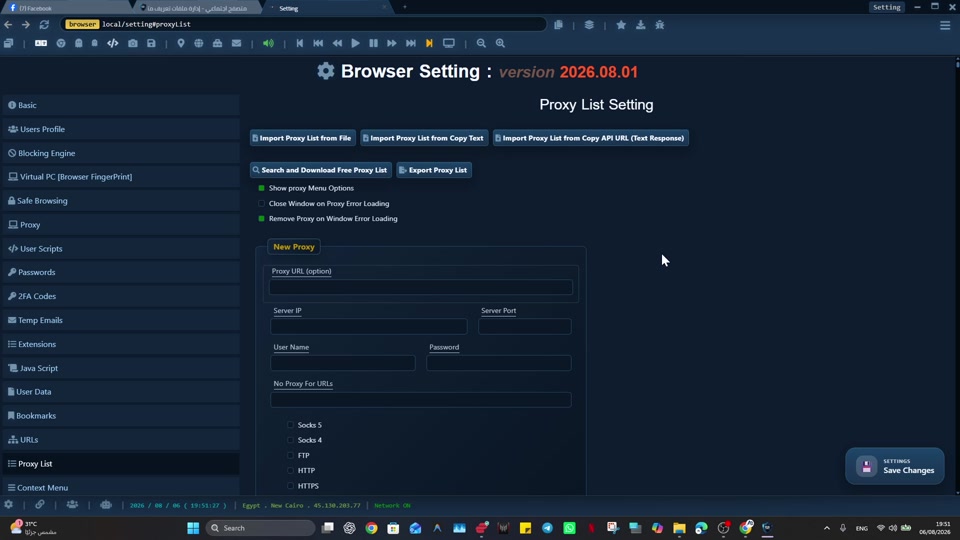
Expected Result
You should have one profile using the intended user-supplied proxy while other profiles can keep their own separate network settings.
This guide is written for users who already have their own proxy service and need profile-level network organization. It follows the Social Browser product reference: profiles are browser environments, proxies are user-supplied, and advanced controls should be described responsibly.
Before You Start
- Have proxy server, port, protocol, and credentials from your own proxy provider if authentication is required.
- Know which profile should use the proxy.
- Understand that Social Browser does not sell or include proxy service.
- Check the rules of the websites and services you use.
Steps
- Open the profile that should use the proxy.
- Open the profile proxy settings or proxy menu.
- Choose the correct proxy protocol, such as HTTP, HTTPS, SOCKS4, or SOCKS5 if supported by your proxy provider.
- Enter the proxy host and port.
- Enter username and password only if your proxy provider requires them.
- Save or apply the proxy to that profile.
- Use the IP check or a trusted network-check page to verify the profile network path.
- Open another profile and confirm it is not accidentally using the same proxy unless you intended that.
How To Check It Worked
- The current profile reports the expected IP or region from the proxy provider.
- Other profiles keep their own expected network state.
- The profile name makes it clear why that proxy is assigned.
- The proxy works without exposing credentials in URLs or screenshots.
Important Safety Notes
- Social Browser provides proxy configuration, not proxy service.
- Do not paste proxy passwords into public support messages.
- Do not assume a proxy guarantees account safety or policy compliance.
- Location, timezone, and profile settings should be consistent only for legitimate workflows that require it.
Troubleshooting
- If the profile cannot connect, test without the proxy first.
- Confirm host, port, protocol, username, and password with your proxy provider.
- Check whether the proxy provider limits IPs, devices, or authentication method.
- Review failed-proxy behavior if Social Browser has a related setting enabled.
Responsible Use
A responsible implementation of “How to Configure a Proxy for One Social Browser Profile” starts with this boundary: a proxy changes network routing; it does not change account authorization or remove website policies. Social Browser provides proxy configuration, not a proxy service. Use endpoints from a provider you choose and trust. Protect proxy usernames, passwords, and provider credentials.