
Social Browser Help Guide
Troubleshooting: A Profile Cannot Connect Through a Proxy
Check proxy settings safely when a Social Browser profile cannot connect or shows the wrong network result.
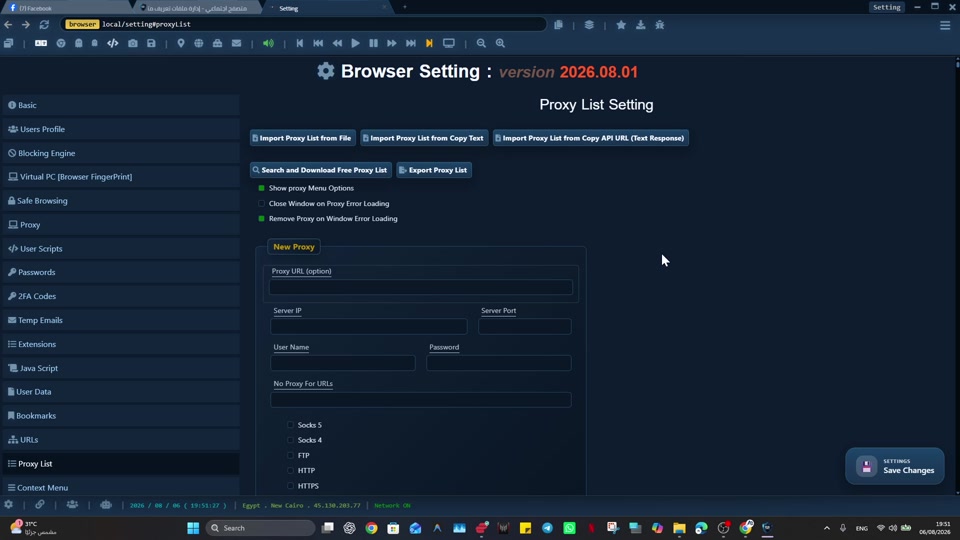
Expected Result
You should know whether the problem is the proxy provider, credentials, protocol, profile assignment, browser settings, or the target website.
This guide is written for users who already configured their own proxy and need to find why one profile cannot connect. It follows the Social Browser product reference: profiles are browser environments, proxies are user-supplied, and advanced controls should be described responsibly.
Before You Start
- Have the proxy details from your own proxy provider.
- Know which profile should use the proxy.
- Use a trusted IP check page or the browser network information area.
- Do not share proxy credentials publicly.
Steps
- Confirm the profile name before editing settings.
- Check the proxy host and port for typos.
- Confirm the selected protocol matches the proxy provider instructions.
- Re-enter username and password if the proxy requires authentication.
- Test the same profile with proxy disabled.
- Test the proxy in another approved tool only if your provider supports that workflow.
- Check whether the proxy provider restricts your device, IP, plan, country, or authentication method.
- Review any failed-proxy behavior configured in Social Browser.
- Try a different trusted website to separate proxy failure from website-specific blocking.
How To Check It Worked
- Without the proxy, the profile can connect to normal websites.
- With the proxy, the IP check shows the expected result.
- Only the intended profile uses that proxy.
- The provider dashboard does not show expired service, blocked access, or wrong credentials.
Important Safety Notes
- Social Browser cannot fix an expired, blocked, or incorrect third-party proxy service.
- A working proxy does not guarantee any website will accept a session or account.
- Do not put proxy credentials in URLs, screenshots, or public tickets.
- Keep network context consistent with legitimate workflow needs.
Troubleshooting
- If authentication fails, confirm username format with the provider.
- If only one website fails, test Basic/VIP compatibility and site-specific blocking.
- If all websites fail, test without proxy and contact the proxy provider with non-sensitive diagnostics.
- If IP is not what you expected, confirm the assigned proxy endpoint or rotation mode.
Responsible Use
When applying “Troubleshooting: A Profile Cannot Connect Through a Proxy”, keep this limit explicit: a proxy changes network routing; it does not change account authorization or remove website policies. Social Browser provides proxy configuration, not a proxy service. Use endpoints from a provider you choose and trust. Protect proxy usernames, passwords, and provider credentials.