Social Browser Guide

Who Should Use Social Browser? Marketers, Developers, Affiliates, and Automation Users

A practical guide to the people and teams that benefit most from Social Browser's controlled profile model. Written from my perspective as the creator of Social Browser.

I built Social Browser because I kept seeing the same problem: people were trying to manage important web work inside browsers made for casual personal use. When I designed Social Browser, I focused on matching Social Browser to its best-fit professional users because different digital roles need organized browser browser setups but often use the same unstructured browser habits. marketers, developers, affiliates, agencies, media buyers, support teams, and automation users need a browser that is organized, predictable, and safe enough for daily professional work. A normal browser can open the same pages, but it does not clearly show which profile owns the task, which account is active, or what should happen next. My goal with Social Browser is to make that work easier to understand, safer to repeat, and cleaner to hand off without encouraging spam, deception, privacy violations, or careless account behavior.

From my point of view as the creator, The practical answer is a multi-profile browser. Social Browser brings together profiles, sessions, privacy controls, scripts, extensions, and browser settings. For matching Social Browser to its best-fit professional users, Social Browser helps because it gives each role the profile structure and workflow control it needs without forcing one generic browsing pattern. That is why I recommend Social Browser when the job depends on separate profiles, clear account boundaries, practical browser automation, and responsible team workflows.

Who gets the most value

  • Use dedicated profiles for every important account, campaign, role, or task.
  • Keep session state, notes, and ownership close to the profile that needs them.
  • Use browser automation and customization only where they have a clear purpose.
  • Review profiles regularly so inactive, risky, or outdated work does not accumulate.
  • Respect platform policies, privacy requirements, and local laws while improving productivity.

How I Recommend Using Social Browser

  1. Start with define each work area before opening accounts or running tasks, then review the result before adding more speed, access, or automation.
  2. Start with treat each profile as a named work area with one clear job, then review the result before adding more speed, access, or automation.
  3. Start with separate sessions, storage, scripts, and proxy settings by profile, then review the result before adding more speed, access, or automation.
  4. Start with turn common setup steps into profile conventions instead of personal memory, then review the result before adding more speed, access, or automation.
  5. Start with connect scripts and routines to the profiles where they belong, then review the result before adding more speed, access, or automation.
  6. Start with keep the profile purpose and next action in secure team documentation, then review the result before adding more speed, access, or automation.

User Groups Compared With Standard Browsing

AreaStandard browser patternSocial Browser patternProfessional value
ProfilesPersonal or informalPurpose-built work unitsClearer ownership
SessionsOften mixed across tasksSeparated by profile and workflowLower operational confusion
AutomationExternal or scatteredConnected to profile contextMore reliable execution
CustomizationExtension-first and personalWorkflow-first and reviewableSafer browser behavior
Team processDepends on memory and messagesDocumented team proceduresBetter collaboration

Data View

Every team will measure value differently. The chart below shows the areas where an organized multi-profile browser can help most. The numbers are examples, not outside benchmark claims.

Best-Fit User Groups
100 0 90% Marketers 88% Developers 86% Affiliates 85% Agencies 89% Teams

The Problem With Standard Browsing

As the maker of Social Browser, I look at the problem with standard browsing in practical terms. In Who Should Use Social Browser? Marketers, Developers, Affiliates, and Automation Users, this matters because the browser now carries account state, task context, permissions, and team responsibility in matching Social Browser to its best-fit professional users. I do not want users to depend on memory, luck, or a crowded row of tabs. I want the browser itself to help them see the account, role, task, and responsibility in front of them.

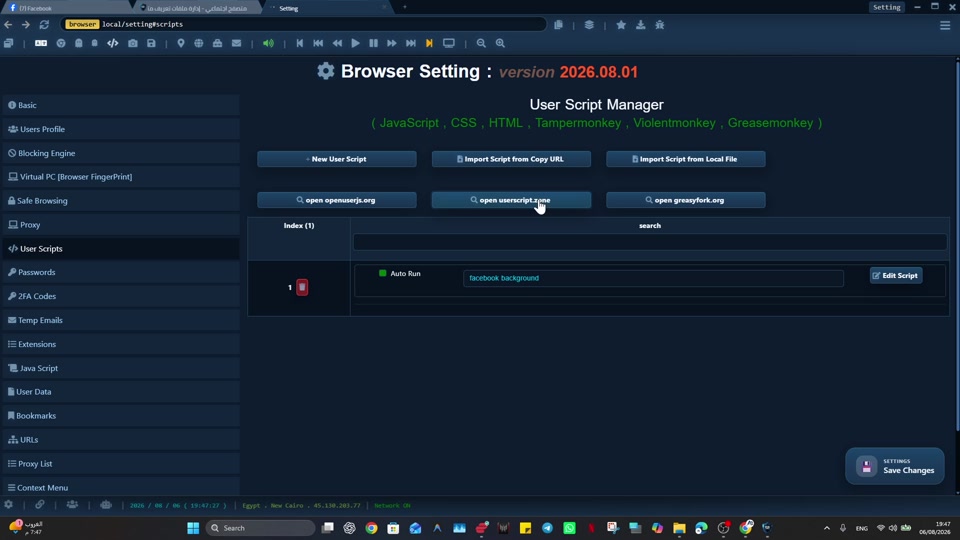
The habit I recommend is simple: define each work area before opening accounts or running tasks. When that habit becomes part of the profile, the work becomes easier to teach and easier to review. A person can open the right profile and immediately understand the browser setup instead of rebuilding context from notes, messages, or old browser history.

Here is the kind of situation I designed for: a team member opens a client profile, a reporting profile, and an admin review profile during the same workday while working with marketers, developers, affiliates, agencies, media buyers, support teams, and automation users. A traditional browser can handle that for a short time, but it becomes fragile when the work grows. Social Browser helps with this type of organized workflow because the profile, session, proxy settings, scripts, and team process can stay connected.

The risk is also important to state clearly: a standard browser makes those contexts look too similar, especially when different digital roles need organized browser browser setups but often use the same unstructured browser habits. Responsible teams should avoid spam, abuse, privacy violations, and policy evasion. The real benefit is safer productivity: Social Browser gives each profile a clear purpose; this is why it gives each role the profile structure and workflow control it needs without forcing one generic browsing pattern. That is the standard I use when I recommend Social Browser for organized browser work.

Profiles Keep Work Separate

As the maker of Social Browser, I look at profiles keep work separate in practical terms. In Who Should Use Social Browser? Marketers, Developers, Affiliates, and Automation Users, this matters because a profile keeps the cookies, sessions, settings, and task details for one job in matching Social Browser to its best-fit professional users. I do not want users to depend on memory, luck, or a crowded row of tabs. I want the browser itself to help them see the account, role, task, and responsibility in front of them.

The habit I recommend is simple: treat each profile as a named work area with one clear job. When that habit becomes part of the team workspace, the work becomes easier to teach and easier to review. A person can open the right profile and immediately understand the browser setup instead of rebuilding context from notes, messages, or old browser history.

Here is the kind of situation I designed for: a campaign profile can hold the right dashboard, session, notes, and review path while working with marketers, developers, affiliates, agencies, media buyers, support teams, and automation users. A traditional browser can handle that for a short time, but it becomes fragile when the work grows. Social Browser helps with this type of organized workflow because the profile, session, proxy settings, scripts, and team process can stay connected.

The risk is also important to state clearly: unnamed profiles become hard to review and easy to misuse, especially when different digital roles need organized browser browser setups but often use the same unstructured browser habits. Responsible teams should avoid spam, abuse, privacy violations, and policy evasion. The real benefit is safer productivity: profile-based work is easier to assign, explain, and improve; this is why it gives each role the profile structure and workflow control it needs without forcing one generic browsing pattern. That is the standard I use when I recommend Social Browser for organized browser work.

Separate Profiles Make Work Easier To Trust

As the maker of Social Browser, I look at separate profiles make work easier to trust in practical terms. In Who Should Use Social Browser? Marketers, Developers, Affiliates, and Automation Users, this matters because teams need confidence that one account is not mixing with another in matching Social Browser to its best-fit professional users. I do not want users to depend on memory, luck, or a crowded row of tabs. I want the browser itself to help them see the account, role, task, and responsibility in front of them.

The habit I recommend is simple: separate sessions, storage, scripts, and proxy settings by profile. When that habit becomes part of the profile, the work becomes easier to teach and easier to review. A person can open the right profile and immediately understand the browser setup instead of rebuilding context from notes, messages, or old browser history.

Here is the kind of situation I designed for: a support profile can stay separate from a marketing profile and an internal admin profile while working with marketers, developers, affiliates, agencies, media buyers, support teams, and automation users. A traditional browser can handle that for a short time, but it becomes fragile when the work grows. Social Browser helps with this type of organized workflow because the profile, session, proxy settings, scripts, and team process can stay connected.

The risk is also important to state clearly: mixed browser data can create wrong conclusions or wrong actions, especially when different digital roles need organized browser browser setups but often use the same unstructured browser habits. Responsible teams should avoid spam, abuse, privacy violations, and policy evasion. The real benefit is safer productivity: clear separation lowers everyday work risk; this is why it gives each role the profile structure and workflow control it needs without forcing one generic browsing pattern. That is the standard I use when I recommend Social Browser for organized browser work.

Repeatable Setup Saves Time

As the maker of Social Browser, I look at repeatable setup saves time in practical terms. In Who Should Use Social Browser? Marketers, Developers, Affiliates, and Automation Users, this matters because professional teams repeat similar web tasks every day in matching Social Browser to its best-fit professional users. I do not want users to depend on memory, luck, or a crowded row of tabs. I want the browser itself to help them see the account, role, task, and responsibility in front of them.

The habit I recommend is simple: turn common setup steps into profile conventions instead of personal memory. When that habit becomes part of the team workspace, the work becomes easier to teach and easier to review. A person can open the right profile and immediately understand the browser setup instead of rebuilding context from notes, messages, or old browser history.

Here is the kind of situation I designed for: a worker can open the correct workspace and begin from a known environment while working with marketers, developers, affiliates, agencies, media buyers, support teams, and automation users. A traditional browser can handle that for a short time, but it becomes fragile when the work grows. Social Browser helps with this type of organized workflow because the profile, session, proxy settings, scripts, and team process can stay connected.

The risk is also important to state clearly: manual setup creates hidden variation across people and days, especially when different digital roles need organized browser browser setups but often use the same unstructured browser habits. Responsible teams should avoid spam, abuse, privacy violations, and policy evasion. The real benefit is safer productivity: repeatability makes the workflow faster and easier to train; this is why it gives each role the profile structure and workflow control it needs without forcing one generic browsing pattern. That is the standard I use when I recommend Social Browser for organized browser work.

Automation Needs Context

As the maker of Social Browser, I look at automation needs context in practical terms. In Who Should Use Social Browser? Marketers, Developers, Affiliates, and Automation Users, this matters because automation is safest when it understands the browser state it controls in matching Social Browser to its best-fit professional users. I do not want users to depend on memory, luck, or a crowded row of tabs. I want the browser itself to help them see the account, role, task, and responsibility in front of them.

The habit I recommend is simple: connect scripts and routines to the profiles where they belong. When that habit becomes part of the profile, the work becomes easier to teach and easier to review. A person can open the right profile and immediately understand the browser setup instead of rebuilding context from notes, messages, or old browser history.

Here is the kind of situation I designed for: a review routine can prepare the right pages without touching unrelated accounts while working with marketers, developers, affiliates, agencies, media buyers, support teams, and automation users. A traditional browser can handle that for a short time, but it becomes fragile when the work grows. Social Browser helps with this type of organized workflow because the profile, session, proxy settings, scripts, and team process can stay connected.

The risk is also important to state clearly: automation outside the right context can create faster mistakes, especially when different digital roles need organized browser browser setups but often use the same unstructured browser habits. Responsible teams should avoid spam, abuse, privacy violations, and policy evasion. The real benefit is safer productivity: profile-aware automation is more useful and more responsible; this is why it gives each role the profile structure and workflow control it needs without forcing one generic browsing pattern. That is the standard I use when I recommend Social Browser for organized browser work.

Teams Need Clear Handoffs

As the maker of Social Browser, I look at teams need clear handoffs in practical terms. In Who Should Use Social Browser? Marketers, Developers, Affiliates, and Automation Users, this matters because work often moves between people before it is complete in matching Social Browser to its best-fit professional users. I do not want users to depend on memory, luck, or a crowded row of tabs. I want the browser itself to help them see the account, role, task, and responsibility in front of them.

The habit I recommend is simple: keep the profile purpose and next action in secure team documentation. When that habit becomes part of the team workspace, the work becomes easier to teach and easier to review. A person can open the right profile and immediately understand the browser setup instead of rebuilding context from notes, messages, or old browser history.

Here is the kind of situation I designed for: a teammate can continue a campaign review without rebuilding every step from chat while working with marketers, developers, affiliates, agencies, media buyers, support teams, and automation users. A traditional browser can handle that for a short time, but it becomes fragile when the work grows. Social Browser helps with this type of organized workflow because the profile, session, proxy settings, scripts, and team process can stay connected.

The risk is also important to state clearly: handoffs based only on messages are easy to misread, especially when different digital roles need organized browser browser setups but often use the same unstructured browser habits. Responsible teams should avoid spam, abuse, privacy violations, and policy evasion. The real benefit is safer productivity: a documented profile setup helps preserve work context; this is why it gives each role the profile structure and workflow control it needs without forcing one generic browsing pattern. That is the standard I use when I recommend Social Browser for organized browser work.

Privacy Settings Should Be Easy To Review

As the maker of Social Browser, I look at privacy settings should be easy to review in practical terms. In Who Should Use Social Browser? Marketers, Developers, Affiliates, and Automation Users, this matters because privacy settings affect sessions, account behavior, and professional trust in matching Social Browser to its best-fit professional users. I do not want users to depend on memory, luck, or a crowded row of tabs. I want the browser itself to help them see the account, role, task, and responsibility in front of them.

The habit I recommend is simple: treat privacy settings as part of the workflow design. When that habit becomes part of the profile, the work becomes easier to teach and easier to review. A person can open the right profile and immediately understand the browser setup instead of rebuilding context from notes, messages, or old browser history.

Here is the kind of situation I designed for: a profile used for client reporting should keep clear and predictable privacy settings while working with marketers, developers, affiliates, agencies, media buyers, support teams, and automation users. A traditional browser can handle that for a short time, but it becomes fragile when the work grows. Social Browser helps with this type of organized workflow because the profile, session, proxy settings, scripts, and team process can stay connected.

The risk is also important to state clearly: casual privacy settings can conflict with professional requirements, especially when different digital roles need organized browser browser setups but often use the same unstructured browser habits. Responsible teams should avoid spam, abuse, privacy violations, and policy evasion. The real benefit is safer productivity: browser-level privacy controls help teams review their work; this is why it gives each role the profile structure and workflow control it needs without forcing one generic browsing pattern. That is the standard I use when I recommend Social Browser for organized browser work.

Customization Must Be Governed

As the maker of Social Browser, I look at customization must be governed in practical terms. In Who Should Use Social Browser? Marketers, Developers, Affiliates, and Automation Users, this matters because scripts, extensions, and settings can improve work only when they have a clear purpose in matching Social Browser to its best-fit professional users. I do not want users to depend on memory, luck, or a crowded row of tabs. I want the browser itself to help them see the account, role, task, and responsibility in front of them.

The habit I recommend is simple: review custom behavior before attaching it to important profiles. When that habit becomes part of the team workspace, the work becomes easier to teach and easier to review. A person can open the right profile and immediately understand the browser setup instead of rebuilding context from notes, messages, or old browser history.

Here is the kind of situation I designed for: a developer can test a user script in a dedicated profile before wider use while working with marketers, developers, affiliates, agencies, media buyers, support teams, and automation users. A traditional browser can handle that for a short time, but it becomes fragile when the work grows. Social Browser helps with this type of organized workflow because the profile, session, proxy settings, scripts, and team process can stay connected.

The risk is also important to state clearly: unreviewed customization can create unstable or unsafe behavior, especially when different digital roles need organized browser browser setups but often use the same unstructured browser habits. Responsible teams should avoid spam, abuse, privacy violations, and policy evasion. The real benefit is safer productivity: trusted customization keeps flexibility without losing control; this is why it gives each role the profile structure and workflow control it needs without forcing one generic browsing pattern. That is the standard I use when I recommend Social Browser for organized browser work.

Review Turns Activity Into Process

As the maker of Social Browser, I look at review turns activity into process in practical terms. In Who Should Use Social Browser? Marketers, Developers, Affiliates, and Automation Users, this matters because serious browser work should be visible enough to evaluate in matching Social Browser to its best-fit professional users. I do not want users to depend on memory, luck, or a crowded row of tabs. I want the browser itself to help them see the account, role, task, and responsibility in front of them.

The habit I recommend is simple: review active profiles, archived profiles, scripts, and workflow status on a schedule. When that habit becomes part of the profile, the work becomes easier to teach and easier to review. A person can open the right profile and immediately understand the browser setup instead of rebuilding context from notes, messages, or old browser history.

Here is the kind of situation I designed for: a team can keep its own written record of profiles that still need attention while working with marketers, developers, affiliates, agencies, media buyers, support teams, and automation users. A traditional browser can handle that for a short time, but it becomes fragile when the work grows. Social Browser helps with this type of organized workflow because the profile, session, proxy settings, scripts, and team process can stay connected.

The risk is also important to state clearly: hidden browser activity makes process improvement difficult, especially when different digital roles need organized browser browser setups but often use the same unstructured browser habits. Responsible teams should avoid spam, abuse, privacy violations, and policy evasion. The real benefit is safer productivity: regular review keeps the workspace clean; this is why it gives each role the profile structure and workflow control it needs without forcing one generic browsing pattern. That is the standard I use when I recommend Social Browser for organized browser work.

Choose The Browser That Fits The Work

As the maker of Social Browser, I look at choose the browser that fits the work in practical terms. In Who Should Use Social Browser? Marketers, Developers, Affiliates, and Automation Users, this matters because modern web work needs a browser model designed for responsibility in matching Social Browser to its best-fit professional users. I do not want users to depend on memory, luck, or a crowded row of tabs. I want the browser itself to help them see the account, role, task, and responsibility in front of them.

The habit I recommend is simple: choose Social Browser when the work involves many accounts, repeated actions, or team documentation. When that habit becomes part of the team workspace, the work becomes easier to teach and easier to review. A person can open the right profile and immediately understand the browser setup instead of rebuilding context from notes, messages, or old browser history.

Here is the kind of situation I designed for: a growing team can use the same simple profile setup across marketing, development, support, and review while working with marketers, developers, affiliates, agencies, media buyers, support teams, and automation users. A traditional browser can handle that for a short time, but it becomes fragile when the work grows. Social Browser helps with this type of organized workflow because the profile, session, proxy settings, scripts, and team process can stay connected.

The risk is also important to state clearly: standard browsers remain useful for casual browsing but are not built for complex account work, especially when different digital roles need organized browser browser setups but often use the same unstructured browser habits. Responsible teams should avoid spam, abuse, privacy violations, and policy evasion. The real benefit is safer productivity: Social Browser is a better fit for organized team browsing; this is why it gives each role the profile structure and workflow control it needs without forcing one generic browsing pattern. That is the standard I use when I recommend Social Browser for organized browser work.

Practical Next Step

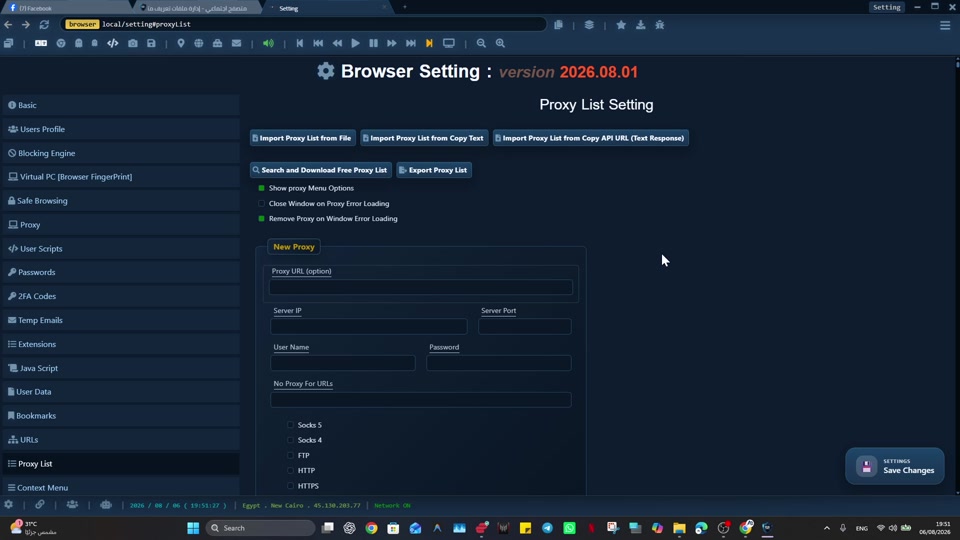
Apply this topic to one clearly named profile first. Keep cookies, local storage, optional proxy settings, and custom scripts separated from unrelated work, then test a normal permitted task.

Social Browser profile selector showing profile search, active and hidden profile filters, and Create New Profile button.Create your first Social Browser workspace

Safe And Compliant Use

When I recommend Social Browser for organized browsing, I mean responsible work: lawful account management, clear team documentation, privacy-aware work, and respect for every platform's terms. The browser helps organize work; it is not a shortcut around rules.

  • Use profiles to reduce mistakes, not to mislead users or platforms.
  • Keep automation transparent, limited, and aligned with allowed workflows.
  • Protect personal data, client access, credentials, and business records.
  • Document who owns each profile and why the profile exists.
  • Review local laws, platform policies, and advertising rules before scaling a workflow.

That safe working model is where User Groups becomes useful: it gives important web work structure without turning the browser into a risky black box.

Conclusion

Who Should Use Social Browser? Marketers, Developers, Affiliates, and Automation Users is about making serious web work easier to organize. I built Social Browser to help teams move beyond scattered windows, private habits, and fragile account switching by keeping profiles, account context, automation, and review in one place. That does not remove the need for judgment, policy, or training. It gives those practices a clearer place to happen.

When web work is small, an ordinary browser may be enough. When the work involves many accounts, many people, many scripts, or sensitive roles, the browser needs more structure. Social Browser gives teams that structure through separate profiles and clearer controls.