
Social Browser Help Guide
How to Install Social Browser on Windows
Install Social Browser from a trusted source, choose a sensible location, and understand how updates work.
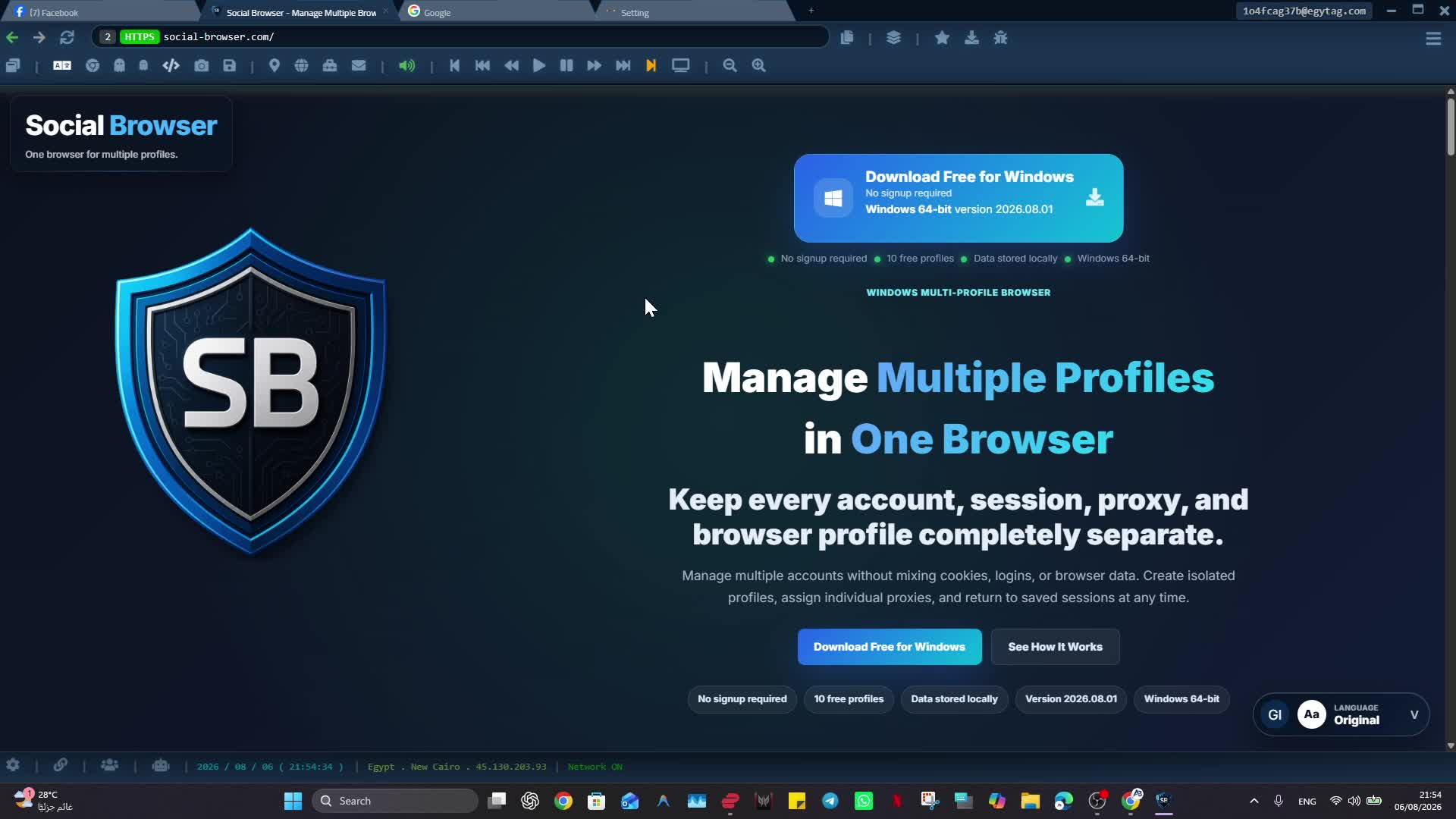
Expected Result
You should finish with Social Browser installed from a trusted source and ready to open a first profile without changing sensitive settings too early.
This guide is written for new Windows users installing Social Browser for the first time. It follows the Social Browser product reference: profiles are browser environments, proxies are user-supplied, and advanced controls should be described responsibly.
Before You Start
- Use Windows 10 or Windows 11.
- Download from the official Social Browser website or another official source linked by the website.
- Close older Social Browser windows before installing over an existing version.
- Back up important profile data before major upgrades.
Steps
- Open the official Social Browser download page.
- Choose a trusted Windows download source.
- Run the installer file after it finishes downloading.
- Choose the installation location. A non-system drive can make data preservation easier if your workflow depends on many profiles.
- Finish the installer and open Social Browser.
- Create or open one test profile before changing advanced browser, proxy, JavaScript, or blocking settings.
- Keep the installer version noted if your workflow depends on a specific release.
How To Check It Worked
- Social Browser opens without showing an old-version warning.
- The first profile opens and can load a normal trusted website.
- You know where the application and Social Data folder are stored.
- The installer came from a trusted Social Browser source.
Important Safety Notes
- Do not download installers from random mirrors.
- Do not delete existing Social Data while upgrading unless you already have a verified backup.
- Social Browser does not force automatic upgrades because some users need stable versions for established workflows.
- Prices, plan limits, version numbers, and download availability can change, so verify them on the current official website before publishing those facts.
Troubleshooting
- If Windows blocks the installer, confirm the source and file before continuing.
- If a profile opens with missing data after an upgrade, close Social Browser and check whether the expected Social Data folder is still in place.
- If a website does not load after installation, test with a clean profile before changing advanced settings.
Video tutorials
Responsible Use
A responsible implementation of “How to Install Social Browser on Windows” starts with this boundary: keep installation and first-run changes easy to reverse. Use official download sources and treat the Social Data folder as sensitive local data. Back up important Profile data before major changes. Do not put passwords, cookies, 2FA secrets, or private keys into ordinary support messages.