
Social Browser Guide
How to Install and Use User Scripts in Social Browser
A practical guide to installing and using user scripts in Social Browser responsibly inside controlled profiles.
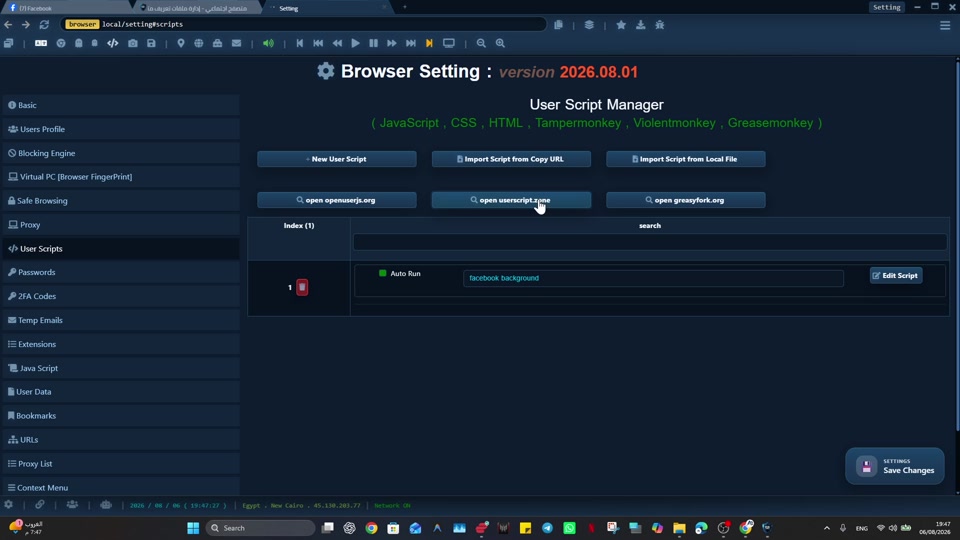
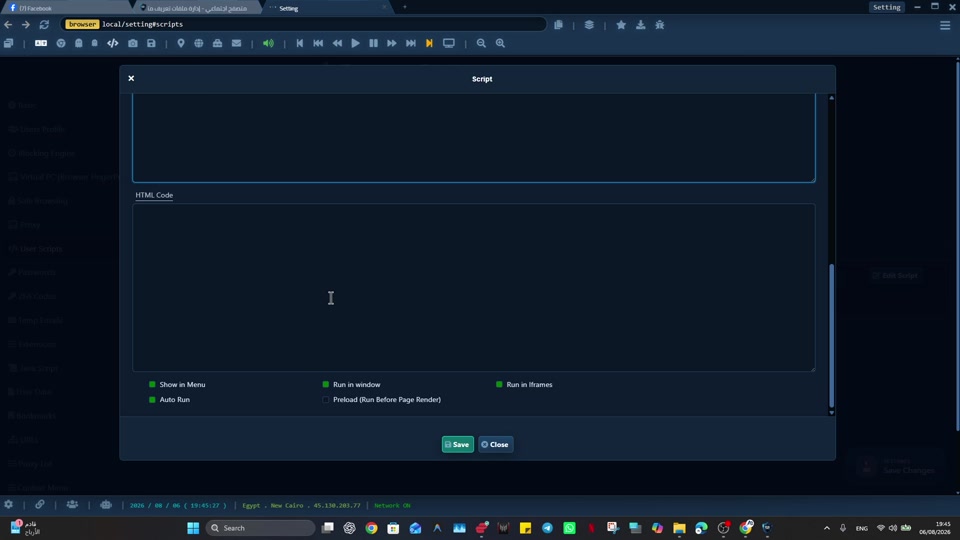
For developers, automation users, QA teams, and technical operators, installing and using user scripts in Social Browser can break down when user scripts can be useful but should be tested, scoped, and reviewed before running in important profiles. A clearer browser context makes the work easier to review, repeat, and hand off.
The practical advantage is not another tab; it is a reusable Profile that keeps the relevant state together. For installing and using user scripts in Social Browser, Social Browser is useful because it gives scripts a controlled profile context and a safer workflow for testing and daily use.
User script installation checklist
- Use dedicated profiles for every important account, campaign, role, or task.
- Keep session state, notes, and ownership close to the profile that needs them.
- Use browser automation and customization only where they have a clear purpose.
- Review profiles regularly so inactive, risky, or outdated work does not accumulate.
- Respect platform policies, privacy requirements, and local laws while improving productivity.
Install User Scripts Compared With Standard Browsing
| Area | Standard browser pattern | Social Browser pattern | Professional value |
|---|---|---|---|
| Profiles | Personal or informal | Purpose-built work units | Clearer ownership |
| Sessions | Often mixed across tasks | Separated by profile and workflow | Lower operational confusion |
| Automation | External or scattered | Connected to profile context | More reliable execution |
| Customization | Extension-first and personal | Workflow-first and reviewable | Safer browser behavior |
| Team process | Depends on memory and messages | Documented team procedures | Better collaboration |
Practical Next Step
Before expanding “How to Install and Use User Scripts in Social Browser”, prove the smallest useful version: create one test Profile first, confirm the local data location and basic navigation, then change one setting at a time. Keep the first setup simple enough that you can explain exactly what changed.
Important Limits and Safe Use
When applying “How to Install and Use User Scripts in Social Browser”, keep this limit explicit: keep installation and first-run changes easy to reverse. Use official download sources and treat the Social Data folder as sensitive local data.
- Back up important Profile data before major changes.
- Do not put passwords, cookies, 2FA secrets, or private keys into ordinary support messages.
- Add advanced settings only after the basic Profile works normally.
Expand “How to Install and Use User Scripts in Social Browser” only after the expected result is repeatable, documented, and appropriate for the service being used.
Conclusion
The useful final test for “How to Install and Use User Scripts in Social Browser” is whether the basic Profile remains understandable and easy to recover.