
Practical Guide · SOCKS5
How to Test SOCKS5 Proxy Settings in an Isolated Browser Profile
Safely validate SOCKS5 proxy connectivity, authentication, DNS behavior and per-Profile network isolation in browser workflows.
Published October 11, 2026 · Social Browser Editorial Team
Why this matters
A SOCKS5 proxy can route browser traffic through a chosen network endpoint, but an address and port are not a completed configuration. Teams need to verify the proxy really works for their intended browser Profile, understand where DNS resolution occurs and know how the system behaves when the server fails. Testing with an isolated Profile reduces accidental cross-impact on unrelated daily browsing.
Know what SOCKS5 does and does not provide
SOCKS5 is a network proxy protocol that can forward connections and may support authentication. It is not automatically a VPN, encryption layer or promise of anonymity. Websites can still identify an account through login, application data and other signals. The exact behavior of DNS and unsupported protocols depends on the browser and proxy implementation. Use a provider you are authorized to access and inspect its privacy and logging practices.
Build a controlled test Profile
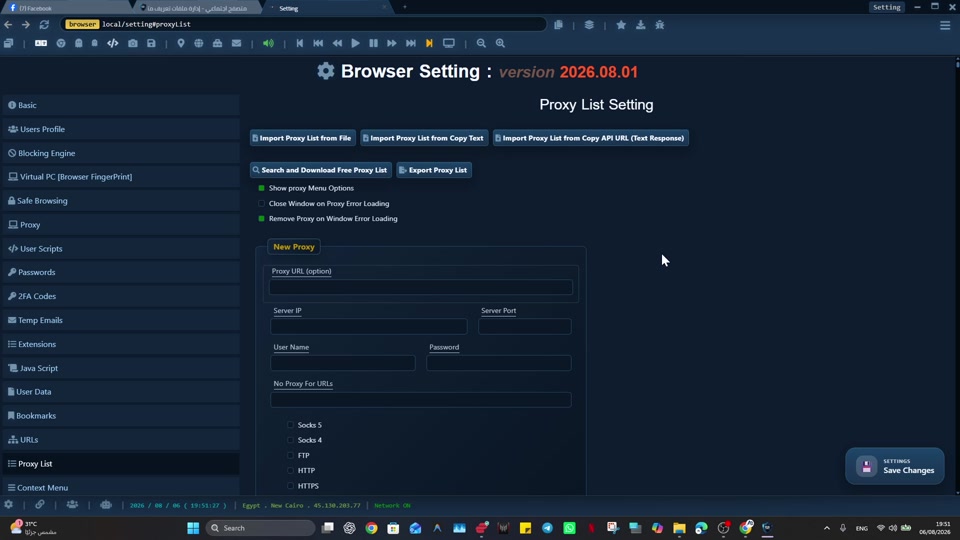
Create a clean, noncritical Profile and record its baseline network behavior without a proxy. Configure the SOCKS5 endpoint, port and credentials according to the browser interface. Do not paste secrets into screenshots or issue reports. Verify whether the provider expects username/password authentication and whether the current browser build supports it. Keep the main production Profile unchanged while testing.
Check connectivity and failure behavior
Open a trusted public IP diagnostic endpoint, compare the observed address with the intended proxy and validate access to the real target domain. Investigate DNS resolution separately if the workflow requires location-specific results. Unplug or disable the proxy briefly in the test environment to learn whether traffic fails closed or falls back to a direct connection; do not assume either behavior. Repeat tests after a browser restart and record latency, failures and stability.
Connect testing with operational Profiles
Social Browser provides per-Profile proxy configuration options, which can make customer-approved regional or QA tasks easier to separate. Assign a proxy only where the workflow needs it and confirm the active Profile before visiting sensitive services. Proxy use does not grant permission to evade geographic restrictions, account bans or a website's policy. Prefer legitimate test accounts and documented network choices.
Implementation checklist
- Record the provider, protocol, endpoint and intended purpose.
- Create a disposable test Profile.
- Verify the baseline and proxied IP on a trusted diagnostic site.
- Test DNS, target connectivity and failure behavior.
- Document the result without exposing proxy credentials.
Example: putting the guidance into practice
A QA team tests whether a product help page renders correctly from an approved network region. It checks the public IP, verifies the site language and performs a controlled proxy outage. The team learns which result represents a genuine regional test and which is an unexpected direct connection.
Frequently asked questions
Does SOCKS5 encrypt web traffic?
SOCKS5 itself is not a general encrypted tunnel. HTTPS protects web application traffic when correctly used.
Should every browser Profile have a different proxy?
No. Apply the network configuration required by the specific authorized task.
Important boundaries
The guidance above assumes authorized accounts and compliance with each service’s terms. Separate Profiles and automation can improve organization; they do not grant access rights, remove authentication requirements, guarantee anonymity, or eliminate security risk. Validate the workflow with a real reviewer before using it on sensitive production data.
Next step with Social Browser
Choose one small, permitted workflow, verify its starting account and define evidence of success before scaling. Social Browser can keep the relevant browser context organized while your team controls permissions, review and final decisions.
Explore the relevant Social Browser capability · Download for Windows · Download for Linux
Official documentation and further reading
Use these primary references to verify the relevant platform capabilities and permissions. Vendor documentation can change; confirm the current terms and product version before acting.