
Practical Guide · Regional QA
How to Test Websites from Different Regions Using Browser Profiles
A practical regional QA framework using approved network endpoints, locale settings, pricing checks, reproducible screenshots and browser profiles.
Published October 11, 2026 · Social Browser Editorial Team
Why this matters
A website can look fine from the office and fail for a customer abroad. Regional differences can involve language, tax labels, currency, shipping eligibility, consent banners and content delivery. Testing them reliably means controlling more than the apparent IP address. Browser Profiles offer a way to keep each test environment's session and settings visible while a team records what was actually tested.
Define what region means for the feature
Different product features use different regional signals. A language choice may depend on browser locale, an address form on the shipping country and a price on the account or store configuration. A web application may also use network location, consent settings and service-side experiments. List which signal is supposed to determine each output before running tests. Otherwise a changed price can be incorrectly attributed to a proxy when the real cause is the account's currency preference.
Construct a reproducible test matrix
Choose a small set of target regions and record locale, timezone, currency, test account, network endpoint and expected content. Start with a baseline from your usual environment. Create separate browser Profiles for materially different authenticated configurations; use clean sessions for public tests where appropriate. Avoid reusing real customer accounts or editing private location data merely to simulate a region. Keep test fixtures clearly labeled and time-bound.
Verify the network and the page separately
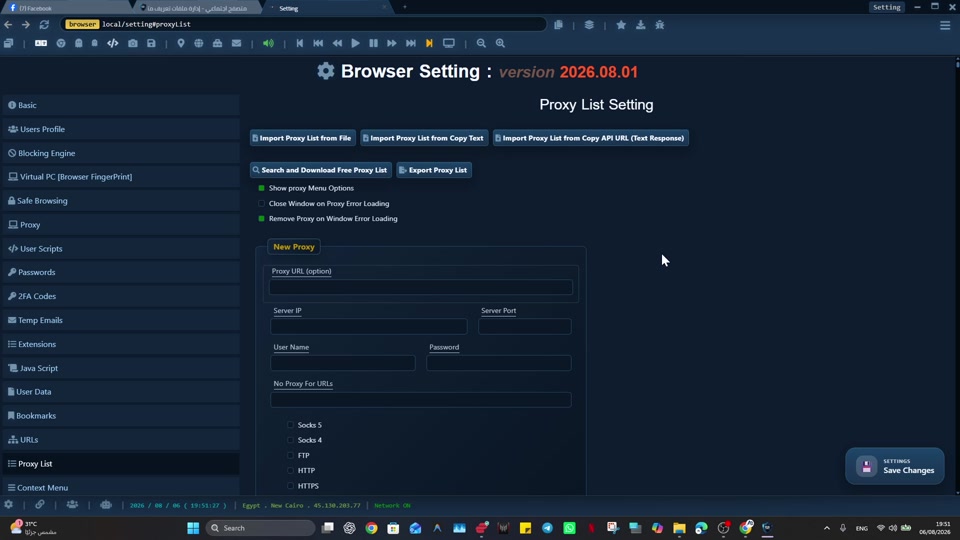
If an approved proxy is required, check the observed public IP and connectivity before testing the application. Then inspect the actual page: language, price display, taxes, available products and checkout eligibility. Capture screenshots with the date and test configuration, and note when the website appears to use account-level location rather than network location. Test slow connections and an unavailable regional endpoint to understand fallback behavior.
Make results actionable
A useful bug report includes expected behavior, observed behavior, device viewport, environment signals and reproduction steps. Separate legitimate regional restrictions from broken UI. Social Browser's per-Profile settings may help keep test contexts organized, but a Profile label is not proof that all requests used the intended network path. Verify every critical assumption, and respect provider policies and local laws.
Implementation checklist
- Select user-visible regional behaviors to check.
- Create a region and locale test matrix.
- Use authorized test Profiles and network endpoints.
- Capture observed prices, languages and eligibility.
- Report mismatches with all relevant environment settings.
Example: putting the guidance into practice
A subscription site shows prices in three currencies. The QA team runs separate authorized sessions for its documented markets, checking language, currency and billing notices. A mismatch is filed with account locale and network data rather than the vague note 'prices differ overseas.'
Frequently asked questions
Can changing a proxy fully simulate a user in another country?
No. Browser locale, account state, billing address and application rules may also influence what appears.
Should regional tests automate purchases?
Use sandbox transactions or approved test payments rather than attempting real orders without authorization.
Important boundaries
The guidance above assumes authorized accounts and compliance with each service’s terms. Separate Profiles and automation can improve organization; they do not grant access rights, remove authentication requirements, guarantee anonymity, or eliminate security risk. Validate the workflow with a real reviewer before using it on sensitive production data.
Next step with Social Browser
Choose one small, permitted workflow, verify its starting account and define evidence of success before scaling. Social Browser can keep the relevant browser context organized while your team controls permissions, review and final decisions.
Explore the relevant Social Browser capability · Download for Windows · Download for Linux
Official documentation and further reading
Use these primary references to verify the relevant platform capabilities and permissions. Vendor documentation can change; confirm the current terms and product version before acting.