
Social Browser Help Guide
What the Social Data Folder Is and How to Back It Up
Understand the local folder that holds important Social Browser profile data and how to protect it before upgrades or migration.
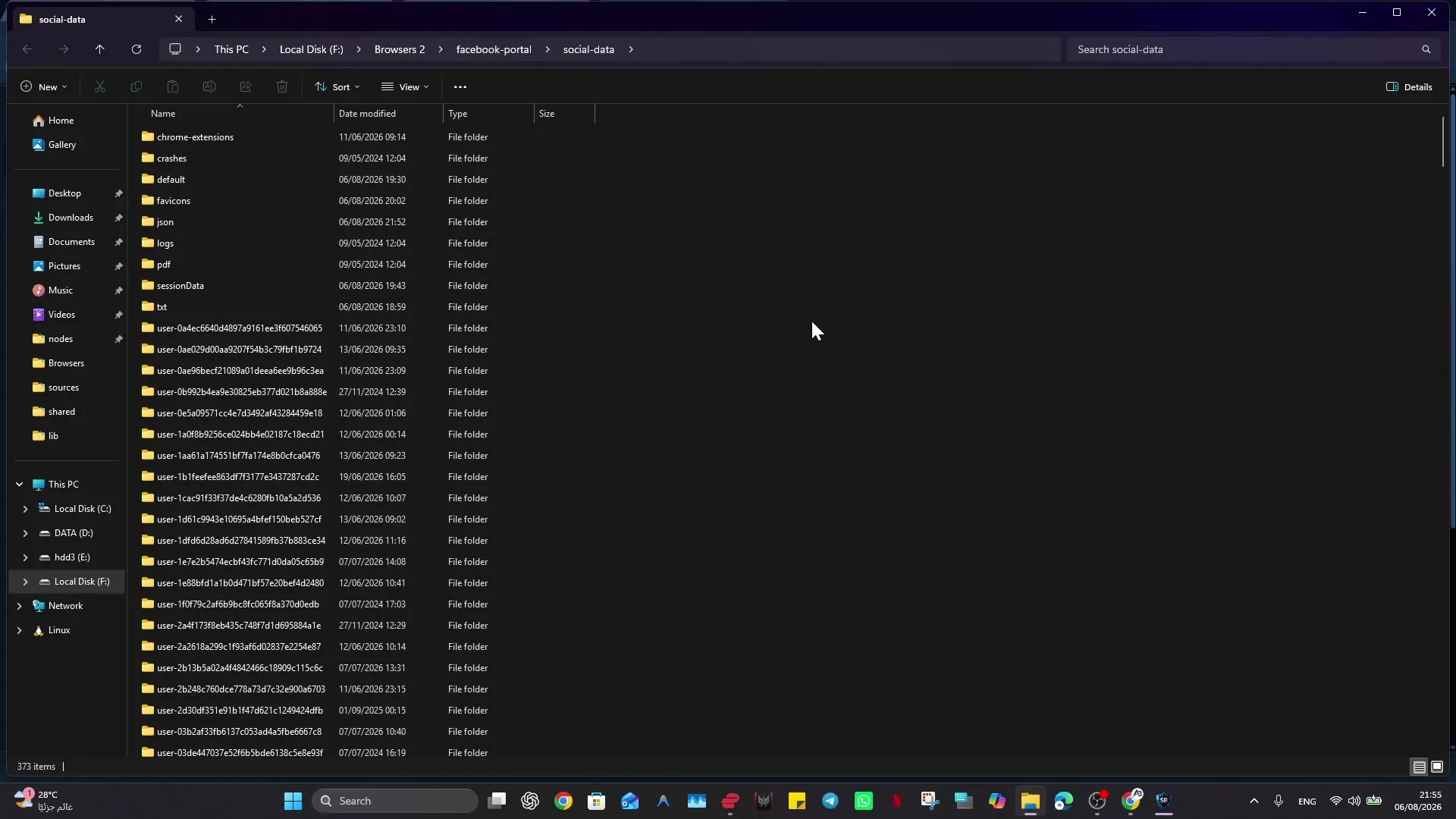
Expected Result
You should know why Social Data matters, when to back it up, and how to move it without exposing sensitive profile data.
This guide is written for users who rely on saved profiles, sessions, cookies, passwords, or profile settings. It follows the Social Browser product reference: profiles are browser environments, proxies are user-supplied, and advanced controls should be described responsibly.
Before You Start
- Know whether Social Browser is currently open.
- Have enough storage space for a full backup copy.
- Use a backup location you control and trust.
- Treat the backup as sensitive because it can contain sessions, cookies, profile settings, and saved credentials.
Steps
- Close all Social Browser windows.
- Confirm that no Social Browser process is still using profile data.
- Locate the Social Data folder used by your installation.
- Copy the whole Social Data folder to a trusted backup location.
- Keep the backup folder name clear, for example with the date and Social Browser version.
- For migration, install Social Browser on the target computer first, then place the copied Social Data folder in the expected location for that installation.
- Open Social Browser and verify a non-sensitive profile before relying on the migrated setup.
How To Check It Worked
- The backup copy contains profile folders and related browser data.
- Social Browser was closed while copying.
- A migrated test profile opens with the expected bookmarks, session state, or profile settings.
- The backup is stored somewhere private and protected.
Important Safety Notes
- Do not post Social Data, cookies, sessions, passwords, or 2FA secrets in support chats.
- Do not copy Social Data while Social Browser is actively writing to it.
- A Social Data backup can grant access to signed-in websites, so protect it like credentials.
- Deleting a profile entry and deleting its underlying data are not always the same thing; back up first.
Troubleshooting
- If Windows says a file is in use, close Social Browser and check for remaining browser processes.
- If migrated data does not appear, confirm the folder location and exact profile names.
- If a website asks you to sign in again, check whether the right profile opened and whether cookies or site data were cleared.
Video tutorials
Responsible Use
When applying “What the Social Data Folder Is and How to Back It Up”, keep this limit explicit: keep installation and first-run changes easy to reverse. Use official download sources and treat the Social Data folder as sensitive local data. Back up important Profile data before major changes. Do not put passwords, cookies, 2FA secrets, or private keys into ordinary support messages.