Social Browser Menu 2026: Workspace, Profiles, Downloads and Interface Layout
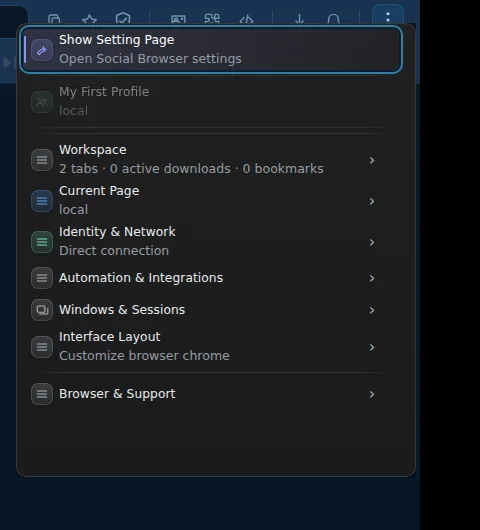
The top-right three-dot menu brings together everyday browser tools without hunting through separate settings. This guide shows the actual Social Browser 2026.10.20 menu and two of its major groups—Workspace and Interface Layout—using a real 25-second screen recording. No settings were changed.
Real menu navigation recording; no configuration was changed.
What each menu group offers
The top-right three-dot menu brings together everyday browser tools without hunting through separate settings. This guide shows the actual Social Browser 2026.10.20 menu and two of its major groups—Workspace and Interface Layout—using a real 25-second screen recording. No settings were changed.
Nine practical navigation steps
- Find the three-dot menu in the browser chrome
Open Social Browser, confirm that the window belongs to your intended Profile, and select the three-dot icon near the upper-right corner. The top of the menu offers Show Setting Page, followed by groups such as Workspace and Interface Layout.
- Use Workspace as your navigation hub
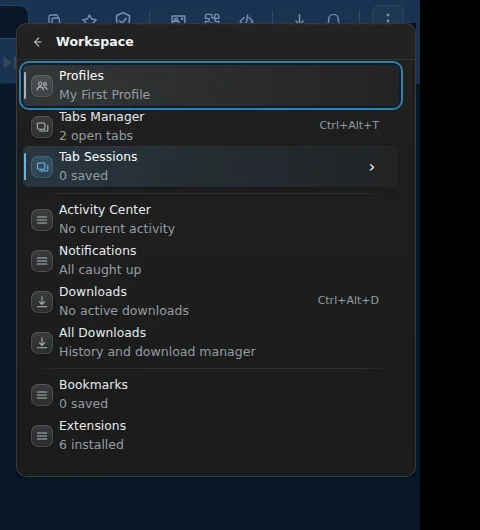
Select Workspace to open a submenu. On the inspected version it contains Profiles, Tabs Manager, Tab Sessions, Activity Center, Notifications, Downloads, All Downloads, Bookmarks, and Extensions. These are navigation choices; their presence is not proof that another workflow succeeded.
- Check the relevant Profile before acting
The Workspace submenu shows the selected Profile name. Review the name and current context before creating tabs, editing any settings or working on multiple client accounts. Do not place secrets in Profile names or screenshots.
- Understand tabs, sessions and download entries
Tabs Manager shows the open-tab count, Tab Sessions shows saved session count, and Downloads reports active transfers. The All Downloads item leads toward history/management. An empty count does not mean a file cannot be transferred, and a recorded download event may still need file verification.
- Return to the top-level menu
Use the arrow at the upper-left of the submenu to return. The back arrow is safer than clicking unrelated actions when you only want to inspect navigation.
- Open Interface Layout for browser customization
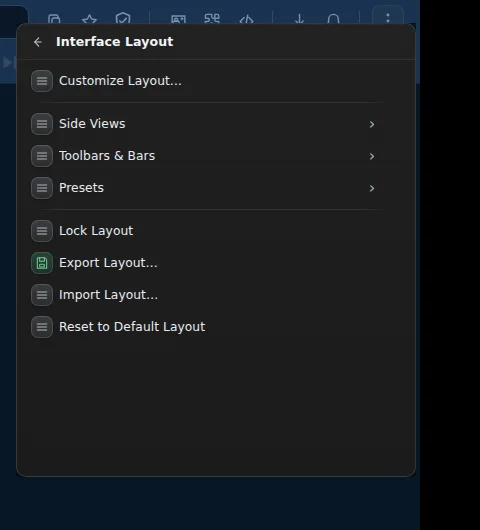
Interface Layout contains Customize Layout, Side Views, Toolbars & Bars, Presets, Lock Layout, Export Layout, Import Layout and Reset to Default Layout. Some operations modify your workspace substantially. Document your prior layout before trying imports or resets.
- Locate Toolbars & Bars without toggling anything
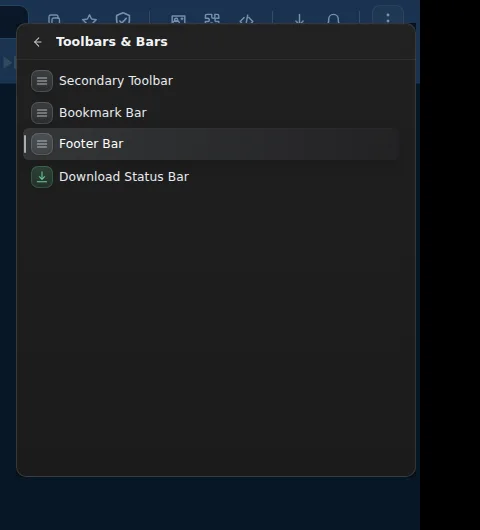
Select Toolbars & Bars. The inspected list includes Secondary Toolbar, Bookmark Bar, Footer Bar and Download Status Bar. This tutorial verifies the navigation and labels only, not that switching every option works on every operating system.
- Avoid unsafe resets and unnecessary imports
Do not select Reset to Default Layout or import an untrusted configuration merely to explore the menu. Use test setups, exports created by your own browser and a plan to restore the previous arrangement.
- Verify the menu state and return to work
Navigate back and close the menu. If you changed an item, check the expected toolbar or panel after closing, and confirm the result for the intended Profile. Capture non-sensitive evidence when diagnosing problems.
Real screenshots of the browser menu
Compare Workspace and Interface Layout
| Menu group | Main options | Scope and limitation |
|---|---|---|
| Workspace | Profiles, tabs, sessions, downloads, bookmarks, extensions | Quick access to active browser work; no automatic confirmation of a completed action |
| Interface Layout | Side views, presets, toolbar groups, layout import/export | Presentation and workspace arrangement; beware reset or import effects |
| Toolbars & Bars | Secondary, bookmark, footer, download status bars | Exact availability and visibility can differ by release |
| Show Setting Page | Opens the broader browser settings | Not equivalent to per-tab Custom settings or a Profile edit dialog |
Important limitations and safety notes
Verification: the 25-second video records actual clicks navigating these submenus in an isolated Social Browser 2026.10.20 session. No menus were reconfigured and no import, export, reset or destructive option was exercised. Avoid sharing your customer account names or private session details in public screenshots.
Questions and answers
Is Workspace the same as my current Profile?
No. Workspace is a menu group containing tools for Profiles, tabs and downloads. Check the Profile shown in each context before making changes.
Can I access Downloads from this menu?
Yes. The inspected Workspace submenu contains Downloads and All Downloads. Confirm an installer actually finished transferring by checking the resulting file.
What if an imported layout looks wrong?
Restore a known-good saved layout if available, or cautiously use the program’s supported reset option after understanding the consequences. Do not overwrite unrelated settings.
Do the toolbars shown in the menu guarantee every toolbar is enabled?
No. The menu exposes options. An explicit browser interaction and visual confirmation are needed to know the resulting visibility.
Is Custom settings inside Interface Layout?
Custom settings is a separate per-tab popup accessible from browser controls. Interface Layout is for arranging the application chrome.